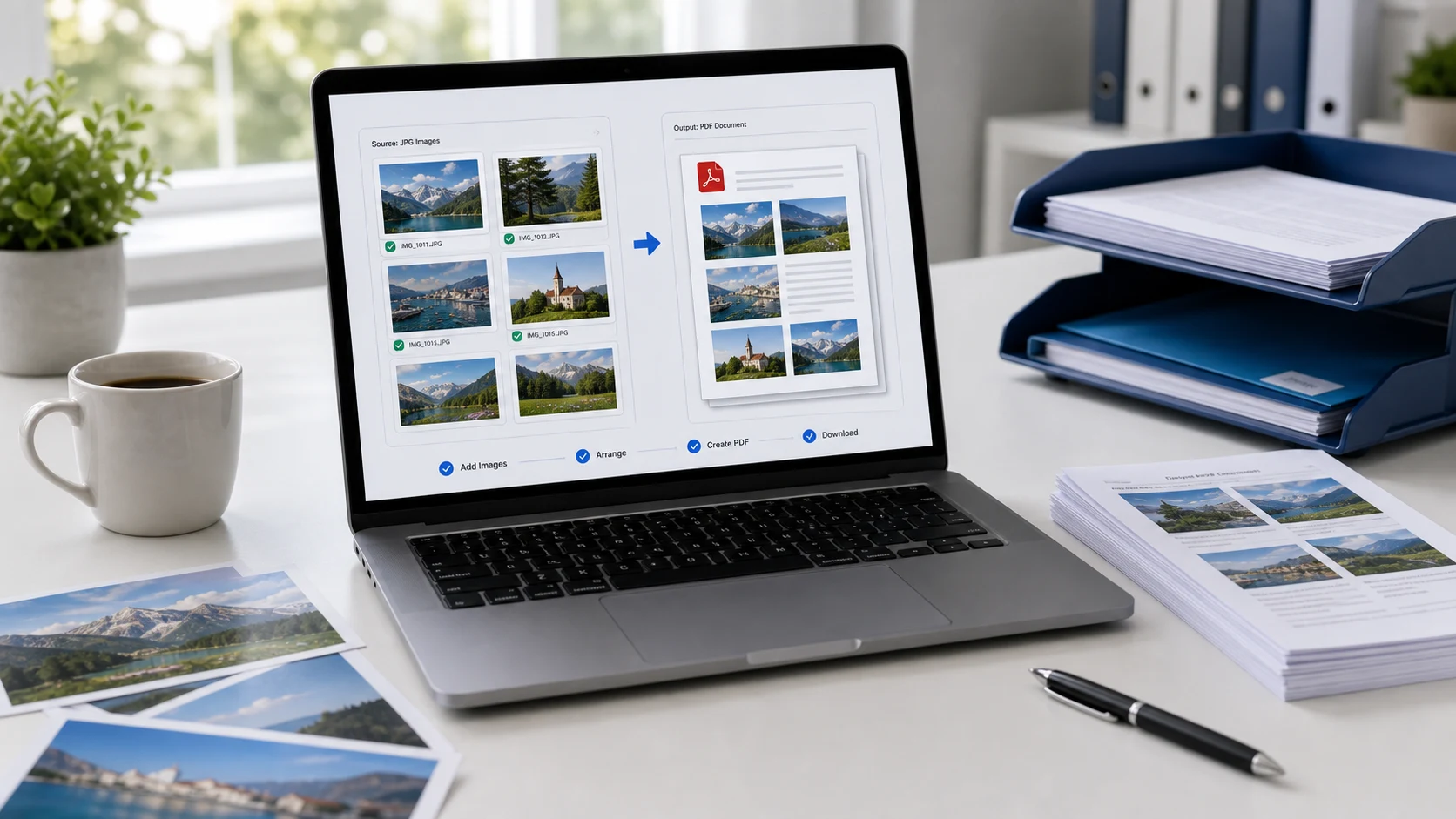
To convert JPG to PDF, add the images to a JPG to PDF converter, put them in order and save one PDF. On Windows, you can also select the images, choose Print and pick Microsoft Print to PDF. On a Mac, open them in Preview and export or print to PDF. Phones have built-in options too.
This guide covers each method, how to turn several photos into one PDF in the right order, and how to get a JPG to PDF file under 100 KB for upload forms.
How to convert JPG to PDF online in your browser
A browser tool is the quickest route when you have several photos, a mix of formats, or a size limit. The ConvertorLab JPG to PDF tool runs inside the browser tab, so your files stay on your device and nothing is uploaded.
- Open the tool and add your JPG files. PNG and iPhone HEIC photos work too.
- Drag the thumbnails into the order you want the pages to appear.
- Choose a page size: A4, Letter, Legal, or fit each page to its image.
- Set margins if you want white space around each picture.
- If a form has an upload limit, enter a maximum PDF size.
- Create the PDF and download it.
Fit-to-image pages suit photos you just want to share. A4 or Letter makes more sense for anything that might be printed, like a signed form you photographed or a receipt for an expense claim. The same steps work on Windows, Mac, Chromebook, iPhone and Android, since everything happens in the browser.
How to convert JPG to PDF on Windows 11
Windows includes a virtual printer called Microsoft Print to PDF. Anything you can print, you can save as a PDF file. For images, File Explorer is the easiest place to start.
- Put the images in one folder. Rename them 01, 02, 03 if the order matters, because File Explorer sorts by name most predictably.
- Select the images. Press Ctrl+A for all, or hold Ctrl and click the ones you want.
- Right-click the selection and choose Print. If you don't see it, click Show more options first.
- In the Print Pictures window, set the printer to Microsoft Print to PDF.
- Pick a paper size and a layout. Full page photo puts one image on each page.
- Click Print, name the file, choose a folder and click Save.
Two things trip people up. The layout can crop the edges of a photo to fill the page, so check the preview. Page order also follows File Explorer's sort, which isn't always what you expect. Open the PDF and scroll through it once.
For a single image, you can also open it in the Photos app, press Ctrl+P, and pick Microsoft Print to PDF as the printer.
How to convert JPG to PDF on a Mac
macOS gives you two free ways to do it: Preview and Finder.
One image in Preview
- Open the JPG in Preview.
- Choose File > Export.
- Click the Format pop-up menu and choose PDF.
- Name the file and click Save.
Several images into one PDF
The fastest way is Finder. Select the images in the order you want them, Control-click the selection, and choose Quick Actions > Create PDF. The PDF follows your selection order and lands in the same folder.
If you want to check each page first, use Preview instead:
- Select all the images in Finder, Control-click and choose Open With > Preview.
- Show the sidebar thumbnails and drag them into order. Rotate any that are sideways.
- Choose File > Print (Command-P) and make sure all pages are included.
- Open the PDF menu at the bottom left and choose Save as PDF.
The print route also lets you set paper size and scaling, which helps when a page must be exactly A4 or Letter.
How to convert JPG to PDF in mobile
On an iPhone, save the photos to the Files app, tap the More button, tap Select, pick the images in order, then tap the More button again and choose Create PDF. For one image, press and hold it and tap Quick Actions > Create PDF.
On Android, open the photo in your gallery app, choose Print from the menu, and set the printer to Save as PDF. Menu names vary between phone brands. The browser tool above also runs on phones and is easier for several pages.
The full walkthrough for both phones, including scanning paper documents, is in the guide on how to make a PDF in mobile.
How to make a JPG to PDF under 100 KB
Exam, scholarship and job portals often cap PDF uploads at 100 KB, 200 KB or similar. Phone photos are several megabytes each, so a straight conversion is usually far over the limit. Here's what works:
- Set the maximum PDF size in the image to PDF tool before you create the file. It lowers image quality only as much as it needs to.
- If you already have the PDF, run it through Compress PDF to 100 KB.
- Crop each photo to the document before converting. Background table and floor space waste bytes.
- Use grayscale for text-only documents. Colour adds size without adding meaning.
- Keep only the pages the form asks for. Every extra page shares the same 100 KB budget.
Stay a little under the limit, around 95 KB for a 100 KB cap, because some portals count in 1,024-byte kilobytes. If the numbers confuse you, the KB to MB converter shows both ways of counting.
How to put photos to PDF in the right order
Page order and orientation cause more trouble than the conversion itself.
- Number the files before you start (01-front.jpg, 02-back.jpg). Every tool and OS sorts these correctly.
- Rotate sideways photos before converting, or fix pages afterwards with Organize PDF.
- Zoom in on small print. If the text is blurry in the JPG, it will be blurry in the PDF. Retake the photo in good light.
- Scroll through the finished PDF from start to end before you send it.
A PDF made from photos holds a picture of the text, so you can't search it or copy words from it without OCR software. For forms that ask for a "scanned copy", that's what they expect.
JPG or PDF: which should you upload?
If a site accepts both, a single JPG is fine for one photo, such as a profile picture or a signature. Choose PDF when the document has more than one page, when someone will print it, or when the form says PDF. A PDF keeps pages together, which beats attaching six separate images and hoping they're read in order.
JPG and JPEG are the same format, so a converter that says "JPEG to PDF" does the same job. If you already have several PDFs and need one file, merge them instead of converting everything again.
Free tools that run in your browser
Frequently asked questions
How do I convert a JPG to PDF for free?
On Windows, print the image to Microsoft Print to PDF. On a Mac, export it from Preview as PDF or use Quick Actions, Create PDF in Finder. A browser tool works on any device without an install.
How to convert JPG to PDF in mobile?
On iPhone, select the images in the Files app and tap Create PDF. On Android, open the photo, choose Print and set the printer to Save as PDF.
How do I combine several photos to PDF as one file?
Select all the images and print them to PDF on Windows or Mac, or add them to an image to PDF tool and drag them into order before saving.
How do I make a JPG to PDF file under 100 KB?
Set a maximum size of about 95 KB in the image to PDF tool, or compress the finished PDF to 100 KB. Cropping and grayscale help when there are several pages.
Will the text in my photo be searchable in the PDF?
No. The PDF holds an image of the text. You need OCR software to make it searchable.