Organize PDF Online

Use this PDF page organizer to rearrange PDF pages, rotate sideways scans, delete unwanted pages, duplicate useful pages, extract selected pages, and download a clean PDF from your browser.

Pages and download

Review every thumbnail before saving the organized PDF.

Good for

Privacy note: this organize PDF online tool runs in your browser with client-side PDF libraries where supported. Use it only for documents you have permission to edit, and review the downloaded PDF before sending it.

What is an organize PDF tool?

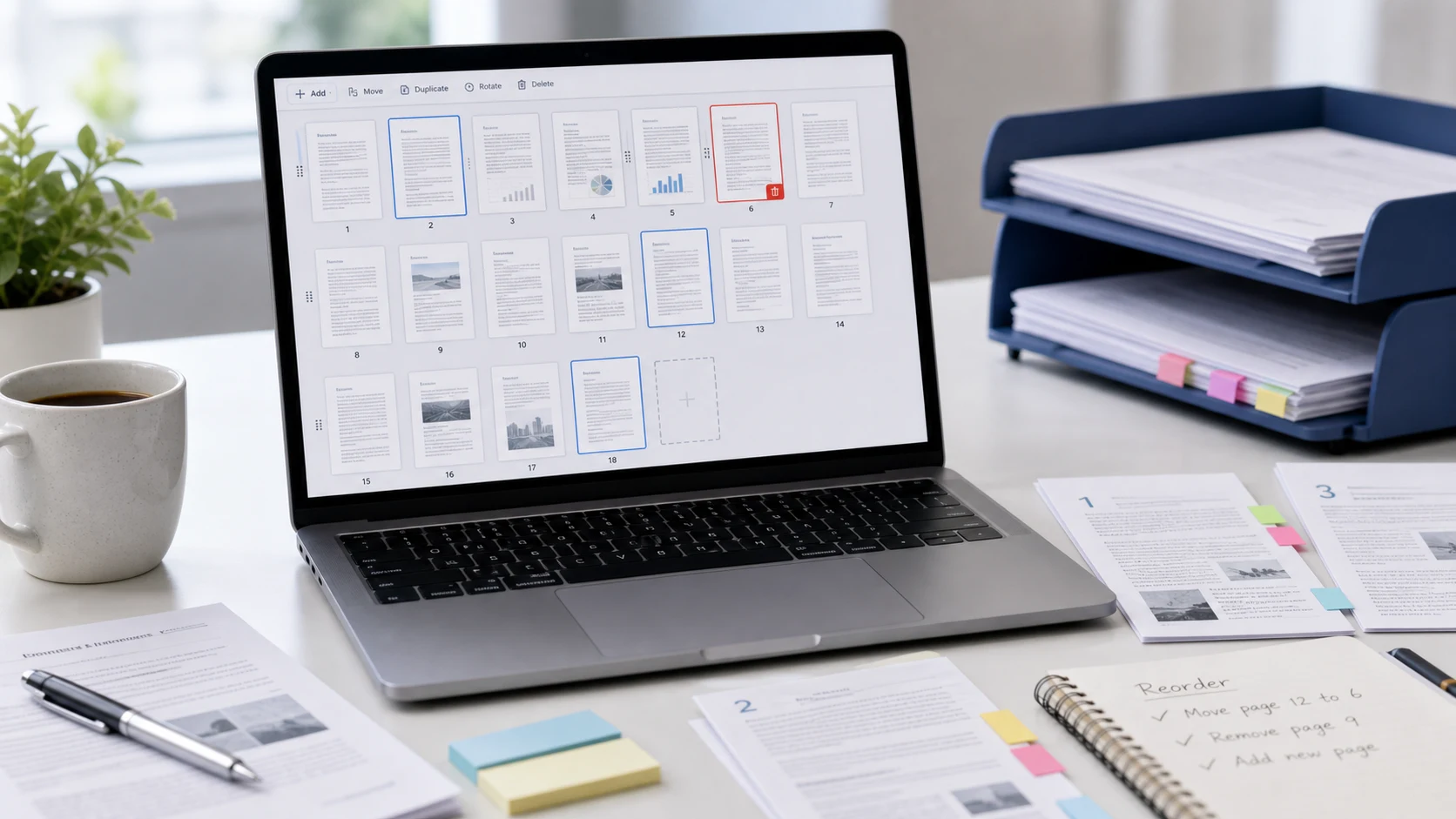
An organize PDF tool lets you change the structure of a PDF without rebuilding the document from scratch. Instead of opening a heavy editor just to move pages in a PDF, you can load the file, view page thumbnails, drag pages into the right order, rotate pages that were scanned sideways, delete pages you do not need, duplicate a useful page, or extract selected pages into a smaller PDF. People often search for an online PDF organizer when a form packet, scanned contract, school file, office report, or client document has the right pages but the wrong order. This page is designed for that practical workflow: organize PDF pages first, then download a clean file that is easier to upload, email, print, or share.

Example organize PDF workflow

If you scanned a document in mixed order or received a PDF with extra pages, use this flow to prepare a clean version before sending it.

InputA PDF from your device
Page workReorder, rotate, delete, duplicate, or extract selected pages
ReviewCheck thumbnails and page count before export
OutputOne organized PDF ready for upload or sharing

This example is about page order and cleanup. If the organized PDF is still too large for an upload portal, compress the PDF after you finish arranging the pages.

Common use cases

Features

  • Drag-and-drop page sorting for rearranging PDF pages.
  • Bulk select, rotate, duplicate, delete, reverse, and extract actions.
  • Page thumbnails so you can check the order visually before download.
  • Insert another PDF, an image, or a blank page where supported.

How to use this organizer

  1. Add a PDF file from your device.
  2. Wait for the page thumbnails to appear.
  3. Drag pages into the correct order or select pages for bulk actions.
  4. Download the organized PDF and open it once to confirm the result.

Benefits

  • Prepare upload-ready PDFs without installing desktop software.
  • Fix small page order problems before they become confusing for the recipient.
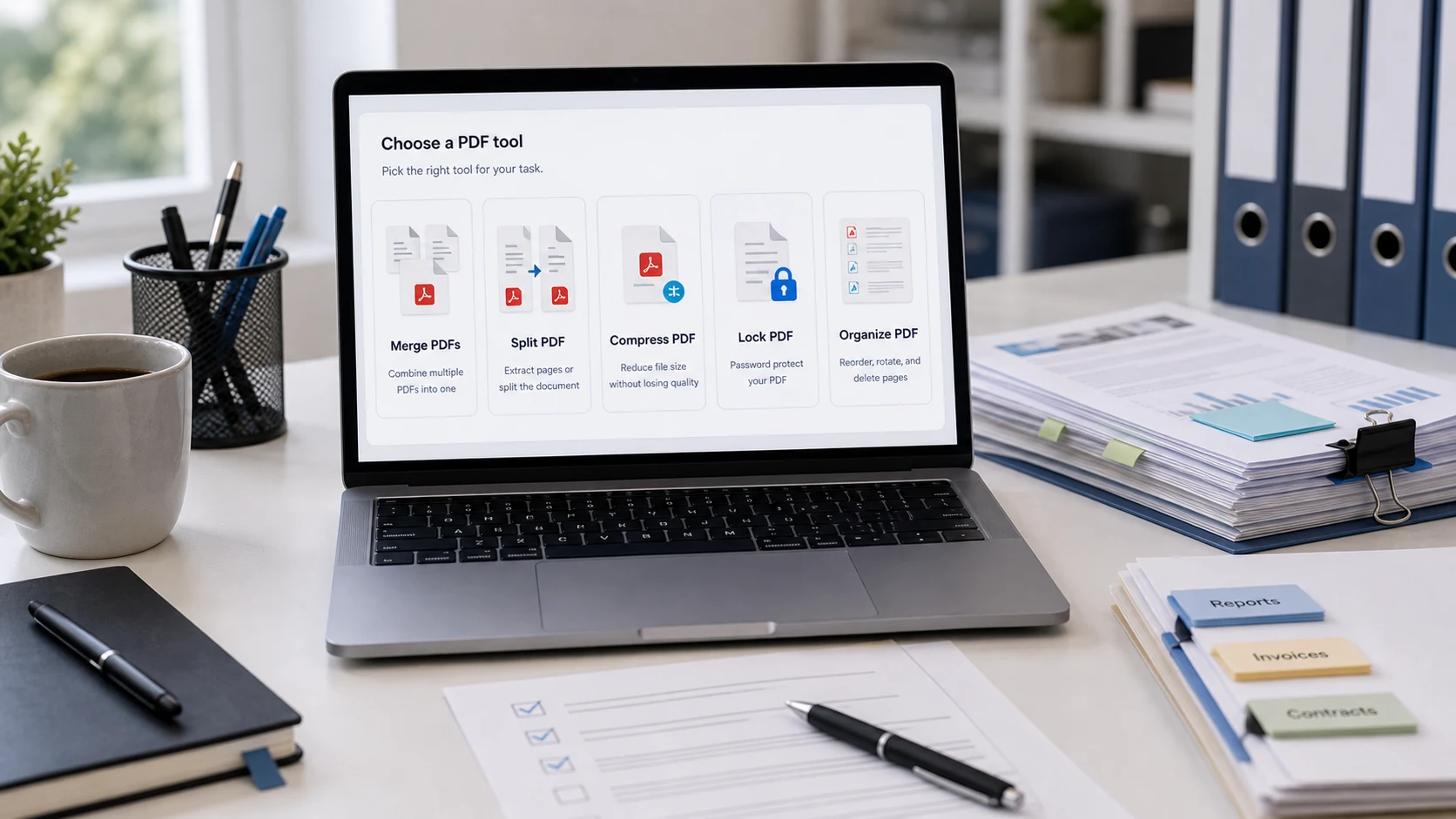
  • Keep related PDF cleanup tools close when you also need to merge, split, compress, or lock a file.

Organize PDF questions

How do I organize PDF pages online?

Add your PDF, review the page thumbnails, drag pages into a better order, rotate or remove pages when needed, then download the organized PDF.

Can I reorder PDF pages with drag and drop?

Yes. After the PDF loads, you can drag page cards to rearrange PDF pages before exporting the final file.

Can I delete unwanted PDF pages?

Yes. Select the pages you do not need and use Delete, or remove individual pages from the page card controls.

Can I rotate PDF pages before downloading?

Yes. Select one or more pages and rotate them, or use the Rotate button on a single page card.

Can I extract selected pages into a new PDF?

Yes. Select the pages you want and use Extract to create a new PDF with only those selected pages.

Can I add blank pages or images to a PDF?

The insert controls let you add another PDF, an image, or a blank page into the current page order where supported by the browser.

Will organizing a PDF reduce its file size?

Not always. Organizing changes page order and page selection. If your exported PDF is still too large, use a PDF compressor after organizing it.

Is this PDF page organizer private?

The organizer runs in your browser using client-side PDF libraries. Avoid using any online tool for documents you are not allowed to edit or share.

What should I check before sending the organized PDF?

Open the downloaded PDF and confirm page order, rotations, removed pages, form pages, signatures, and attachments before sending it.

Preparing PDF...