Split PDF Online

Split PDF files in your browser, extract selected pages, separate page ranges, or save every page as its own PDF. Add a document, choose the output style, and download the split PDFs individually or as one ZIP.

Import PDF

Add the PDF files you want to separate. Choose the split mode inside each PDF card after the page count loads.

Drag & drop PDF files here or

PDF only. Limits: max 200 files and max 1 GB total.

  • Use range mode to extract pages such as 1-3,5,8.
  • Use every-page mode when you need separate PDF pages.
  • Use chunks when one large PDF should become smaller parts.

PDF files and downloads

Set the split mode for each file. Download buttons appear after the split output is ready.

Good for

What is a PDF splitter?

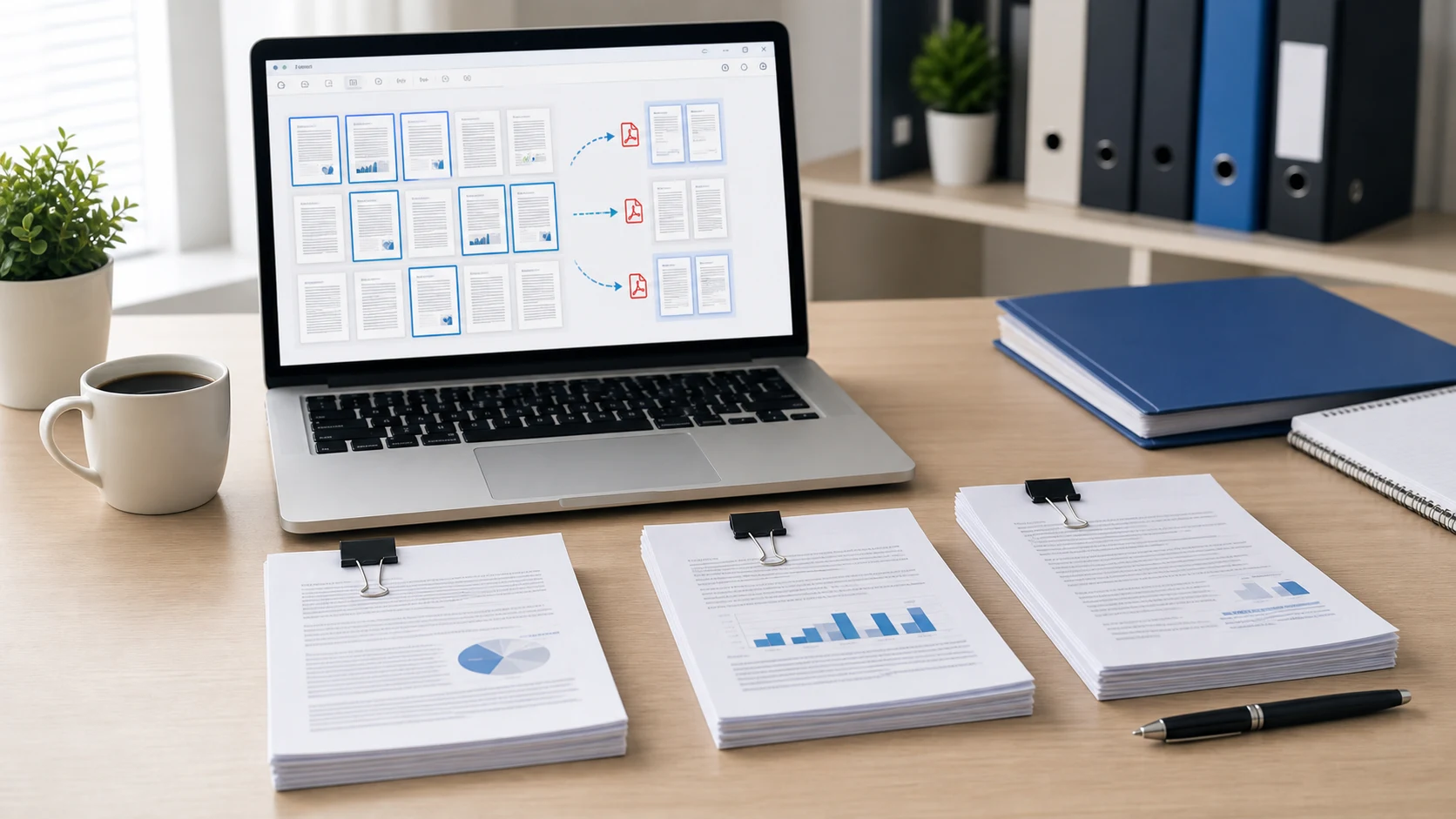
A PDF splitter separates one PDF into smaller PDF files. You can extract PDF pages, split PDF by page range, save every page as a separate PDF, or create smaller parts from a long document. This is useful when one file contains more pages than you need, when an upload form asks for a specific attachment, or when a client only needs one section of a larger report. The page order matters, so choose the range carefully and open the downloaded files once before sharing them.

Example split PDF workflow

If a long document includes only a few pages you need to submit, extract those pages first and keep the final upload focused.

InputOne PDF document from your device
SelectionPages 2-4, 8, and 10 from the original file
ActionExtract selected pages into a new PDF or separate files
OutputSplit PDF downloads ready to review or send

If a split file is still too large, open it in Compress PDF before uploading.

Common use cases

Popular split PDF tasks this tool covers

People often look for a PDF splitter, split PDF online, extract PDF pages, separate PDF pages, split PDF by page range, remove pages from PDF, or save PDF pages as separate files. This page is built around those practical jobs: add your PDF, choose exactly what pages you need, create the output, and download the results without turning the page into a confusing editor.

Features

  • Add one or more PDF files to the queue.
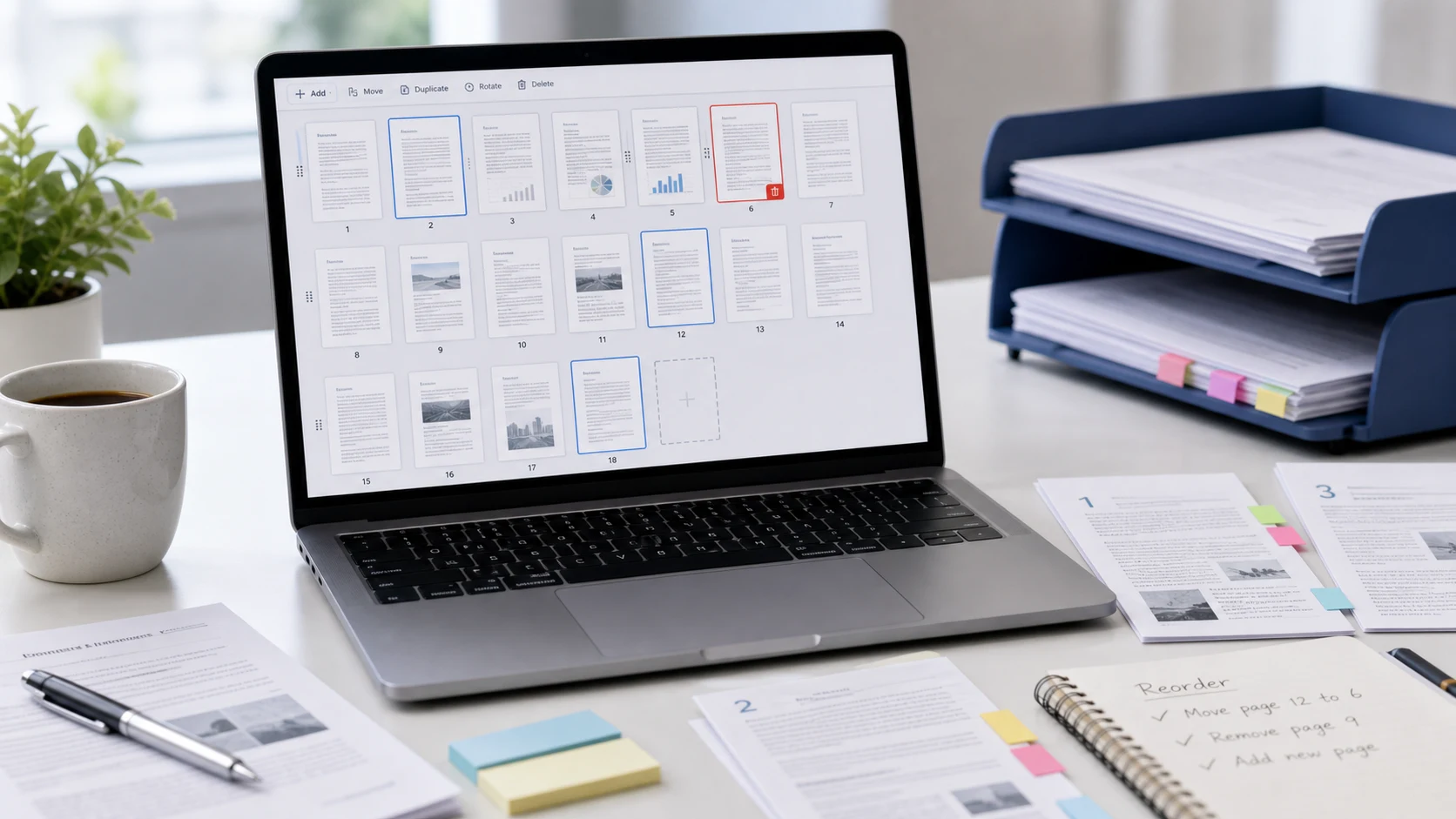
  • Split by custom page range, every page, chunks, odd pages, or even pages.
  • Choose whether selected pages become one PDF or separate files.
  • Download individual outputs or collect everything in one ZIP.

How to use Split PDF

  1. Choose or drop the PDF file you want to separate.
  2. Select the split mode inside the file card.
  3. Enter a page range or chunk size if the mode needs it.
  4. Click Split PDF, then download each result or the ZIP.

Benefits

  • Share only the pages someone actually needs.
  • Make large documents easier to upload, review, and organize.
  • Prepare cleaner document packets before sending them.
  • Use related PDF tools when you need merging, compression, or locking.

Split PDF FAQs

How do I split a PDF online?

Add a PDF, choose a split mode such as page range or every page, run the split, and download the new PDFs or a ZIP file.

Can I extract selected pages from a PDF?

Yes. Use range mode and enter pages such as 1-3,5,8 to extract only the pages you need.

Can I split every PDF page into a separate file?

Yes. Choose the each-page mode to save every page as its own PDF file.

Can I split a PDF by page ranges?

Yes. Range mode lets you enter custom page ranges and either combine the selected pages into one PDF or create separate outputs.

Will splitting a PDF change the page design?

The tool copies selected pages into new PDF files, so the original page layout, images, and text usually stay the same.

Can I download all split PDFs at once?

Yes. After output is ready, use Download All ZIP to save the generated PDF files together.

Does this split PDF tool upload my file?

The workflow is designed for browser-side PDF splitting where supported. Review sensitive documents before using any online tool.

What should I check after splitting a PDF?

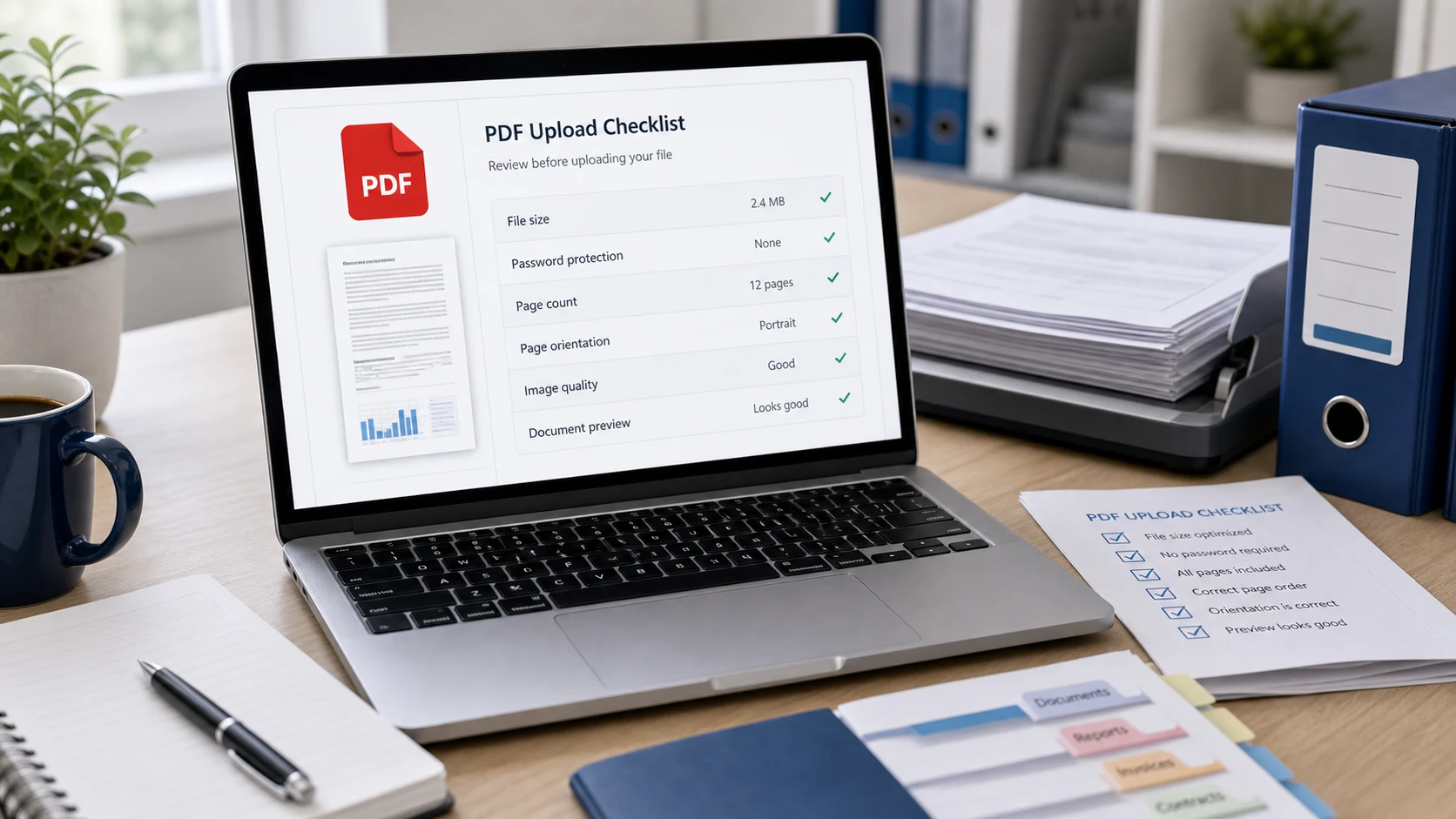
Open the downloaded PDFs and confirm the page order, page count, file names, readability, and whether the destination needs a smaller file.

What if my split PDF is too large to upload?

After splitting, use Compress PDF to reduce the file size before uploading it to a form, email, portal, or document system.