SVG to PNGSVG to JPGBatch export

SVG to PNG or JPG Converter

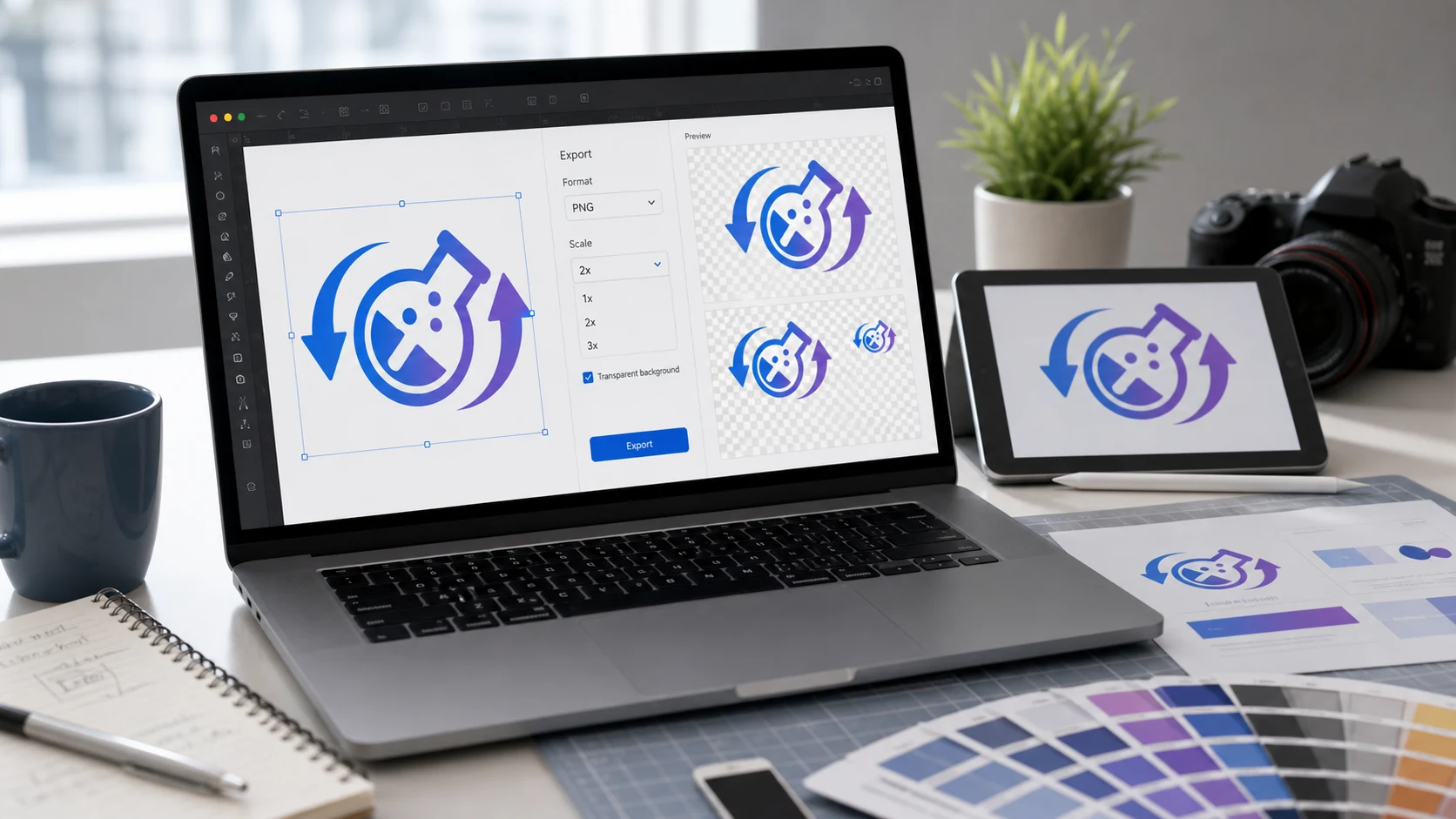
Convert SVG to PNG or JPG online in your browser. Export vector artwork as a transparent PNG or a JPG with a solid background, adjust scale and maximum size, then download individual images or one ZIP file.

Drag & drop SVG files here or

Supported: SVG - Limits: max 200 files - max 1 GB total

No files selected.
Conversion complete. Download the ZIP when you are ready.

Good for

  • Exporting SVG logos, icons, charts, illustrations, and interface graphics as PNG images with transparency.
  • Changing an SVG file to JPG when a form, app, email workflow, marketplace, or document system rejects SVG.
  • Batch converting SVG files into fixed-size raster images for previews, client delivery, uploads, and publishing tasks.

Privacy note: this SVG converter is designed for browser-side raster export where supported. Keep the original SVG file until you review the exported PNG or JPG and confirm the size, background, transparency, and visual details are correct.

What is an SVG to PNG or JPG converter?

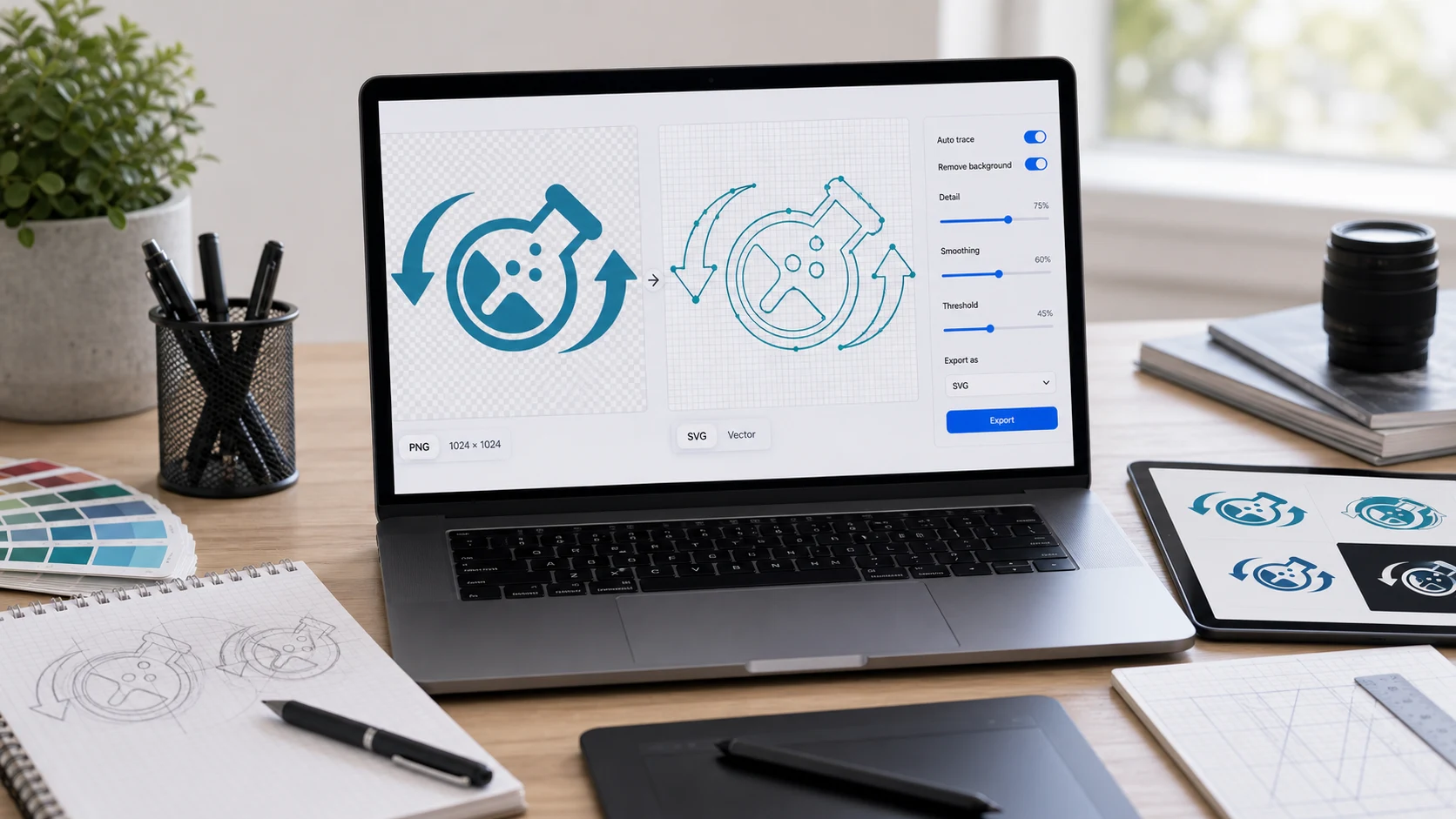
An SVG to PNG or JPG converter turns a .svg vector file into a fixed-pixel raster image. SVG stands for Scalable Vector Graphics, which means the original artwork can scale cleanly because it is described with XML-based vector instructions instead of a normal pixel grid. That is excellent for websites and design systems, but many upload forms, email clients, office documents, social platforms, print previews, and older image apps still ask for PNG, JPG, or JPEG. Use this SVG image converter when you need to export SVG as PNG for transparency and crisp edges, or convert SVG to JPG online when the destination needs a standard photo-style file with a solid background.

Example SVG export workflow

If a profile system, marketplace listing, school portal, client preview, or document editor does not accept an SVG file, export a copy in the format that destination expects.

InputSVG logo, icon, chart, or artwork from your device
Output choicePNG for transparency or JPG for broad compatibility
Size settingsScale 1 for natural size, higher scale for larger previews
DownloadIndividual PNG or JPG files, or one ZIP archive

This example is about compatibility. If the exported file is too large, compress or resize the PNG or JPG result after conversion.

Common use cases

  • Convert SVG to PNG online when you need transparent logos, icons, badges, web graphics, or crisp UI artwork.
  • Convert SVG to JPG online when the destination rejects SVG and needs a simple image file with a solid background.
  • Export SVG as PNG for presentations, documentation, profile images, marketplace assets, school portals, and client previews.
  • Turn scalable vector graphics to PNG before uploading to systems that do not handle vector artwork safely.
  • Use SVG to JPG conversion for email attachments, office documents, and preview images that do not require transparency.
  • Batch convert SVG to PNG or batch convert SVG to JPG when a folder of vector assets needs the same output format.
  • Use a free SVG to PNG converter for transparent artwork that should keep clean edges.
  • Convert SVG file to PNG when a website, app, or document system will not accept vector files.
  • Convert SVG file to JPG when you need a JPEG-style image for broad compatibility.
  • Use the JPG option as a free SVG to JPG converter when a platform labels the required upload as SVG to JPEG or asks you to convert SVG to JPEG.
  • Export SVG as JPG with a white background when transparency would create unexpected black or empty areas.
  • Convert vector to PNG for icon previews, app store screenshots, support tickets, and design handoffs.
  • Use an SVG to PNG transparent workflow when logos or cutouts must sit on different backgrounds.

Features

  • Accepts one or more SVG files from your device.
  • Exports SVG artwork as PNG or JPG images.
  • Preserves transparency in PNG output where the SVG supports it.
  • Includes JPG quality and background color controls.
  • Supports scale and maximum-dimension settings for export size control.
  • Downloads individual files or one ZIP archive after conversion.

How to use this converter

  1. Add SVG files. Drag files into the import area or use the choose SVG files button.
  2. Choose output. Select PNG for transparency or JPG for a solid-background image.
  3. Set export size. Adjust scale and max size when you need larger previews or controlled dimensions.
  4. Download results. Start conversion, review each result, then download one file or the ZIP.

Benefits

  • Makes SVG artwork usable in systems that only accept PNG, JPG, or JPEG.
  • Gives you a clear choice between transparent PNG and compatible JPG output.
  • Saves time when a batch of icons, logos, or illustrations needs raster export.
  • Keeps import, settings, previews, and downloads in one focused workspace.

Should you export SVG as PNG or JPG?

Choose PNG when the SVG contains a logo, transparent icon, interface element, chart, badge, screenshot-style graphic, or artwork with sharp edges. PNG is usually the better export format when the background should stay transparent or when text and lines need to remain clean. Choose JPG when the artwork will sit on a solid background and the destination mainly needs a common image file. JPG can be useful for forms, email, office documents, and preview systems, but it cannot store transparency, so this tool fills transparent areas with the selected background color before creating the JPG. If a website asks you to convert vector to JPG, it usually means exporting the SVG as a fixed JPEG-style image.

Scale, max size, and quality notes

SVG is scalable, but the exported PNG or JPG is not. Once you convert SVG to PNG or transform SVG to JPG, the output has fixed pixel dimensions. Use scale 1 when the SVG already has the size you need, increase scale for larger previews or sharper high-density assets, and use max size to prevent huge images from slowing the browser or creating files that are too large to upload. JPG quality only affects JPG output. PNG output is useful for transparency and crisp graphics, but it may be larger than a JPG, especially for complex artwork.

Common SVG conversion questions

What does an SVG to PNG or JPG converter do?

It rasterizes SVG vector artwork into fixed-size PNG or JPG images so the file can be used in upload forms, documents, presentations, image editors, and platforms that do not accept SVG files.

Can I convert SVG to PNG online?

Yes. Add one or more SVG files, choose PNG as the output format, set scale or maximum size if needed, start conversion, and download each PNG or a ZIP archive.

Can I convert SVG to JPG online?

Yes. Choose JPG output, set the quality and background color, convert the SVG file, and download the finished JPG image or the full batch as a ZIP file.

Should I choose PNG or JPG for SVG export?

Choose PNG when you need transparency, sharp edges, logos, icons, or UI graphics. Choose JPG when the destination requires a photo-style file, a solid background, or broad compatibility.

Does SVG to PNG keep transparency?

PNG output can keep transparent areas from the SVG. JPG output cannot store transparency, so transparent areas are filled with the selected background color before export.

Can I batch convert SVG to PNG or JPG?

Yes. Add multiple SVG files, convert the batch, then download individual exported images or use Download All to save a ZIP archive.

What scale should I use when exporting SVG as PNG?

Use scale 1 for the natural SVG size, a higher scale for sharper large previews or retina-style assets, and the max-size field to prevent very large exports.

Will converting SVG to JPG improve quality?

No. Conversion creates a raster copy for compatibility. SVG remains the editable, scalable source, while the JPG or PNG output is a fixed-pixel image.

Why does my SVG not render exactly as expected?

Some SVGs depend on external fonts, linked images, scripts, or unsupported browser features. If the output differs, open the SVG in a browser first and check whether all resources are embedded.

Does this SVG converter upload my files?

The tool is designed to process selected SVG files in your browser where supported. Keep the original SVG until you review the exported PNG or JPG result.