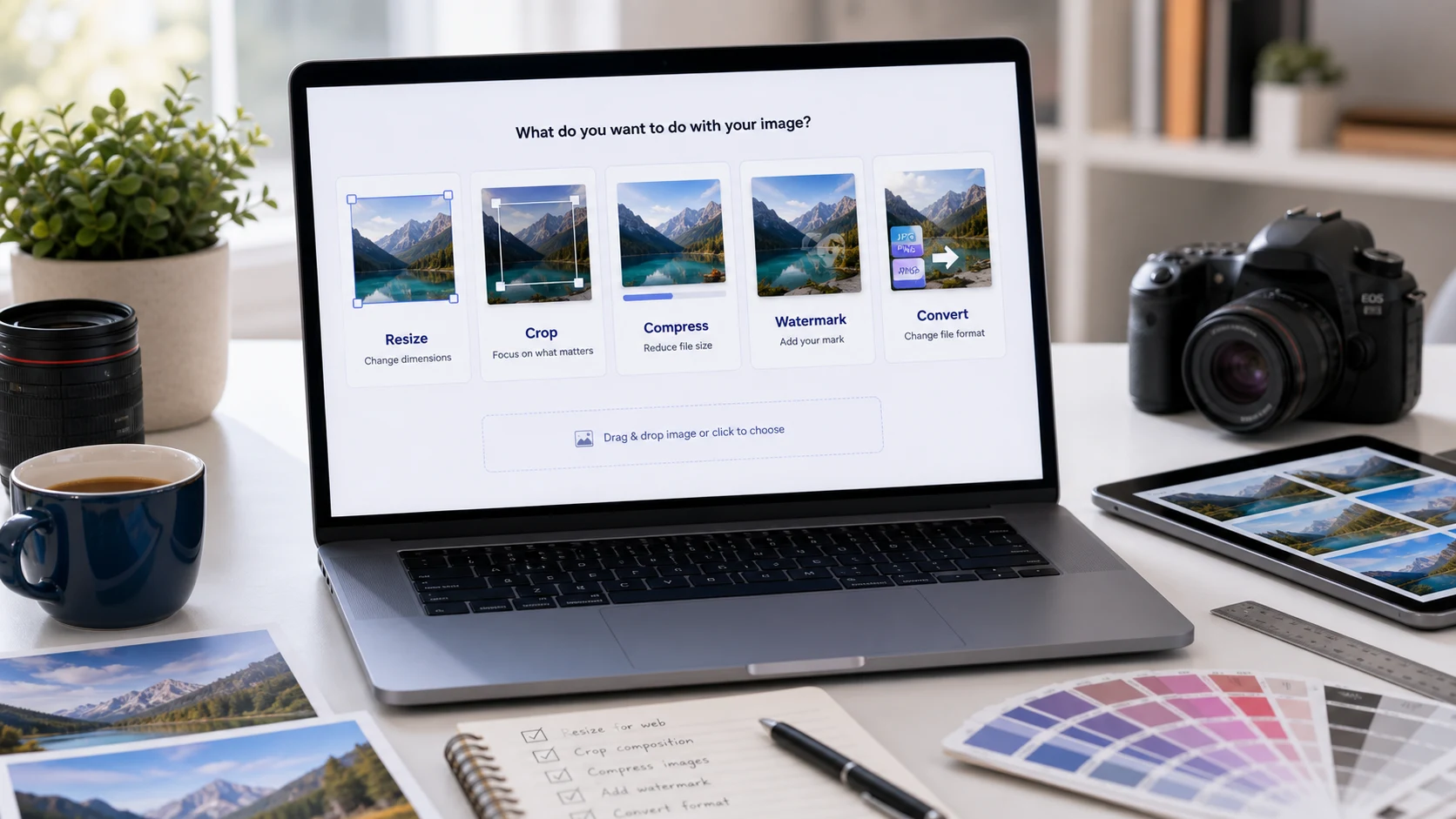
Crop Image Online
Crop JPG, PNG, and WebP images in your browser. Use this free online image cropper to trim photos, screenshots, product images, profile pictures, social media posts, and upload-ready visuals without installing software.
Import and crop
Add images, open the crop editor, then download each finished image or save a ZIP.
Drag and drop images here or
Supports common browser image formats such as JPG, PNG, WebP, and GIF.
Cropping is designed to run in your browser where supported. Keep the original image until you have reviewed the cropped output.
Images and downloads
Large batches scroll here without stretching the whole page.
Good for
- Trimming screenshots, documents, product photos, marketplace images, and website graphics before upload.
- Cropping a photo online for profile pictures, thumbnails, posts, stories, reels, banners, and cover images.
- Preparing several images in one session when the same crop ratio or consistent framing is needed.
- Cutting out extra background, empty edges, scanner borders, or unwanted areas before resizing or compressing.
Privacy note: image cropping is designed for browser-side editing where supported. Your selected files stay in the page session while you crop and download them.
What is an online image cropper?
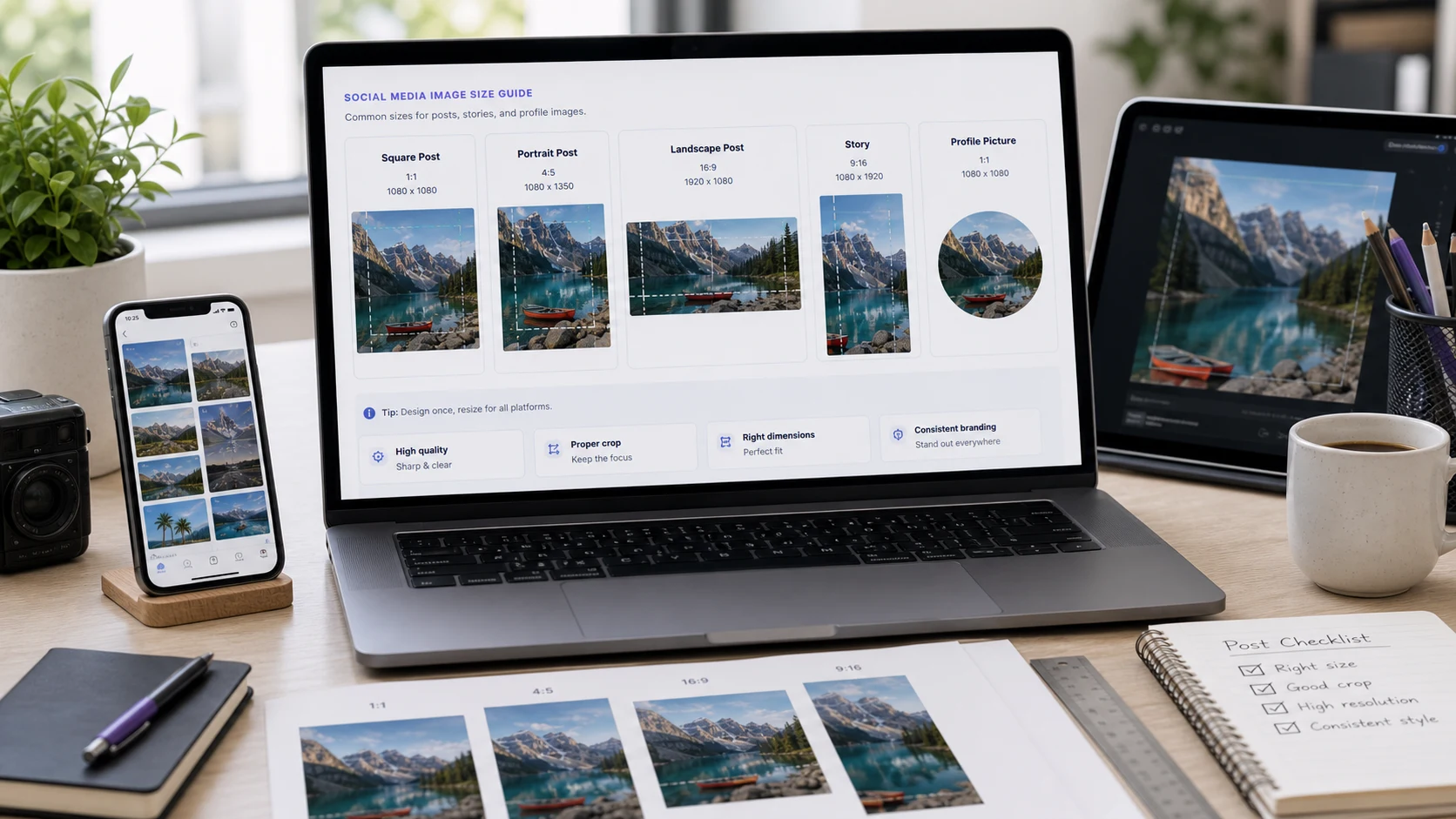
An online image cropper lets you keep one selected part of an image and remove the pixels outside that area. People use a crop image online tool when a photo has too much empty space, a screenshot includes private or irrelevant details, a product image needs tighter framing, or a profile picture needs a clean square shape. ConvertorLab focuses on the practical crop workflow: add a JPG, PNG, WebP, or GIF file, choose the crop area, use aspect ratios such as 1:1, 4:5, 9:16, or 16:9 when needed, then download the cropped image for uploads, websites, documents, social media, ecommerce listings, and everyday sharing.
Example image cropping workflow
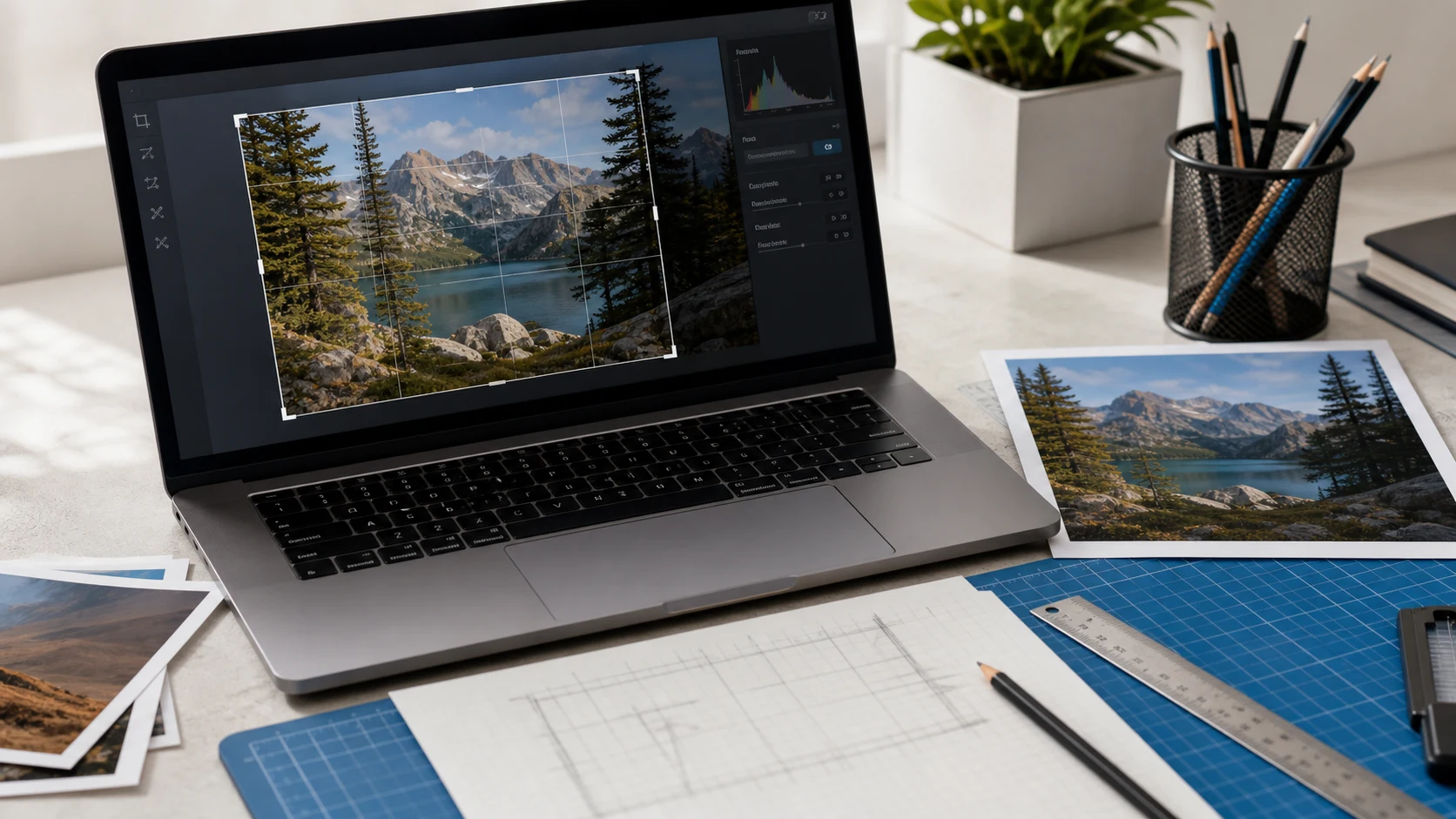
If you have a product photo with extra table space around the item, crop the image first so the product fills the frame, then resize or compress it only if the upload page requires a smaller file.
This workflow helps when you need a free photo cropper for forms, school portals, job applications, website cards, marketplace listings, blog images, or social media previews.
Common use cases
- Crop a photo online for profile pictures, avatars, ID-style previews, or centered square thumbnails.
- Crop screenshots before sharing so private tabs, messages, or unrelated interface areas are removed.
- Crop product photos for ecommerce listings, catalogs, invoices, marketplaces, and client previews.
- Crop images for Instagram, Facebook, YouTube thumbnails, Pinterest pins, stories, reels, and website hero areas.
- Batch crop images when multiple files need similar framing before upload, compression, or format conversion.
Popular crop image tasks
- Use a crop image online free workflow when you only need a quick trim without opening a full photo editor.
- Use a square image cropper for profile photos, store thumbnails, app icons, and centered product previews.
- Use a 9:16 crop photo online ratio for vertical stories, reels, shorts, and phone-screen content.
- Use a 16:9 crop for YouTube thumbnails, presentation images, landscape blog visuals, and video covers.
- After cropping, open Resize Image for exact dimensions or Compress JPG when the cropped file is still too large.
Features
- Crop JPG, PNG, WebP, GIF, and browser-supported image files.
- Choose freeform crop or preset aspect ratios for common photo and social formats.
- Rotate, flip, reset, and adjust the crop before downloading.
- Crop one image, crop files individually, or apply the first crop across a batch.
How to use
- Choose images or drag files into the import area.
- Select Crop on a file or choose a batch crop mode.
- Move the crop box and choose a ratio if needed.
- Click Done, then download the cropped image or ZIP.
Benefits
- Keep the actual crop tool near the top of the page.
- Prepare upload-ready images without a desktop editor.
- Use the same page for quick single-image crops and batch workflows.
- Move naturally into resize, compression, or WebP conversion after cropping.
How the crop editor works
This page uses a JavaScript image cropper and the browser canvas to preview the selected crop area, rotate or flip the image, and export the cropped result. Cropper.js describes itself as a JavaScript image cropper, and many online crop tools use the same basic idea: choose a rectangle, keep that area, and remove the outside edges. For deeper technical context, see Cropper.js and the MDN Canvas API.
Crop image questions
How do I crop an image online for free?
Choose an image, drag the crop box around the part you want to keep, adjust the ratio or rotation if needed, then click Done and download the cropped image.
Can I crop JPG, PNG, and WebP images?
Yes. This online image cropper accepts common browser-supported image formats such as JPG, PNG, WebP, and GIF. Cropped results are exported as PNG files for reliable browser download.
Can I crop multiple images at once?
Yes. Add several images, use Crop One to Apply All when the same framing works for the whole batch, or use Crop Individually when each image needs a different crop area.
What is the best crop ratio for social media?
Common social media crop ratios include 1:1 for square posts, 4:5 for portrait posts, 9:16 for stories and reels, and 16:9 for video thumbnails or landscape previews.
Can I crop a photo for a profile picture?
Yes. Use the 1:1 square crop ratio for profile pictures, avatars, marketplace thumbnails, and app icons where a centered square image is expected.
Does cropping reduce image file size?
Cropping removes pixels outside the selected area, so the final image can be smaller. The exact size depends on the crop area, image content, and output format.
Can I rotate or flip an image before cropping?
Yes. The crop editor includes rotate, horizontal flip, vertical flip, reset, and aspect-ratio controls so you can correct the framing before saving.
Is this browser-side image cropper private?
The crop workflow is designed to run in the browser where supported. Keep the tab open while editing and review the cropped output before using it for important uploads.
Why did my transparent PNG get a white background?
This crop tool exports cropped results as PNG, but the crop canvas can fill empty rotated areas with white. For transparent graphics, review the output before publishing.
What should I do after cropping a large image?
After cropping, use Resize Image when you need exact dimensions, Compress JPG or Compress PNG when you need a smaller upload file, or Image to WebP for website performance.