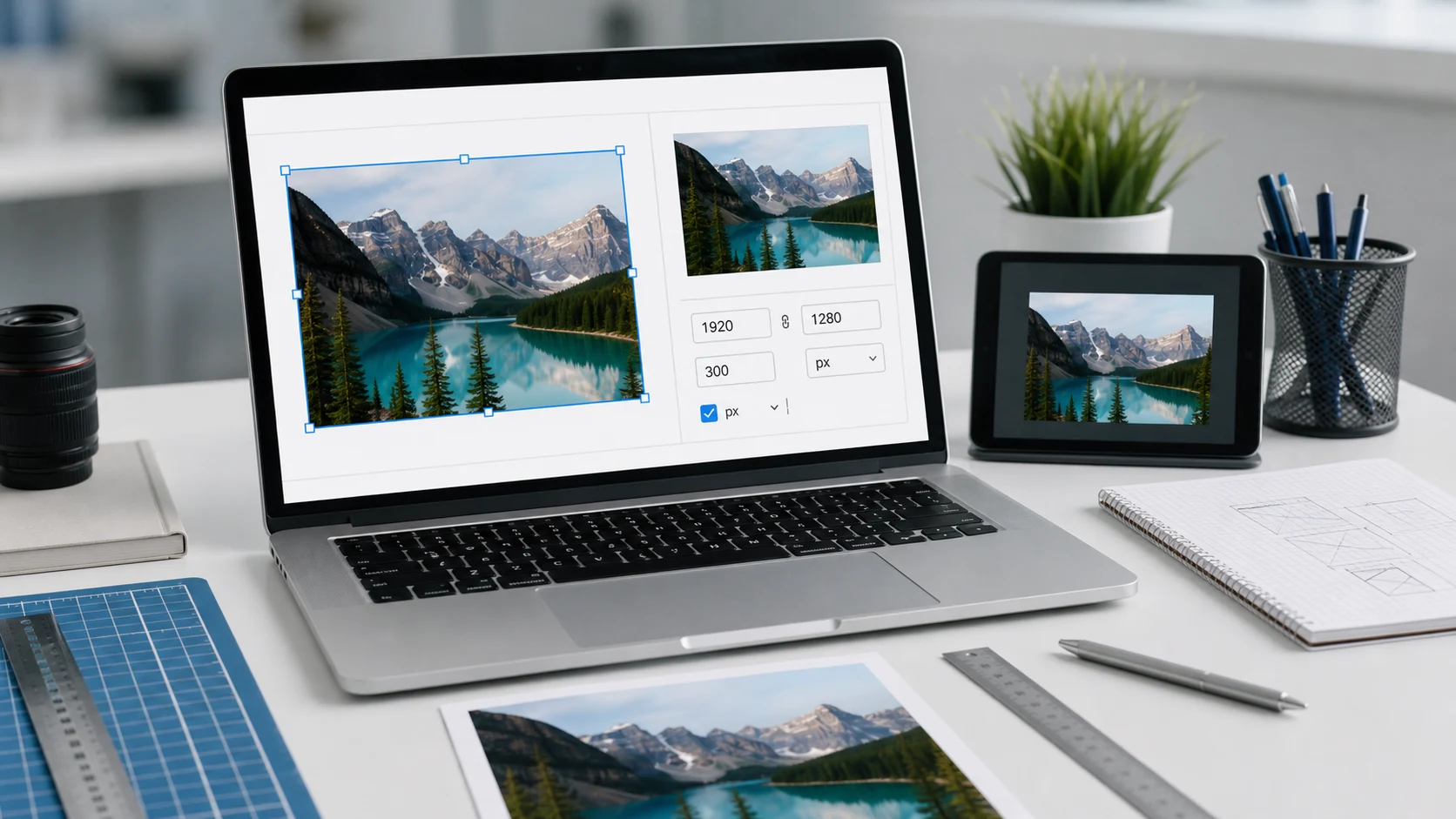
To resize an image, open it in an editor, type a new width or height in pixels with the aspect ratio locked, and save a copy. On Windows 11, use the Photos app or Paint. On a Mac, use Preview. On an iPhone, the Photos app can crop but not resize, so use a Shortcuts automation or a browser tool. A browser tool also works on any device and can resize a whole batch at once.
Before you start, decide what the new size is for. A website or social app wants pixels. A printed photo or an ID form may state centimeters or inches. A file size limit in KB is a separate problem, covered near the end.
How to resize an image in your browser
This works the same on Windows, Mac, Chromebook, iPhone or Android. The Resize Image tool processes files locally, so your photos aren't uploaded.
- Open Resize Image and add one or more photos.
- Choose how to size them: pixels, a percentage, or a print size in cm, mm or inches with a DPI value.
- Type the width. With the aspect ratio locked, the height follows and the picture isn't stretched.
- If you need an exact width and height in a different shape, pick Exact (cover). It fills the frame and trims the overflow evenly.
- Optionally set a maximum file size in KB.
- Download the image, or a ZIP if you resized several.
Presets cover common targets such as Instagram posts and YouTube thumbnails, so you don't have to look up the numbers.
How to resize an image on iPhone
The Photos app's Crop tool trims the edges of a picture, but it doesn't let you set a pixel size. To change the pixel size, you have two options.
The first is a browser tool. Open Resize Image in Safari, tap the upload area, choose Photo Library, and follow the browser steps above. The resized copy downloads to the Files app, and you can save it to Photos from there.
The second is a shortcut you build once and then run from the Share button. It uses the Resize Image action in Apple's Shortcuts app.
- Open the Shortcuts app and tap the plus button to create a new shortcut.
- Tap Add Action, search for Resize Image, and add it.
- Set the width to the number of pixels you want, such as 1200, or choose Ask Each Time. Leave the height on Auto so the proportions stay the same.
- Add a second action: search for Save to Photo Album and add it.
- Name the shortcut, for example Resize photo.
- Open the shortcut's Details and turn on Show in Share Sheet, then tap Done.
To use it, select one or more photos in Photos, tap Share, scroll down and tap your shortcut. The resized copies are saved to your library and the originals stay untouched. Apple's guide to running a shortcut from another app covers the share sheet setting.
How to resize an image on Windows 11
The Photos app that comes with Windows 11 has a resize option in its menu:
- Right-click the image and choose Open with, then Photos.
- Click the three dots at the top of the window and choose Resize image.
- Select Pixels and type a new width or height. Check that the other number changed in proportion.
- Click Save and save it as a new file.
Paint is the other built-in route. Open the image, click Resize and skew in the Image group, or press Ctrl+W. Choose Pixels, keep Maintain aspect ratio ticked, and enter the new size. Then use File, Save as so you keep the original.
For dozens of files, Microsoft's free PowerToys add-on includes Image Resizer, which adds a resize option to the right-click menu in File Explorer.
How to resize an image on a Mac with Preview
Preview is the quickest option on macOS. Apple's Preview guide describes the same steps.
- Open the image in Preview.
- Choose Tools > Adjust Size.
- Enter a new width or height, or pick a preset from the Fit into menu. Choose pixels or percent from the units menu.
- Leave Scale proportionally selected so the image keeps its shape.
- Click OK, then choose File > Export to save a resized copy.
To resize several images together, open them all in one Preview window, select every thumbnail in the sidebar, and then use Adjust Size.
Pixels vs DPI vs cm: which number matters when resizing?
Pixels are the real size of a digital image. A photo that is 4000 x 3000 pixels holds 12 million dots of color. Screens, websites and social apps only care about pixels.
DPI only matters when the image is printed. It tells the printer how many pixels to fit into each inch of paper. Changing the DPI number alone doesn't change how the image looks on screen.
Centimeters and inches are print sizes, and they only turn into pixels once you pick a DPI:
- pixels = inches x DPI
- pixels = (cm / 2.54) x DPI
So a 3.5 x 4.5 cm photo at 300 DPI needs about 413 x 531 pixels. When a form gives both pixels and cm, use the pixels. For sharp prints, 300 DPI is the usual target. The guide to 300 DPI explains print sizes in more detail.
Does resizing an image reduce quality?
Making an image smaller keeps it sharp. You lose pixels, but the screen or page shows fewer anyway. Making it larger is different, because the software has to invent pixels between the real ones, so the result looks soft. If you need a bigger version, go back to the original.
- Always save a copy. Shrinking and then enlarging won't bring detail back.
- Resize once, from the original, straight to the final size.
- If the shape must change, crop first with the Crop Image tool, then resize.
Dimensions and file size are linked but separate. Halving the width and height cuts the pixel count to a quarter, which usually shrinks the file a lot. If a form sets a KB limit, resizing alone may not be enough. A tool such as resize image to 50KB lowers quality first and then dimensions until the file fits.
Free tools that run in your browser
Frequently asked questions
Can I resize a photo in the iPhone Photos app?
Not to a specific pixel size. Photos can crop, which trims the edges, but to change the dimensions you need a Shortcuts automation with the Resize Image action or a browser tool.
How do I resize an image without losing quality?
Make it smaller from the original file and keep the aspect ratio locked. Shrinking keeps images sharp, while enlarging always adds some blur.
How do I convert cm to pixels for a photo?
Divide the cm by 2.54 and multiply by the DPI. A 3.5 x 4.5 cm photo at 300 DPI is about 413 x 531 pixels.
Does changing DPI change the image size?
Not on screen. DPI only tells a printer how large to print the pixels. To change what you see on screen or the file size, change the pixel dimensions.
Can I resize many images at once?
Yes. Browser tools like Resize Image handle batches and download a ZIP. A Shortcuts automation on iPhone and Preview on a Mac can also resize several photos together.