Popular photo size limits
Open a page with the size already set: Resize image to 20KB · 50KB · 100KB · 200KB
Reduce image size in KB for forms and portals
When a website says "photo must be under 50KB", it means the file size on disk, not the width and height. This image size reducer is built for exactly that. Pick 20KB, 50KB, 100KB, 200KB or any custom number, add your photo, and the tool returns the clearest version that fits.
It works on JPG, PNG, WebP and iPhone HEIC photos, and you can mix them in one batch. HEIC files are converted to JPG along the way, because most forms don't accept HEIC.
Common photo size limits
These are typical limits you'll meet on application forms. Always check the exact rule on the form you are filling in, since every site sets its own.
If the form also asks for specific dimensions in pixels or centimeters, set them with Resize Image before compressing.
How to compress an image
- Choose files. Add photos from your phone gallery or computer. JPG, PNG, WebP, HEIC, GIF and BMP all work.
- Set a target size in KB, or leave it off and pick a mode: Soft, Balanced, Strong or Max.
- Press Compress. Each file shows the new size and, for KB targets, the final dimensions.
- Download one image or all of them as a ZIP.
What the compression modes do
Soft keeps the full size and saves at 88% quality. Balanced, the default, saves at 82% and limits the long side to 1920 pixels, which is plenty for any phone or laptop screen. Strong uses 78% and 1280 pixels, and Max uses 72% and 800 pixels for the lightest result. You can also set quality and resize on your own with Custom.
Output format matters as much as the mode. A photo saved as PNG can drop to a small fraction of its size just by switching the output to JPG or WebP. Keep PNG for logos and images with transparent backgrounds.
Compress photos without uploading them
Every image is processed by your own browser. Nothing goes to a ConvertorLab server, so personal photos and ID scans stay on your phone or computer. There's no login, no watermark and no limit on how often you use it.
For PDF files, use Compress PDF. It has its own KB target and handles multi-page documents far better.
Guides
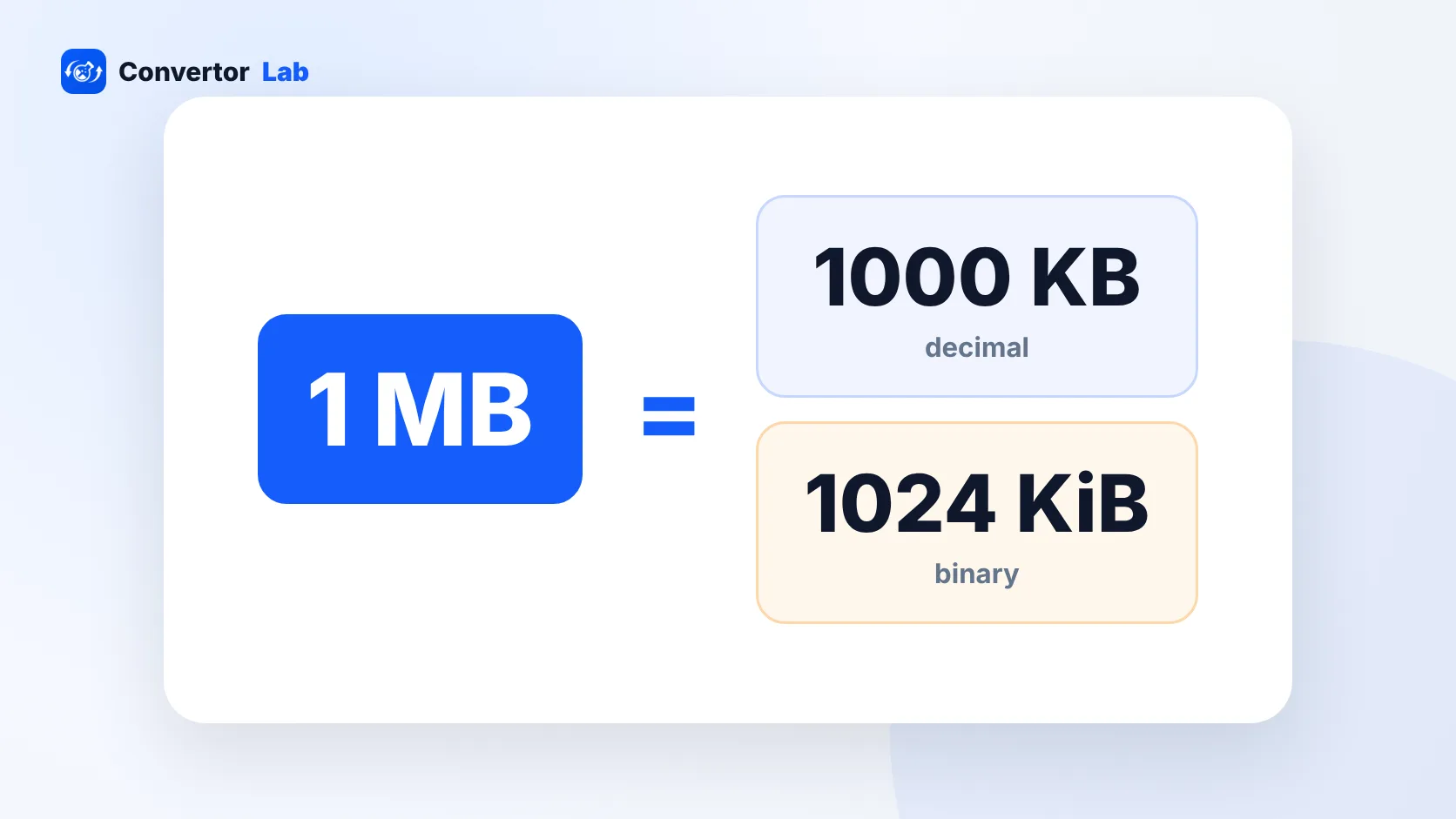 How many KB in a MB?1 MB is 1,000 KB in decimal units and 1,024 KB in binary units.Read guide
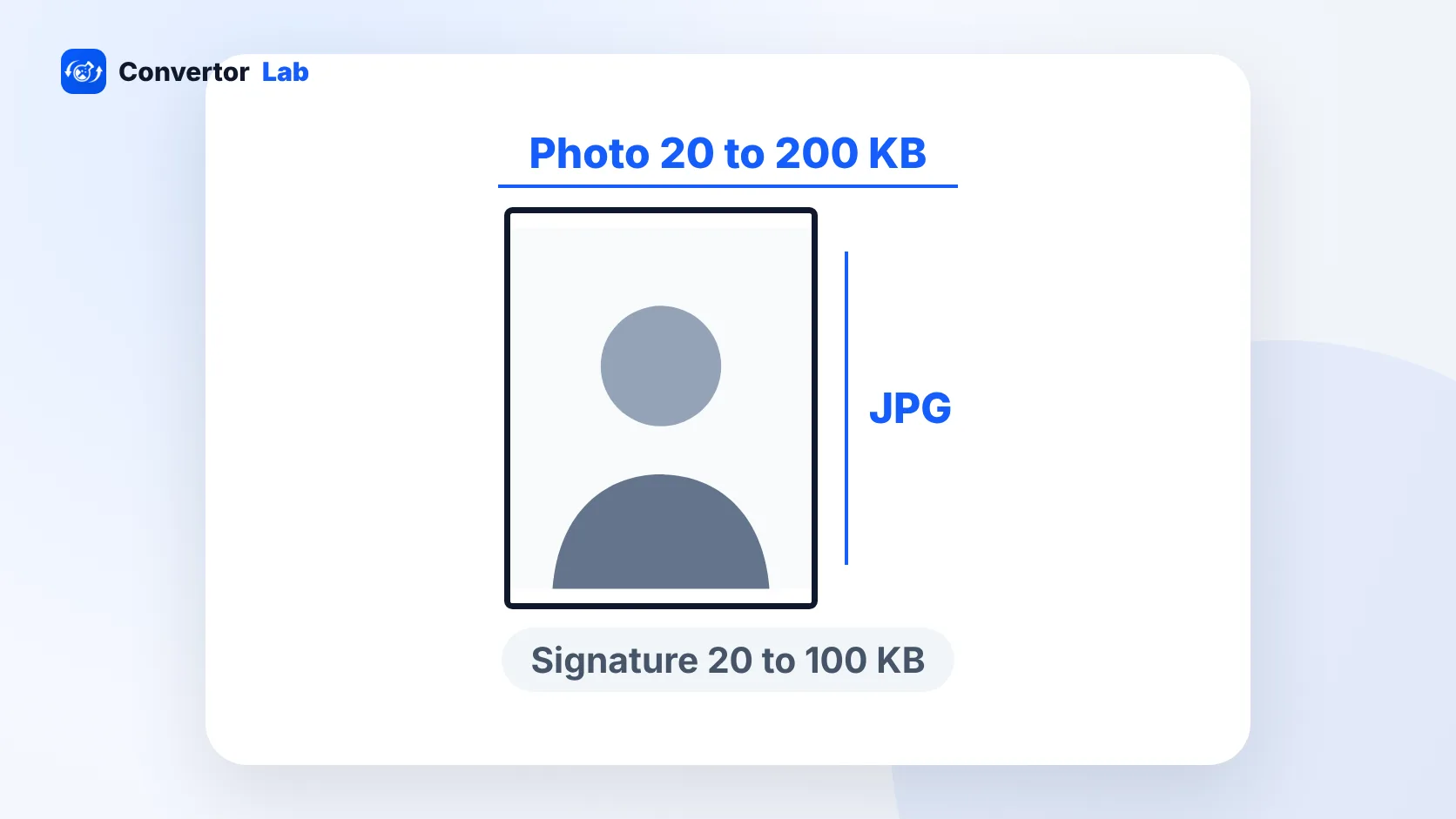 UPSC Photo Size and Signature Size for the Online ApplicationUPSC wants a JPG photo between 20 KB and 200 KB and a three-signature scan between 20 KB and 100 KB.Read guide
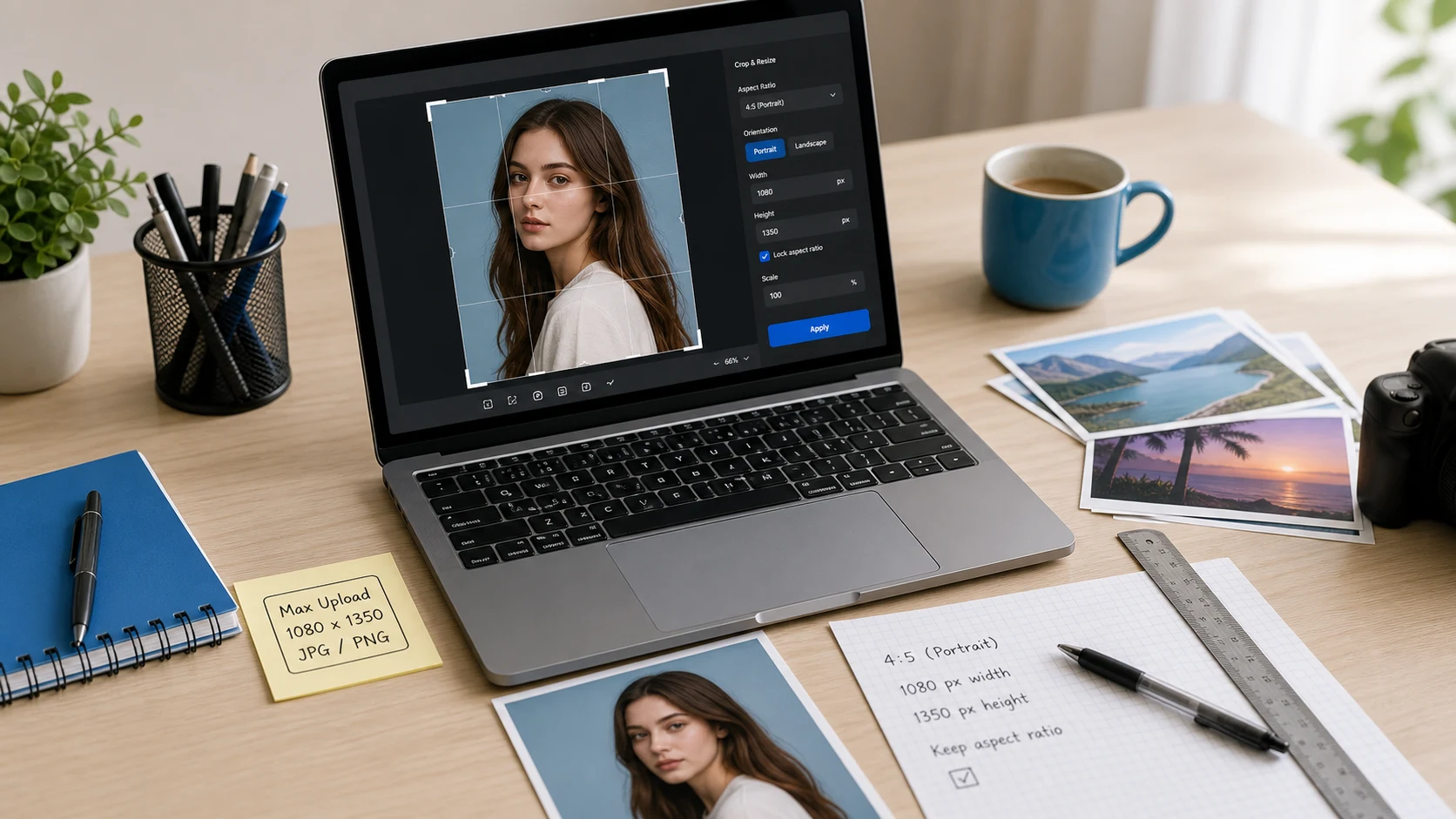 Resize images for upload formsHit pixel and KB limits on the first try.Read guide
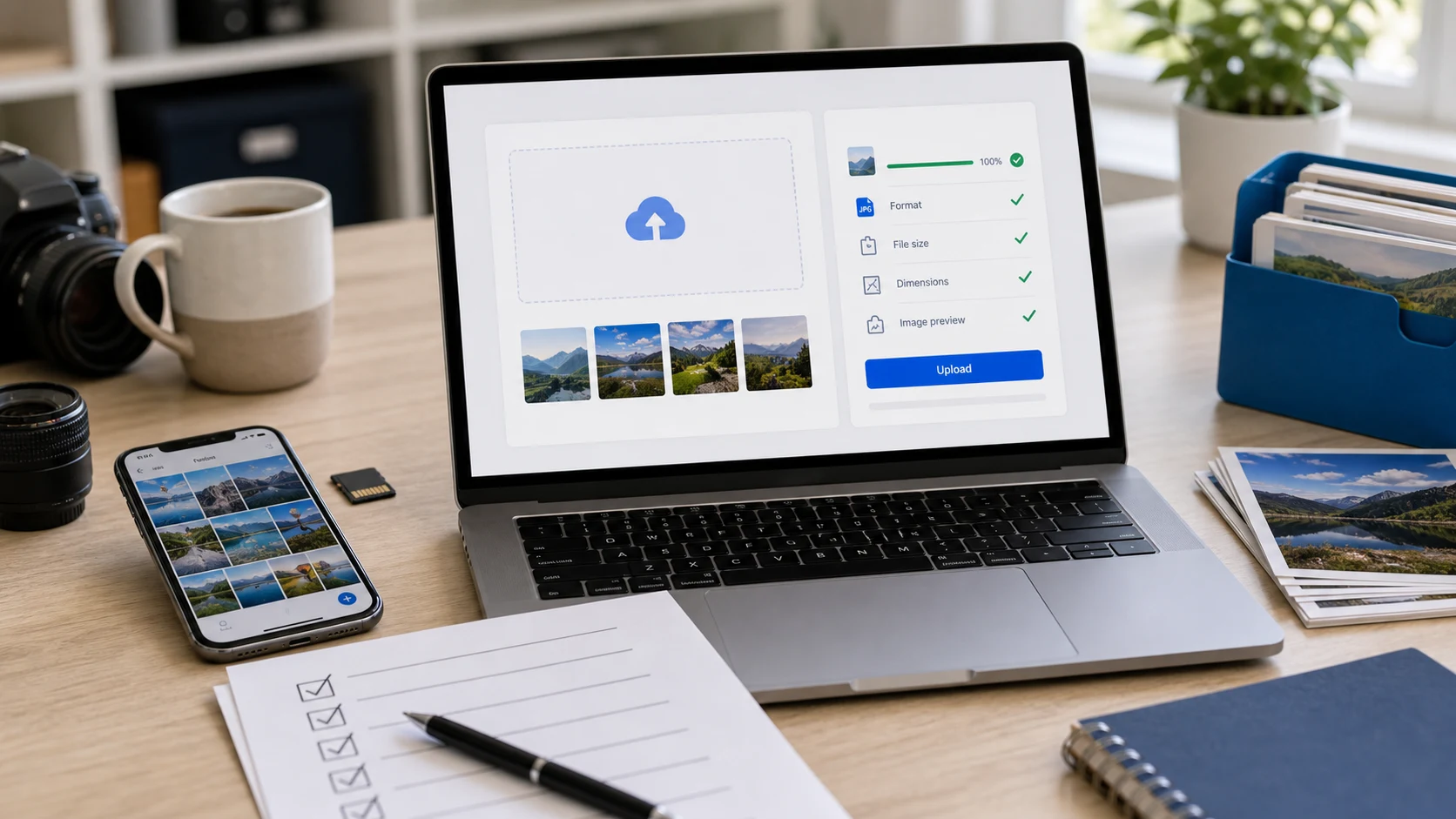 Image upload checklistWhy forms reject photos and how to fix each case.Read guide
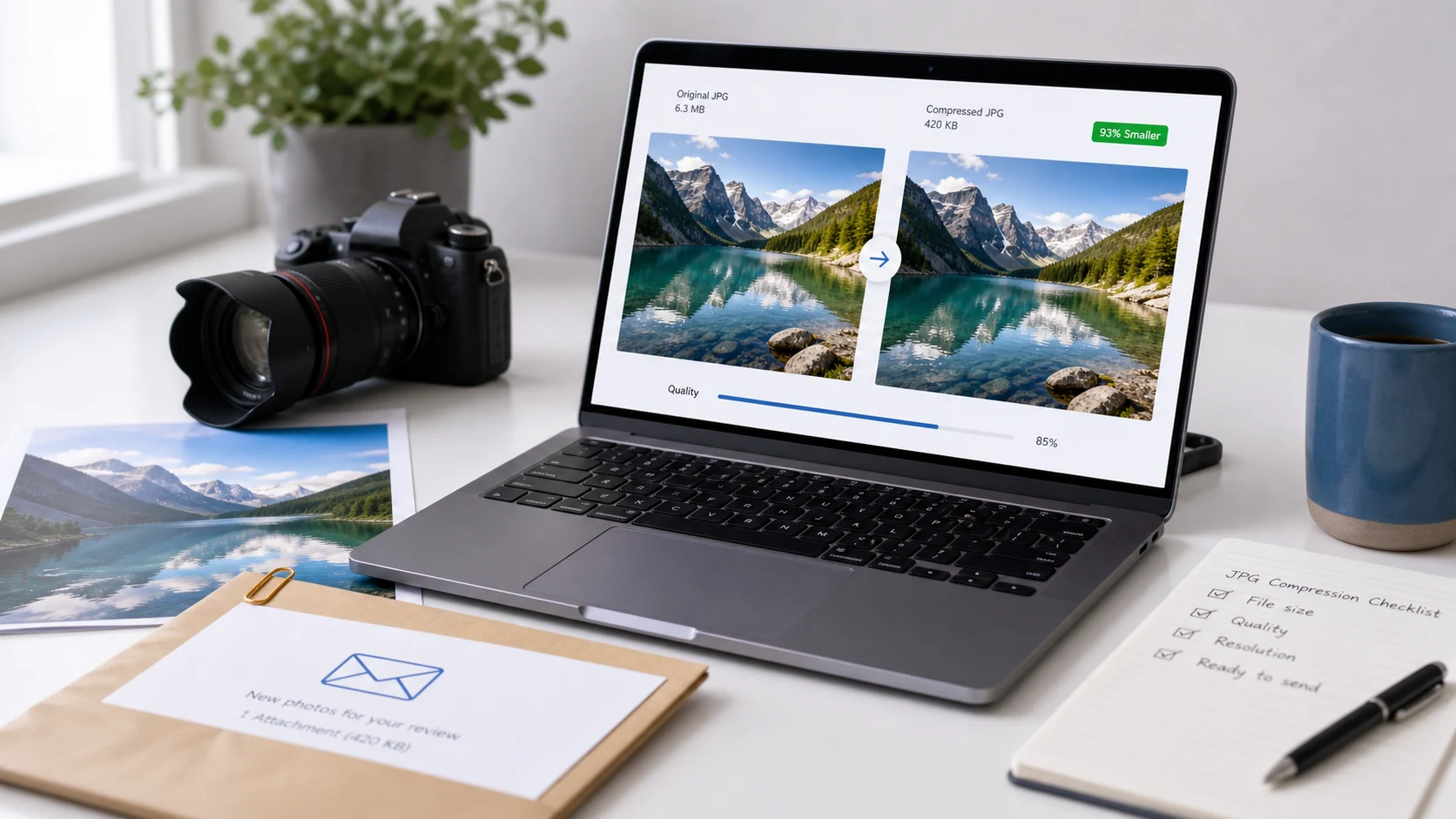 How to compress a JPG without ruining itQuality settings that keep faces and text sharp.Read guide
Image compression questions
How do I reduce a photo to 50KB?
Add the photo, choose 50 KB in the Target size menu and press Compress. The tool lowers quality first and reduces dimensions only when needed, then shows the final size.
How can I compress an image to 20KB?
Select 20 KB as the target. For signatures and small portraits this keeps the image readable. Large photos will be scaled down so they can fit in 20KB.
Can I compress an image to 100KB without losing quality?
Most phone photos can reach 100KB with little visible change on screen, because the tool keeps the highest quality that fits. Very detailed photos may need to be resized as well.
Which formats does this image compressor support?
JPG, JPEG, PNG, WebP, HEIC, HEIF, GIF and BMP. HEIC, GIF and BMP are saved as JPG or PNG, since browsers can't write those formats.
Is the image compressor free?
Yes. It's free with no sign-up and no watermark. Each batch can hold up to 200 files or 1GB.
Are my images uploaded to your server?
No. Compression runs in your browser, so your images stay on your device.
Why did my image not get smaller?
Some images are already compressed well. When a new copy would be larger, the tool keeps your original. Set a KB target, lower the quality, or switch the output to JPG or WebP for a smaller file.