Good for
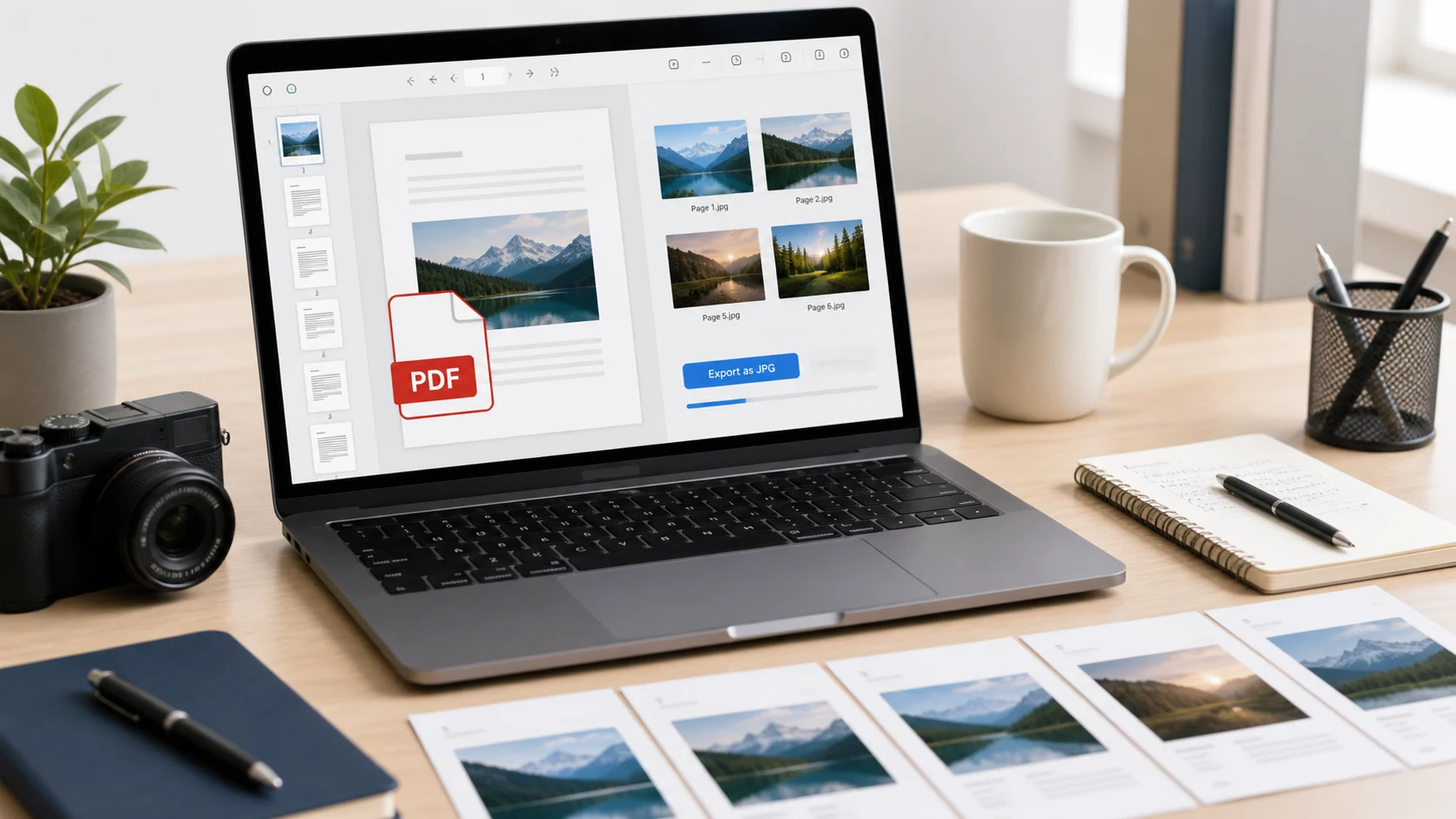
- Turning PDF pages into JPG images for previews, websites, portfolios, records, and image-based uploads.
- Exporting each page of a PDF as a separate image when a system does not accept PDF files.
- Creating JPG thumbnails or page images from brochures, flyers, invoices, forms, certificates, and scanned documents.
Privacy note: this PDF to JPG converter is designed around browser-side processing where supported. Keep your original PDF until you have reviewed the exported JPG images.
What is a PDF to JPG converter?
A PDF to JPG converter renders pages from a PDF document as JPG or JPEG image files. PDF is useful for fixed-layout documents, but some websites, image editors, social platforms, content management systems, and upload forms ask for an image instead. This page works as a PDF to JPG converter online, PDF to JPEG converter, PDF to image converter, PDF page to JPG exporter, and PDF pages to images workflow for everyday document preparation. It is useful when you need to turn a brochure page, scanned document, invoice, form, certificate, portfolio page, or presentation page into an image that can be previewed, shared, embedded, or uploaded.
Example PDF to JPG workflow
If you have a PDF document and a website asks for JPG images instead, use this flow before submitting the files.
This example is about page export. JPG output is an image, so keep the original PDF if you need editable text, links, forms, bookmarks, or vector content later.
Common use cases
- Convert PDF pages to JPG images for website previews, portfolio thumbnails, product listings, and social posts.
- Export scanned PDF pages as JPG files when an upload form accepts images but not PDF documents.
- Turn a PDF flyer, brochure, menu, certificate, or invoice into shareable image files.
- Create page images from a PDF before cropping, resizing, compressing, or adding a watermark.
- Convert PDF to JPEG for systems that request image files instead of document files.
Popular PDF to JPG tasks
- Use a PDF to JPG converter online when you need a quick image copy of every PDF page.
- Convert PDF to JPG high quality for readable text, document previews, and archive images.
- Convert PDF to image when a form, website, or design app rejects PDF uploads.
- Export PDF pages as JPG files before sharing them in messages, websites, presentations, or social posts.
- Batch convert PDF files to JPG and keep output organized by file name and page number.
- Turn PDF into JPG images before resizing, compressing, cropping, or converting to another image format.
Features
- Accepts PDF documents from your device.
- Exports each PDF page as a separate JPG image.
- Includes render detail and JPG quality controls.
- Processes multiple PDFs in one batch.
- Downloads converted page images as one ZIP archive.
How to use this converter
- Add PDFs. Choose one or more PDF files from your device.
- Choose quality. Set render detail and JPG quality based on your output needs.
- Start conversion. Keep the tab open while pages are rendered.
- Download ZIP. Save the exported JPG images when the ZIP button unlocks.
Benefits
- Makes PDF pages usable in image-only upload workflows.
- Creates shareable page previews without editing the original PDF.
- Helps prepare thumbnails, page screenshots, and visual records.
- Pairs well with JPG compression, resizing, and watermarking tools.
Convert pages vs extract images
This tool converts full PDF pages into JPG images. That means text, graphics, photos, backgrounds, and page layout are rendered together as one image per page. This is different from extracting embedded images from inside a PDF. Page conversion is usually better when you want a complete page preview, a thumbnail, a website image, or a copy of the page exactly as it appears. Extraction is different because it tries to pull original image objects out of the PDF without rendering the whole page.
What changes when PDF becomes JPG?
PDF is a document format for presenting and exchanging fixed-layout files. Adobe describes PDF as Portable Document Format, and the PDF Association notes that PDF is designed to exchange and view electronic documents independently of the original environment. When you convert PDF to JPG, the page becomes a raster image. That is useful for previews and uploads, but it also means links, selectable text, forms, layers, and bookmarks are no longer editable in the JPG output. Keep the original PDF whenever the document may need editing, signing, searching, or re-exporting later. For format background, see Adobe's PDF overview and the PDF Association's ISO 32000-2 resource.
Common PDF to JPG questions
What does a PDF to JPG converter do?
It renders PDF pages as JPG image files so each page can be opened, shared, uploaded, embedded, or edited as an image.
Can I convert PDF to JPG online?
Yes. Add a PDF, choose the JPG quality and render scale, start conversion, then download the converted page images as a ZIP file.
Is PDF to JPG the same as PDF to JPEG?
Yes. JPG and JPEG usually refer to the same image format, so a PDF to JPG converter and a PDF to JPEG converter create the same kind of output.
Will every PDF page become a separate JPG image?
Yes. The tool exports PDF pages as separate JPG files and places them in a ZIP archive for download.
Can I convert multiple PDF files to JPG?
Yes. You can add multiple PDF files. The converted JPG images are named by source file and page number inside the ZIP download.
Does PDF to JPG keep editable text?
No. JPG is an image format. Text and vector content are flattened into pixels, so keep the original PDF if you need editable text later.
What quality setting should I use?
Use standard quality for quick previews and smaller files. Use higher quality or a higher render scale when page detail, small text, or print clarity matters.
Can I use JPG pages on a website or social post?
Yes. PDF to JPG conversion is useful for thumbnails, portfolio pages, document previews, social graphics, and sharing a page where PDF upload is not accepted.
Does this PDF to JPG converter upload my files?
The tool is designed around browser-side processing where supported. Keep the tab open during conversion and review the exported images before using them.
What should I do if the ZIP is too large?
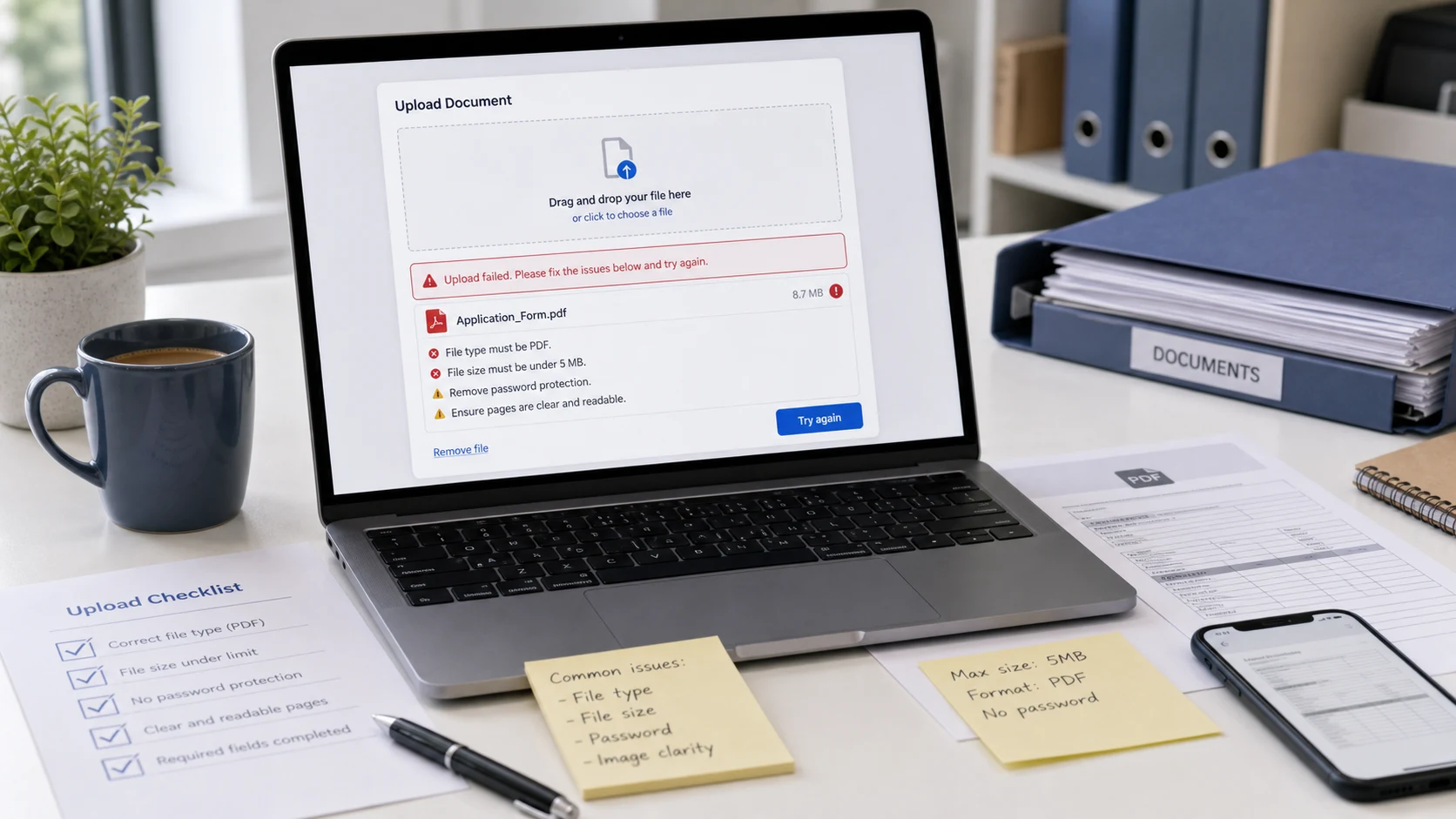
Lower the render scale or JPG quality, convert fewer pages at once, or compress the JPG images after export if an upload destination has a file-size limit.