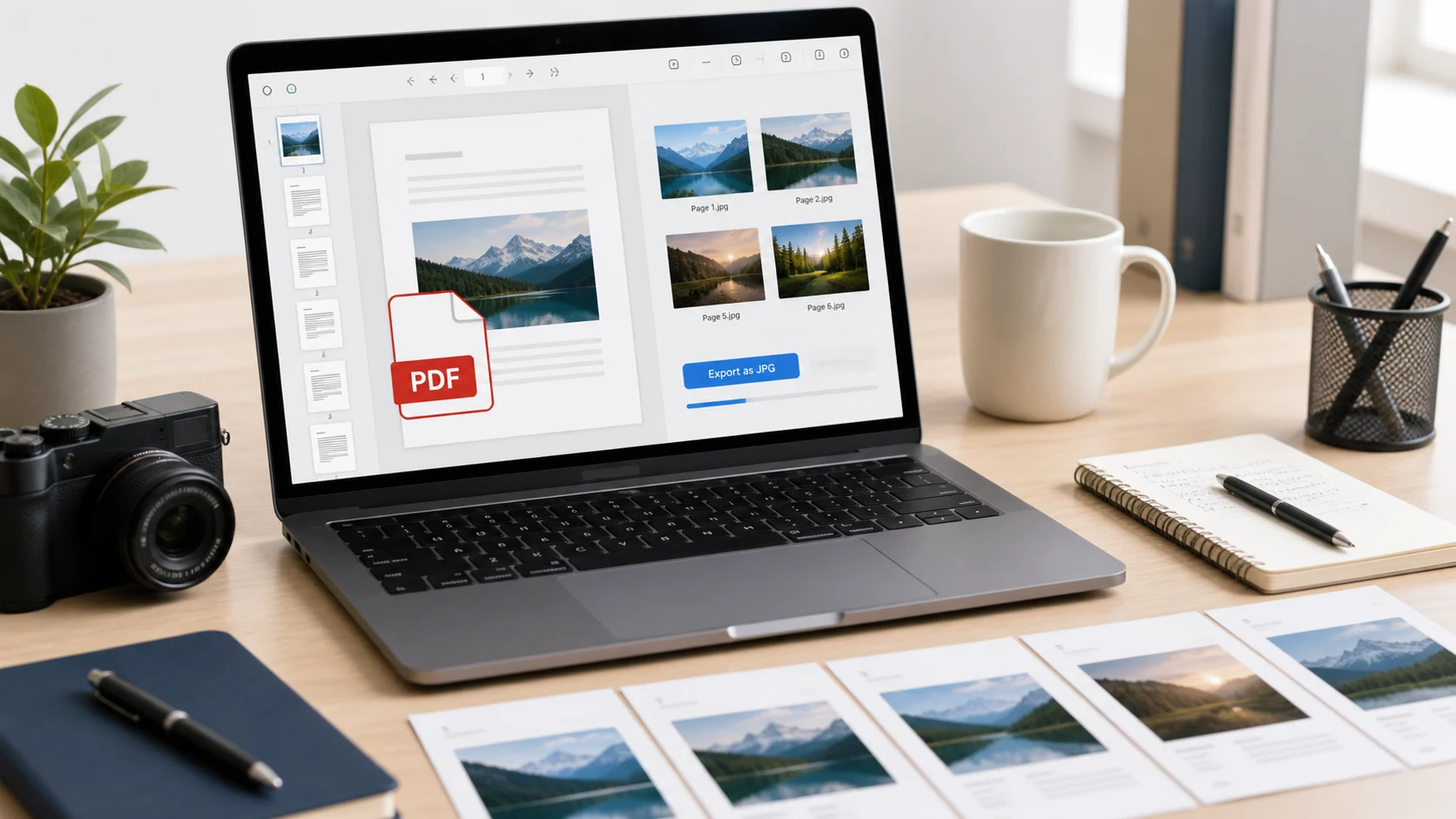
To change a PDF to JPG, open it in a PDF to JPG converter, pick a quality level and save each page as an image. A browser converter does every page at once. On a Mac, Preview exports the current page as a JPEG through File > Export. Windows has no built-in converter, so use a browser tool.
Below is each method for Windows, Mac, iPhone and Android, how to choose a resolution that keeps small text readable, and when PDF to PNG is the better pick.
How to change PDF to JPG in your browser
This works on Windows, Mac, Chromebook, iPhone and Android with the same steps.
- Open ConvertorLab PDF to JPG.
- Add one PDF or several.
- Keep the output format on JPG, or switch to PNG.
- Pick a detail level: standard, high or extra.
- Start the conversion and download the ZIP. Every page becomes a separate image, named by file and page number.
The pages are rendered on your device, so the document isn't uploaded anywhere. That's worth knowing when the PDF is a bank letter, a marksheet or an ID scan.
If you only need one page, convert the file and keep that image from the ZIP. For a long document, it's tidier to cut out the pages you need first with Split PDF, then convert the shorter file.
A password-protected PDF has to be unlocked before any converter can read it. Remove the password first, using the password you were given, then convert.
How to convert PDF to JPG on Mac with Preview
Preview turns the page you're viewing into a JPEG.
- Open the PDF in Preview and go to the page you want.
- Choose File > Export.
- Set Format to JPEG (or PNG).
- Adjust the Quality slider and the Resolution. A higher resolution gives a sharper, larger image.
- Choose a name and location, then click Save.
Preview exports one page per image, so a 20-page document means 20 trips through the export dialog. For more than a couple of pages, the browser converter is faster. Mac users comfortable with Automator can build a workflow around the Render PDF Pages as Images action, but that takes some setting up.
How to convert a PDF to JPG on Windows
Windows opens PDFs in Edge but can't save them as images. You have two practical options.
- Use the browser converter above in Edge or Chrome. It handles every page and keeps the full page sharp.
- Take a screenshot. Open the PDF, zoom so the page fills the screen, press Windows key + Shift + S and drag a box around the page. Snipping Tool lets you save the capture as a JPG or PNG.
Screenshots are limited by your screen's resolution, so small print can come out soft. They're fine for a quick share. For anything someone needs to read closely, convert the page properly.
How to convert PDF to JPG on iPhone
The Files app on iPhone has no PDF to image button, but the browser converter runs fine in Safari.
- Save the PDF to the Files app if it came in an email or chat.
- Open PDF to JPG in Safari and tap the upload area, then Browse, to pick the file.
- Choose JPG and a detail level, then start the conversion.
- Download the ZIP. It lands in the Downloads folder in Files.
- Tap the ZIP in Files to expand it into a folder of images.
To move the images into Photos, select them in that folder, tap Share and choose to save the images. From there you can post or attach them like any other photo.
If you convert PDFs on your phone often, the Shortcuts app has a Make Image from PDF Page action you can build a shortcut around. It takes a few minutes to set up and is worth it only if this is a regular job.
How to convert PDF to JPG on Android
Android doesn't include a PDF to image option either. The simplest route is the same browser tool in Chrome.
- Download the PDF so it sits in your Downloads folder.
- Open PDF to JPG in Chrome and tap the upload area to pick the file.
- Choose JPG and a detail level, convert, and download the ZIP.
- Open the ZIP in your Files app and extract it. The images then show up in your gallery.
For one page, a screenshot of the PDF open on screen also works. Crop off the status bar and app controls before you send it.
Which resolution should you use?
Resolution decides whether small text survives. The converter's three detail levels map to roughly these sizes:
- Standard (about 108 DPI) for previews, slides and pages viewed on a phone.
- High (about 144 DPI) for most uses, including upload portals that ask for an image of a document.
- Extra (about 180 DPI) for pages with fine print, tables or signatures that people will zoom into.
Higher detail means bigger files. If a site caps image uploads at a small size, convert at high detail, then shrink the image with Compress JPG to hit the limit. That usually looks better than converting at the lowest setting.
For printing, keep the original PDF. Print shops usually want around 300 DPI, and a PDF prints sharper than any page image made from it. The 300 DPI guide explains why.
PDF to PNG or PDF to JPG: which is better?
Both work. Choose by what's on the page.
- JPG suits pages with photos and scanned documents. Files stay small, and almost every upload form accepts JPG.
- PNG keeps text, lines and charts perfectly crisp, with no blurry halos around letters. Files are larger.
For a typed letter or a spreadsheet printout, PDF to PNG reads more cleanly. For a scanned photo ID, JPG is the practical choice. If you're unsure, start with JPG at high detail and zoom in. Switch to PNG if the edges of letters look fuzzy. The guide to what a PNG file is covers the format in more depth.
Common reasons to change a PDF to JPG include upload fields that accept only images, posting a page in a chat app where PDFs don't preview, dropping a page into slides, and sharing one page of a long report without sending the whole thing.
Before you send the images
- Open one image at full size and read the smallest text on it. If you have to squint, convert again at a higher detail level.
- Check that pages are the right way up. A page scanned sideways stays sideways in the JPG.
- Rename the files if the recipient needs to know which page is which, for example "statement-page-2.jpg".
- Check the size limit. Many forms list a maximum in KB, so compress the image after converting rather than picking the lowest detail level.
Going the other way? The guide to making a PDF from photos covers combining images and scans back into a single document.
Free tools that run in your browser
Frequently asked questions
How do I convert a PDF to JPG for free?
Use a browser converter such as ConvertorLab PDF to JPG. Add the PDF, keep the output on JPG and download a ZIP with one image per page.
How do I change PDF to JPG on iPhone?
Open a PDF to JPG converter in Safari, pick the PDF from Files, convert and download the ZIP. Tap the ZIP in Files to expand it, then save the images to Photos.
Can I convert a PDF to JPG on Windows without software?
Windows has no built-in converter. A browser tool works in Edge or Chrome, or you can screenshot a page with Windows key + Shift + S.
Should I convert PDF to PNG or JPG?
Pick PNG for text, charts and line drawings that must stay crisp. Pick JPG for photos and scans, or when the file needs to be small.
Why is my converted JPG blurry?
The resolution was too low. Convert again at a higher detail level, then compress the image if it needs to be small.