Resize images in pixels, centimeters or KB
This image resizer changes two different things, and online forms often ask for both. Dimensions are the width and height, set in pixels, centimeters, millimeters or inches. File size is how many KB the image takes up on disk. Set one or both, add your photos, and download them resized one by one or in a ZIP.
Presets cover the common sizes for Instagram, Facebook, YouTube, LinkedIn, Pinterest, app icons, wallpapers, print and display ads, so you don't need to look them up.
How to resize an image
- Add images. JPG, PNG, WebP, SVG and iPhone HEIC are supported, up to 500 at a time.
- Choose a size. Pick a preset, or choose a mode and type the width and height.
- Set a file size limit if a website caps uploads at 20KB, 50KB or 100KB.
- Press Start Resize and download each image or the ZIP.
Resize an image to 20KB, 50KB or 100KB
Exam and job portals usually state both rules at once, for example "photo 200 x 230 pixels, under 50KB" or "signature 140 x 60 pixels, 10KB to 20KB". Enter the pixel size first, then choose the KB limit under File Size Limit. The resizer keeps your exact dimensions and lowers JPG quality until the file fits. Only if it still can't fit does it shrink the image further, and the result card tells you the final size.
For signatures, sign on plain white paper with a dark pen, photograph it in good light, and crop tightly with Crop Image before resizing.
Resize a photo in cm, like 3.5 x 4.5 cm
Choose Centimeters as the unit and type the size, for example 3.5 by 4.5 for a passport-style photo. Pixels are worked out from the DPI value. 300 DPI is the usual print quality, so 3.5 x 4.5 cm becomes 413 x 531 pixels. Use Exact (Cover) mode so the photo fills the frame and the extra edges are trimmed evenly.
Which resize mode to use
Free photo resizer, no upload
Every image is resized in your browser, so personal photos and ID pictures never leave your device. It's free, with no sign-up, no watermark and no daily limit. For simple KB-only compression without changing dimensions, Image Compressor is quicker.
Guides
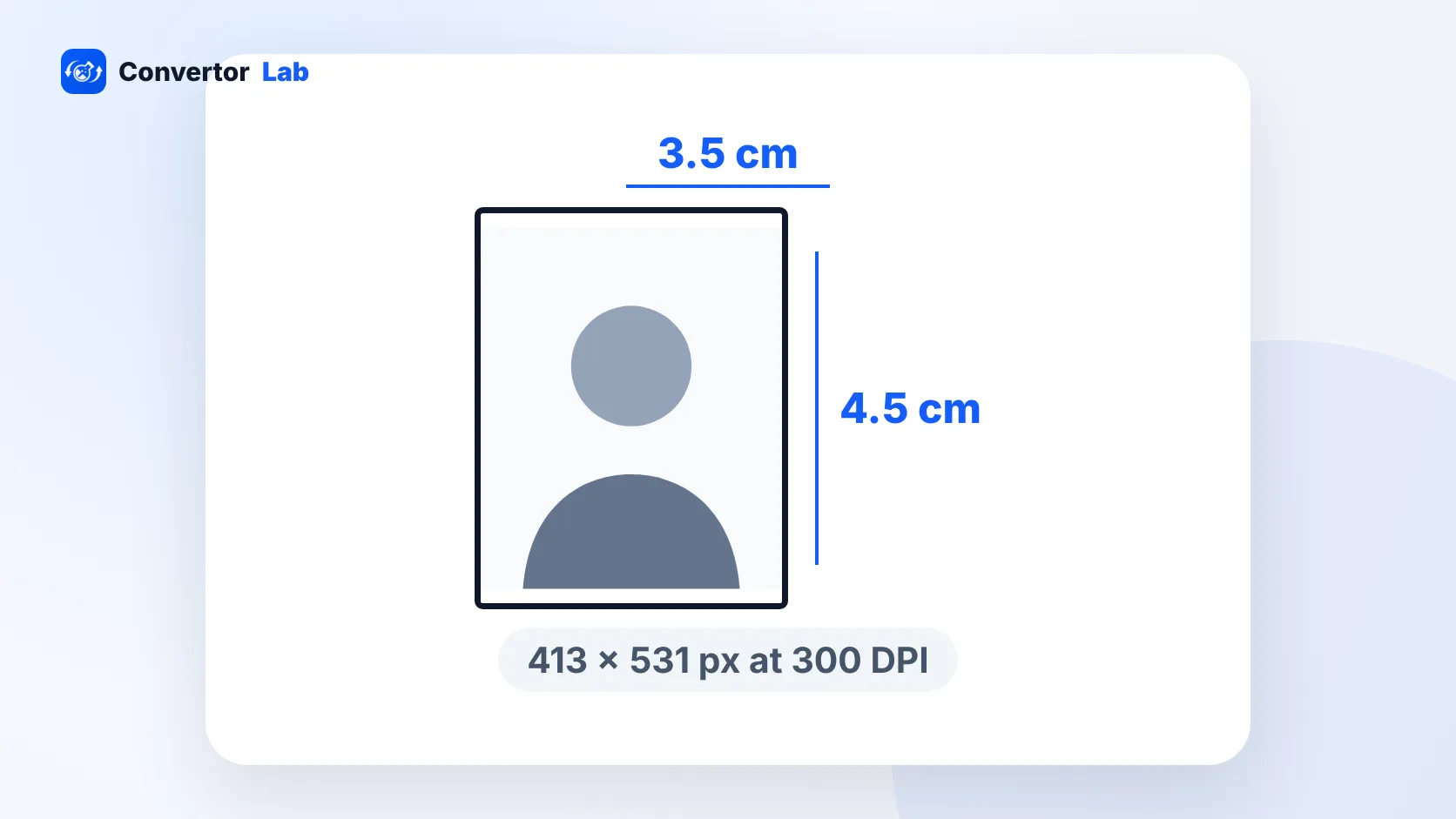 Passport Size Photo Size in India: cm, Inches and PixelsThe standard Indian passport size photo is 3.5 x 4.5 cm with a white background.Read guide
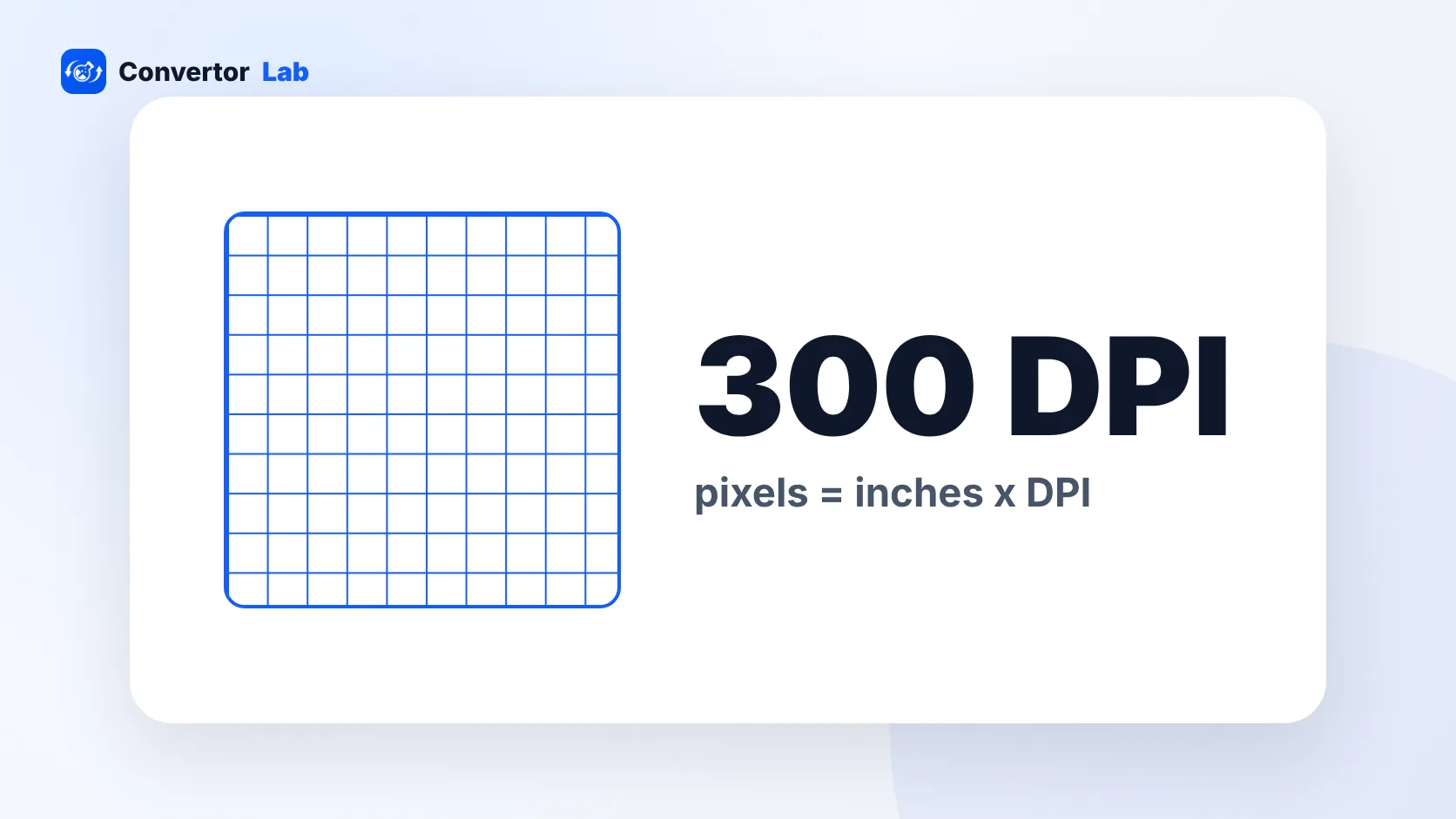 300 DPI: what it means and how many pixels you need300 DPI is the usual standard for sharp prints.Read guide
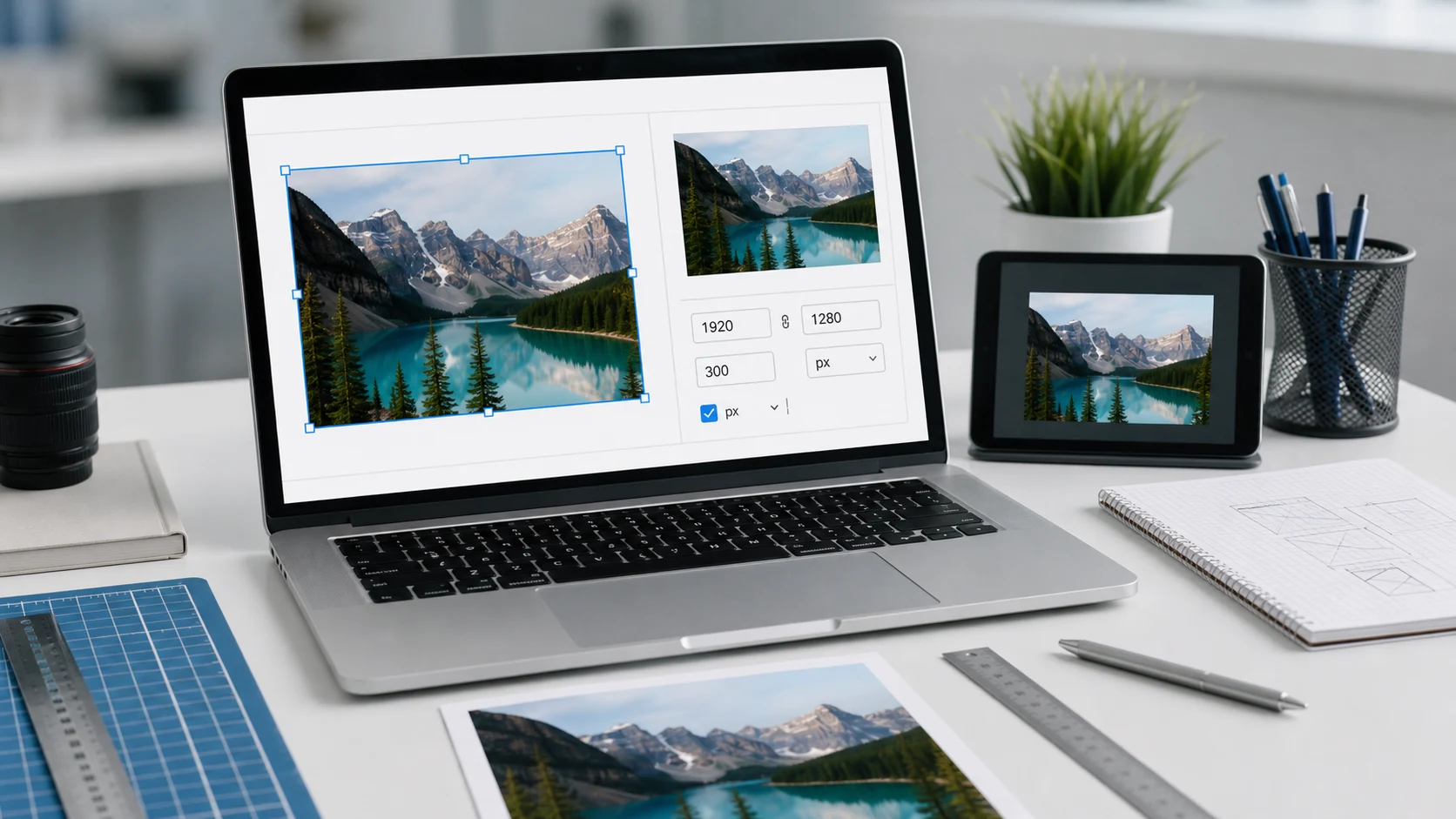 Image dimensions explainedPixels, DPI and print sizes.Read guide
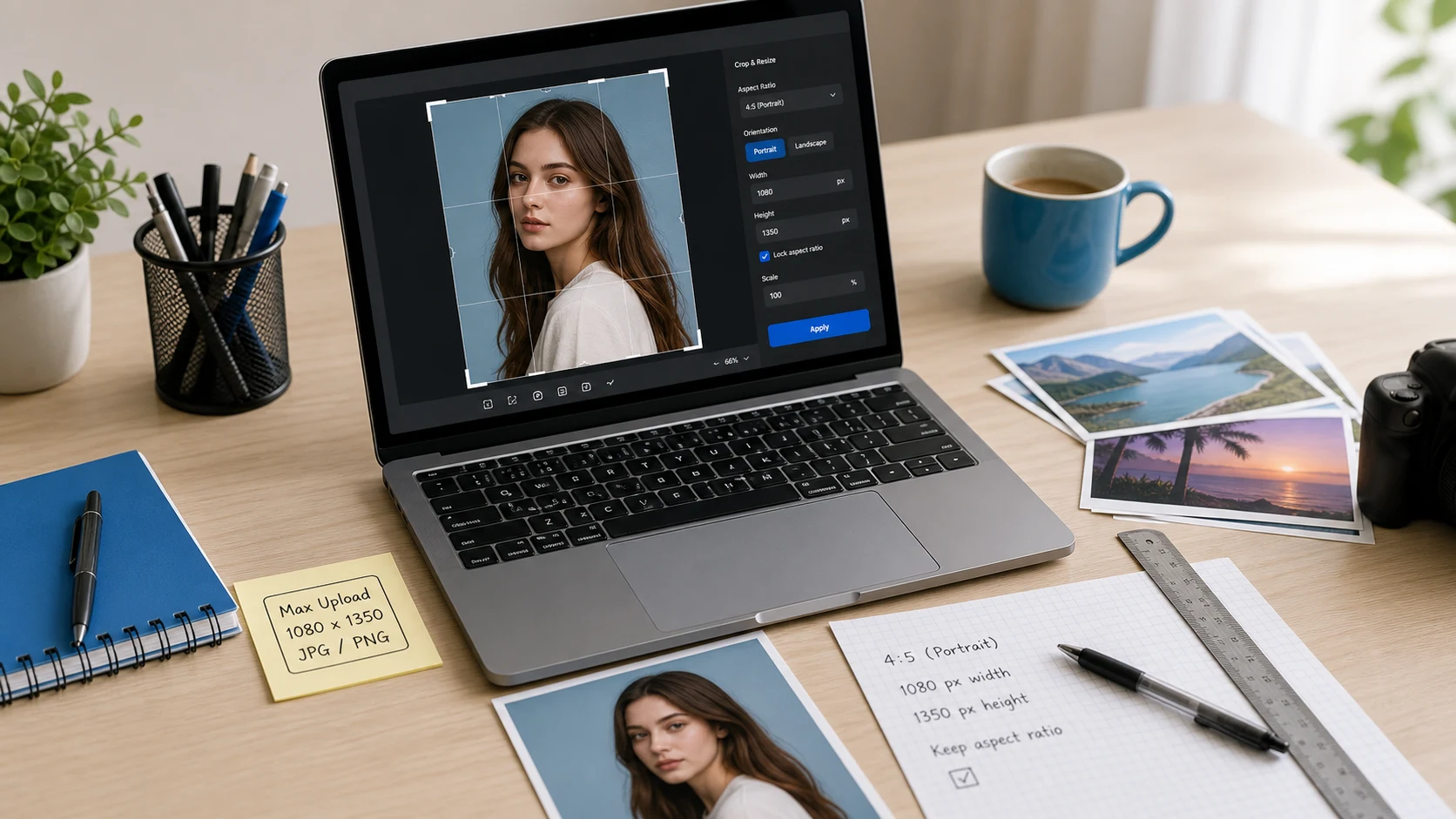 Resize images for upload formsHit pixel and KB limits first try.Read guide
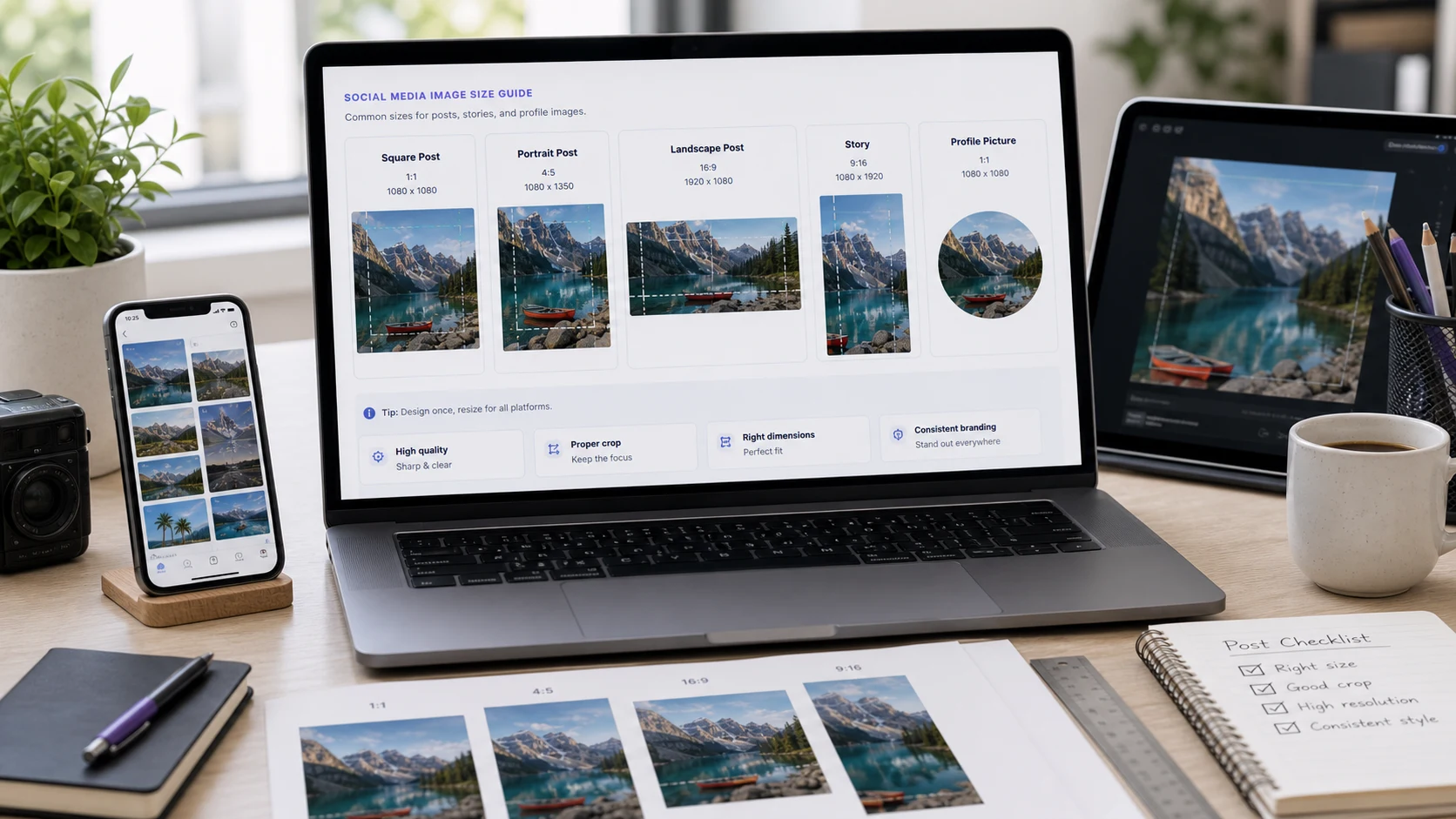 Social media image sizesThe sizes each platform expects.Read guide
Resize image questions
How do I resize an image to 20KB?
Add the image, choose 20 KB under File Size Limit and press Start Resize. Set the pixel size first if the form asks for specific dimensions.
How do I resize an image in cm?
Set the unit to Centimeters, enter the width and height, and keep DPI at 300 for print quality. Use Exact (Cover) mode for an exact frame.
How do I resize a photo to 3.5 x 4.5 cm?
Choose Centimeters, enter 3.5 and 4.5, set Exact (Cover) mode and press Start Resize. At 300 DPI the photo becomes 413 x 531 pixels.
Can I resize many images at once?
Yes. Add up to 500 images and they are all resized with the same settings, then downloaded as a ZIP.
Will resizing reduce quality?
Making an image smaller keeps it sharp. Making it much larger than the original can look soft, so turn on No Upscale if you want to avoid that.
Does it keep the transparent background?
Yes for PNG and WebP output when Background Fill is set to never fill. JPG has no transparency, so transparent areas become the background color.
Are my images uploaded?
No. Resizing happens in your browser on your device.