Grayscale Image Converter Online

Convert JPG, PNG, WebP, and browser-supported images to grayscale or black and white. Preview the result, tune brightness and contrast, then download one image or a full batch as a ZIP.

Editor Preview

Tip: Press & hold on the preview to see original. Release to see edits.

Drag & drop images or

Supports: JPG, PNG, WEBP, HEIC (if browser supports) - Limit: 500 files / 2 GB

Good for

Privacy note: this grayscale image workflow is designed for browser-side editing where supported. Keep your original files until you review the final black-and-white result and confirm the tone, contrast, and export format are right.

What is a grayscale image converter?

A grayscale image converter changes a color image into a version made from shades of gray. People also search for this as a black and white image converter, photo to grayscale tool, grayscale filter, or convert photo to black and white online. The useful difference is control: a plain desaturate image action may look flat, but this page lets you adjust brightness, contrast, exposure, shadows, highlights, fade, sepia, invert, and vignette so the final image still has readable detail. Use it when color is not required for a document, upload form, print draft, product proof, profile preview, or simple website graphic.

Example grayscale workflow

If a profile photo, document scan, or product image needs a simpler black-and-white version, use one grayscale setup and export the file in the format your destination accepts.

InputJPG, PNG, WebP, HEIC, or another browser-supported image file
SettingsGrayscale strength, brightness, contrast, exposure, shadows, highlights, sepia, invert, fade, and vignette
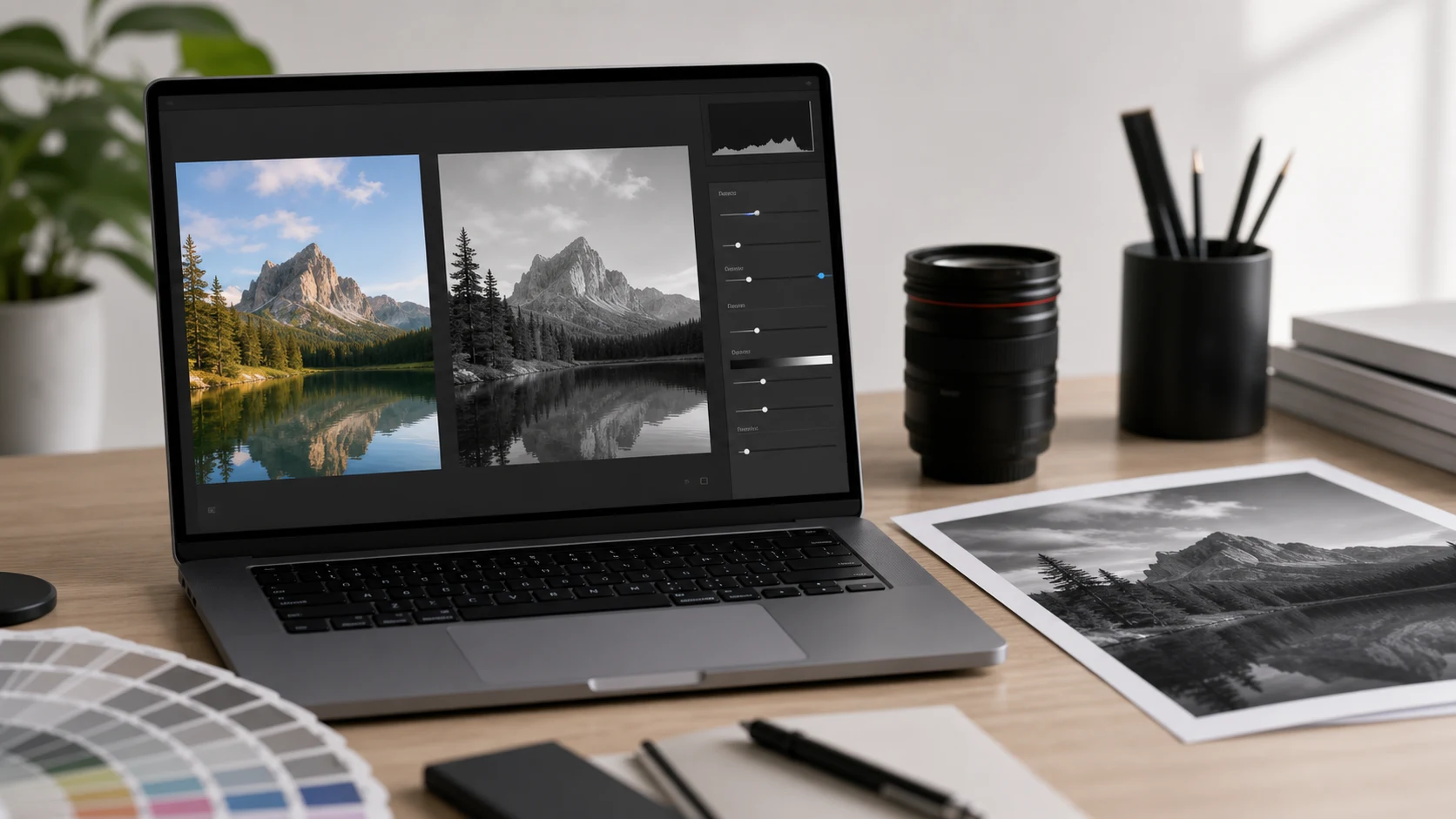
PreviewLive black-and-white preview with press-and-hold original comparison
OutputOne grayscale PNG or JPEG, or a ZIP for batch grayscale images

This flow fits common searches such as convert image to grayscale online, make image black and white, convert JPG to grayscale, PNG grayscale converter, WebP black and white, and batch grayscale photos.

Common use cases

Features

  • Live preview for grayscale, black-and-white tone, sepia, invert, brightness, contrast, exposure, and vignette changes.
  • Press-and-hold original comparison so you can check whether the grayscale edit still preserves important detail.
  • Single-image download plus batch ZIP export for multiple grayscale photos.
  • PNG and JPEG output options, with JPEG quality control for smaller photo files.

How to use

  1. Choose images or drag them into the import panel.
  2. Keep Grayscale at 100% for a full black-and-white result, or lower it for a partial desaturated look.
  3. Adjust brightness, contrast, exposure, shadows, highlights, fade, sepia, invert, temperature, tint, and vignette until the preview is readable.
  4. Download the current image or export the full batch as a ZIP.

Benefits

  • Make black-and-white images without installing a photo editor.
  • Keep the tool near the top of the page for faster editing.
  • Use one setup for a single image or many images.
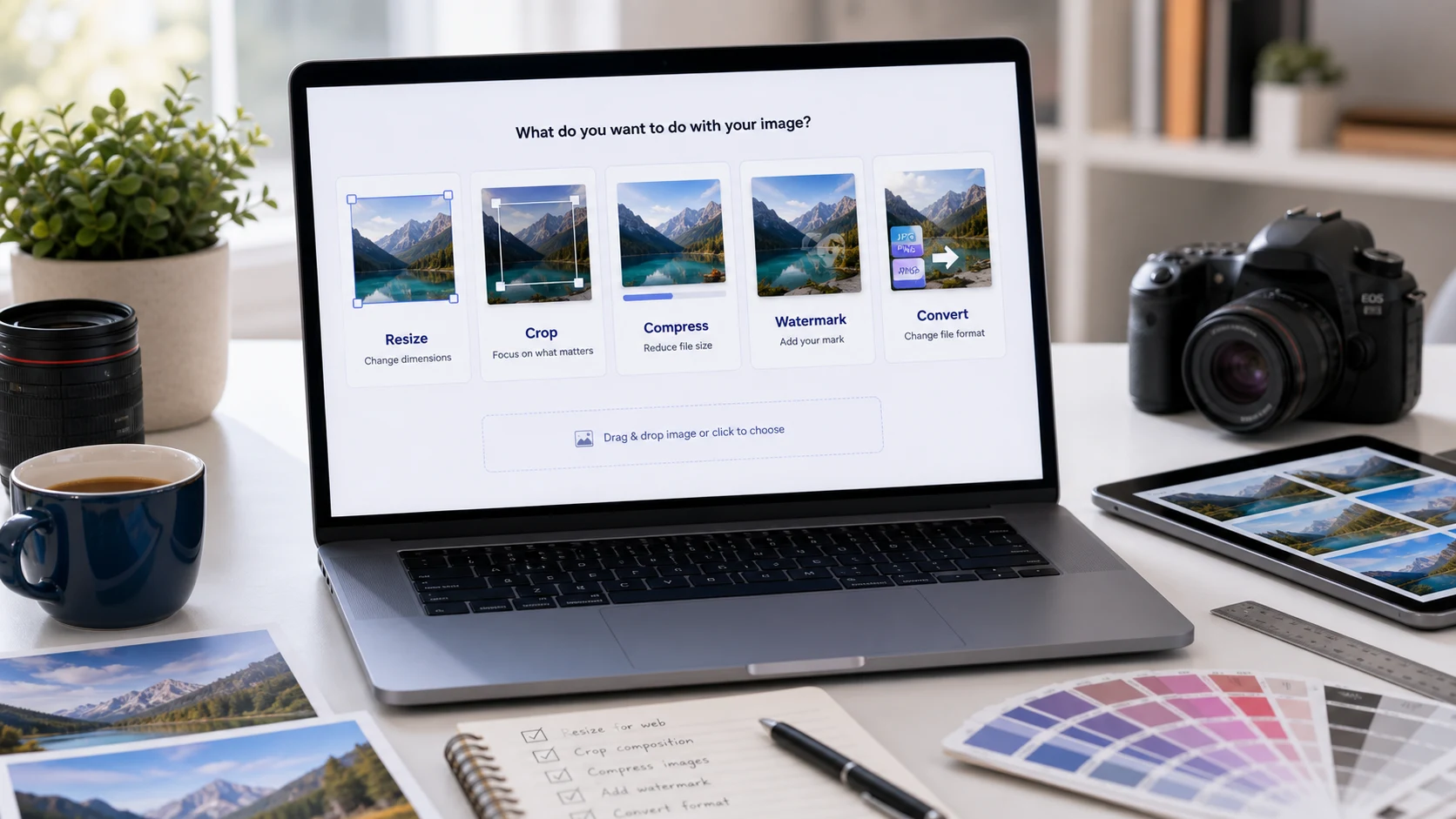
  • Move naturally into crop, resize, compression, WebP conversion, watermarking, or PDF creation.

How to make a grayscale image look clean

A good grayscale image is not just color removed from a photo. The important details still need contrast, faces should not become muddy, text should stay readable, and transparent PNG edges should not look accidental. Start with a full grayscale conversion, then use brightness and contrast lightly. If the image feels harsh, lower contrast or add a small fade. If it feels flat, increase contrast or adjust shadows and highlights. For web use, download the result and then convert to WebP or compress the final file so the grayscale image stays practical for upload and page speed.

Grayscale image questions

How do I convert an image to grayscale online?

Choose one or more images, keep Grayscale at 100%, adjust brightness or contrast if needed, then download the current result or export the batch as a ZIP.

Is grayscale the same as black and white?

Most people use the terms together, but grayscale usually means the image keeps many gray tones. A strict black and white image may use only pure black and pure white, which can look harsher.

Can I make a JPG, PNG, or WebP image grayscale?

Yes. The tool accepts common browser-supported image files such as JPG, PNG, and WebP. HEIC support depends on the browser.

Can I batch convert photos to grayscale?

Yes. Add multiple images, adjust the grayscale and tone settings once, then use Download All (ZIP) to export the processed batch.

Can I adjust brightness and contrast after applying grayscale?

Yes. Use brightness, contrast, exposure, shadows, highlights, fade, sepia, invert, temperature, tint, and vignette controls to tune the black-and-white result before downloading.

Will PNG transparency stay transparent?

The pixel pipeline keeps the alpha channel in PNG output. If you choose JPEG output, transparent areas are flattened because JPEG does not support transparency.

Which format should I download after making a photo black and white?

Use PNG when transparency or crisp graphics matter. Use JPEG when you want a smaller photo file for upload, email, or document workflows.

Does the grayscale image tool upload my files?

The workflow is designed for browser-side image processing where supported. Keep your original files until you review the exported result.

What should I do if the grayscale image is too large?

Download the grayscale result first, then open Compress JPG, Compress PNG, or Image to WebP if the destination needs a smaller file.