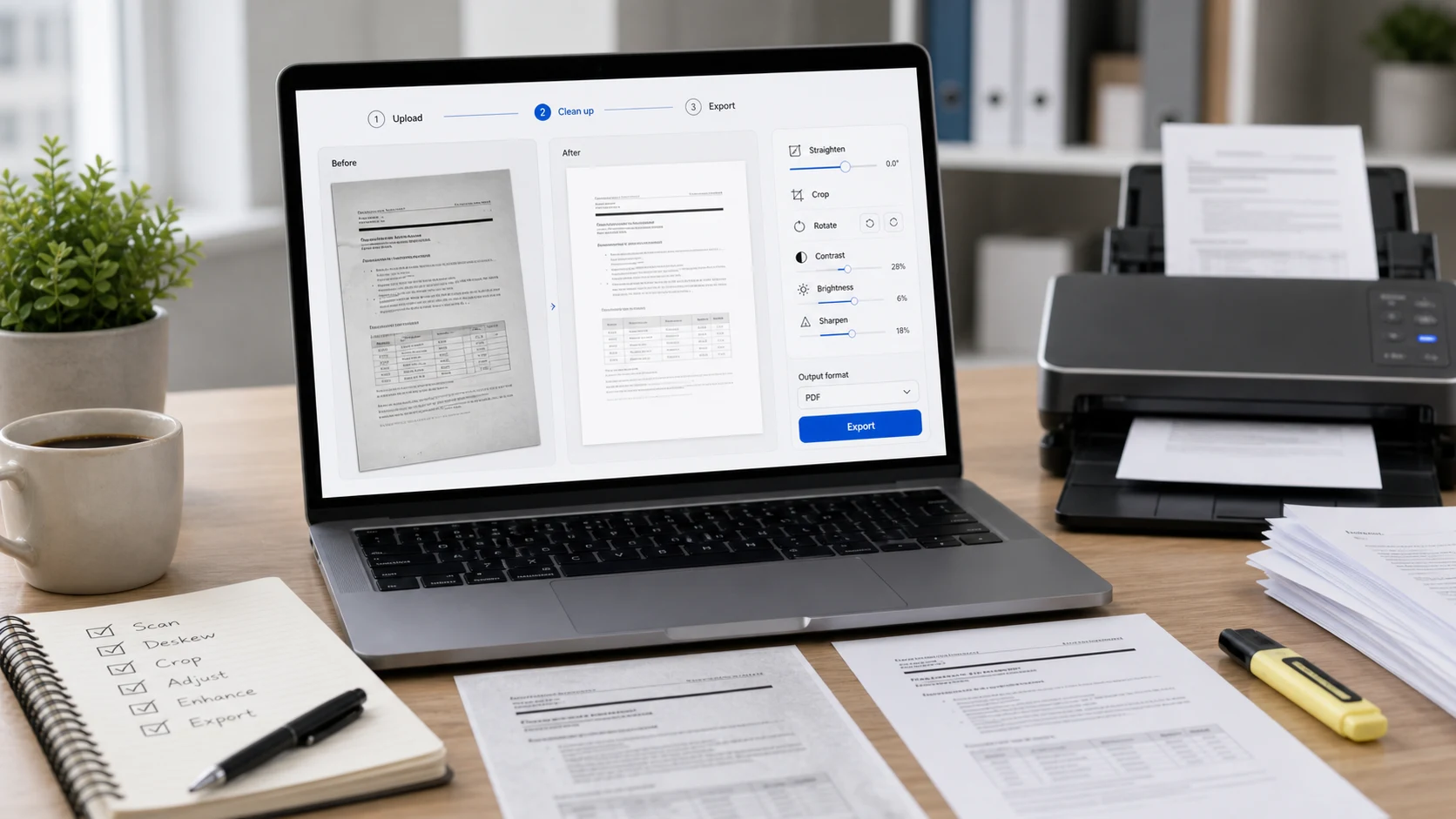
To scan multiple pages into one PDF, use your phone's built-in scanner and keep capturing pages before you tap Done. On an iPhone, the Files app's Scan Documents option saves every page you capture as a single PDF. On Android, the Google Drive scanner has an Add button for extra pages and lets you save the result as a PDF. If you already have separate scans, combine them afterwards with a PDF merger.
Below are the exact steps for each phone, how to join scans you made at different times, and how to get the finished file small enough to email or upload.
How to scan multiple pages into one PDF on iPhone
The Files app is the most direct route because it saves straight to a PDF in a folder you choose. These steps follow Apple's guide to scanning documents on iPhone.
- Open the Files app and tap the More button.
- Tap Scan Documents.
- Hold the first page in view of the camera. In Auto mode it captures by itself. In manual mode, tap the Shutter button or press a volume button.
- If you captured manually, drag the corners to fit the page and tap Keep Scan.
- Put the next page in place and repeat. Each capture is added to the same document.
- When the last page is in, tap Done.
- Choose a location and tap Save.
Scan the pages in the order you want them to appear. That saves reordering later. In iOS 26 you can also turn on the flash or pick an image filter while scanning.
How to scan several pages to a PDF with iPhone Notes
Notes uses the same scanner. The scan sits inside a note, which is handy if you want to keep it alongside your own comments.
- Open Notes and create a note or open an existing one.
- Tap the Attachment button, then tap Scan Documents.
- Capture each page the same way as in Files, then tap Done.
- To get a PDF file, tap the scan in the note, tap Share, and choose Save to Files.
- Pick a folder and tap Save.
If the scan's only purpose is to send it somewhere, starting in Files saves the extra export step.
How to scan multiple pages into one PDF on Android
Google Drive's scanner is available on most Android phones. Google lists these steps on its Drive scanning help page.
- Open the Google Drive app.
- At the bottom right, tap Camera.
- Point the camera at the first page. A blue line shows where the picture will be cropped. Take the photo.
- Adjust if needed: Crop & Rotate fixes the edges, Filter changes color or switches to grayscale, and Clean erases marks.
- Tap Add to scan the next page into the same document. Repeat for every page.
- Tap Done.
- Enter a file name or pick a suggestion, select .pdf as the format, and tap Save.
For quicker access next time, add the Drive scan widget to your home screen. Many phone makers also put a scanner in their own camera or files app, but the menus differ by brand.
How to combine separate scans into one PDF
Sometimes the pages don't arrive together. You scanned the front of a form yesterday and the back today, or someone sent you three PDFs that belong in one file. In that case, merge them.
- Open Merge PDF and add all the scanned PDFs.
- Drag them into the right order.
- Merge and download the single file.
Merging copies the pages without re-compressing them, so the scans keep their quality. If a page ends up upside down or out of place inside a file, Organize PDF lets you rotate, move or delete individual pages.
If your scans are photos or JPG files instead of PDFs, use JPG to PDF. Add the images, drag them into order, pick A4 or Letter, and create one PDF. It accepts iPhone HEIC photos too. Both tools run in your browser, so ID cards and bank letters aren't uploaded anywhere.
Tips for a clean multi-page scan
Small habits make more difference than any app setting, and they matter more when a document runs to many pages.
- Use daylight or even room light. A single lamp throws a shadow from your hand or phone.
- Put pages on a dark, plain surface so the scanner can find the edges.
- Hold the phone flat above the page. Tilting creates a skewed shape the app can only partly fix.
- Turn the flash off for glossy paper, since it leaves a glare spot on the text.
- Number the pages lightly in pencil first if they're loose, so the order is obvious.
- Choose grayscale or black and white for plain text. It's easier to read and makes a much smaller file.
Keep color for pages where it carries meaning, such as stamps, ID photos or highlighted text.
How to make a scanned PDF smaller
Multi-page scans add up quickly, and many email services and upload portals have size limits. If yours is too big, run it through the PDF compressor with a target size, or set a lower DPI and grayscale manually. Around 150 DPI in grayscale is usually readable on screen.
The compressor turns pages into images, which suits scans because they're images already. Afterwards, open the PDF on a laptop and read the smallest print on every page. Fine print and ID numbers are the first things to blur. For portal-specific advice, see the PDF upload checklist.
Name the final file so it says what it is, such as lease-signed-2026-10.pdf. Short names without special characters also avoid errors on older upload forms.
Free tools that run in your browser
Frequently asked questions
How do I scan multiple pages into one PDF on my iPhone?
Open Files, tap the More button, choose Scan Documents and capture each page in turn. Tap Done, pick a folder and tap Save to get one PDF with all the pages.
Can Google Drive scan multiple pages into one PDF?
Yes. After the first capture, tap Add to scan more pages into the same document, then tap Done and choose .pdf when saving.
How do I combine scanned PDFs into one file?
Use a PDF merger: add the files, drag them into order and merge. Merging keeps the original page quality.
Why is my scanned PDF so large?
Each page is a full photo, so files grow with every page. Scan text in grayscale and compress the PDF to around 150 DPI, then check the small print is still readable.