Good for
- Turning JPG, PNG, and photo files into a PDF for upload forms, records, school portals, office systems, and client delivery.
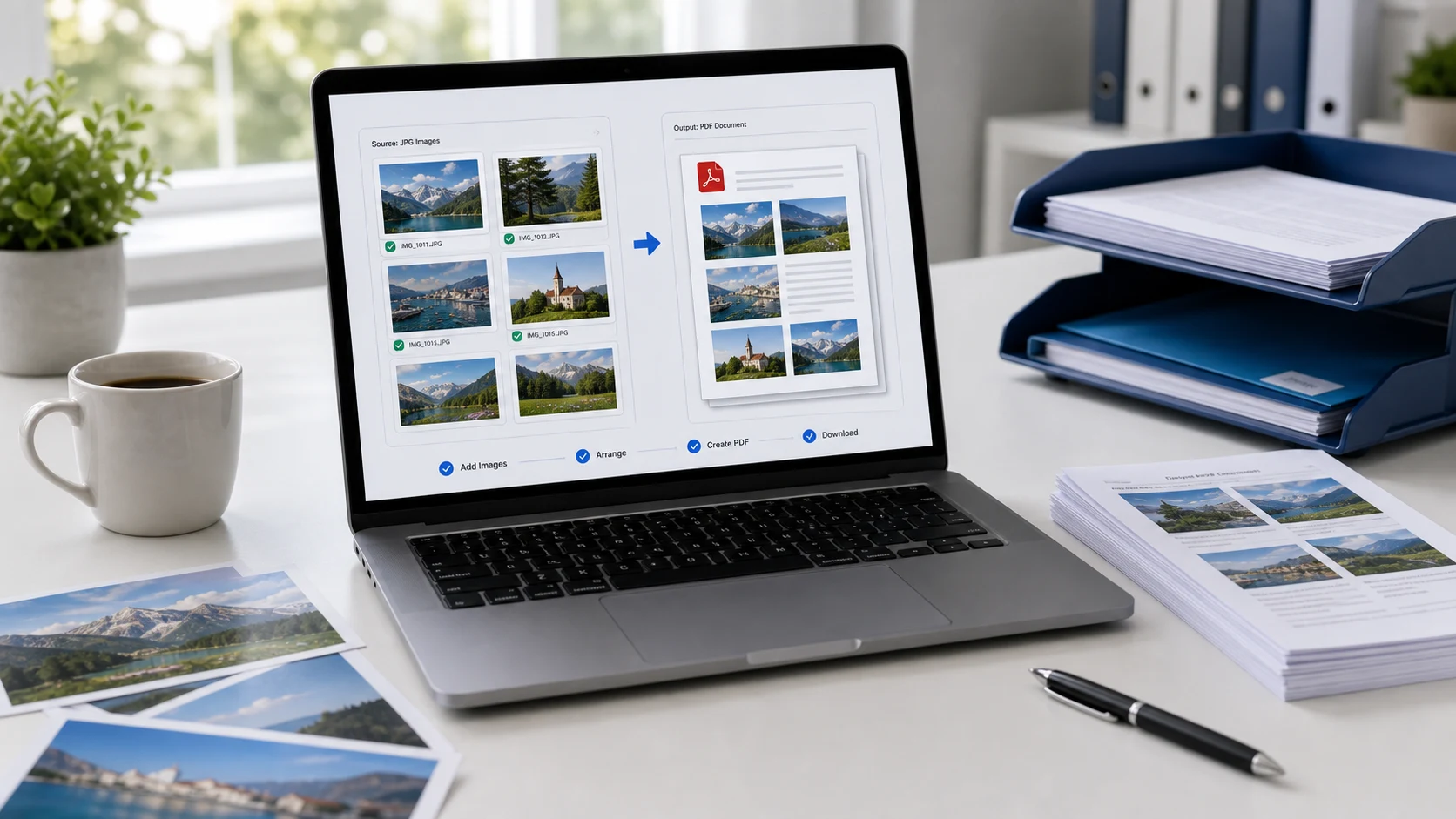
- Combining multiple images into one PDF document when separate files are hard to organize or submit.
- Creating separate PDF files from images when each photo, scan, receipt, or page needs its own document.
Privacy note: this image to PDF converter is designed around browser-side processing where supported. Keep your original images until you have reviewed the generated PDF.
What is an image to PDF converter?
An image to PDF converter turns picture files into PDF pages so photos, screenshots, receipts, scanned notes, forms, certificates, IDs, and document images can be shared as a single file. This page works as an image to PDF converter online, JPG to PDF converter, PNG to PDF converter, photo to PDF maker, picture to PDF converter, and multi-image to PDF tool for common upload and document tasks. A PDF is often easier to submit than several loose images because it keeps pages together, opens predictably on most devices, and fits workflows where a form asks for one document instead of many photos.
Example image to PDF workflow
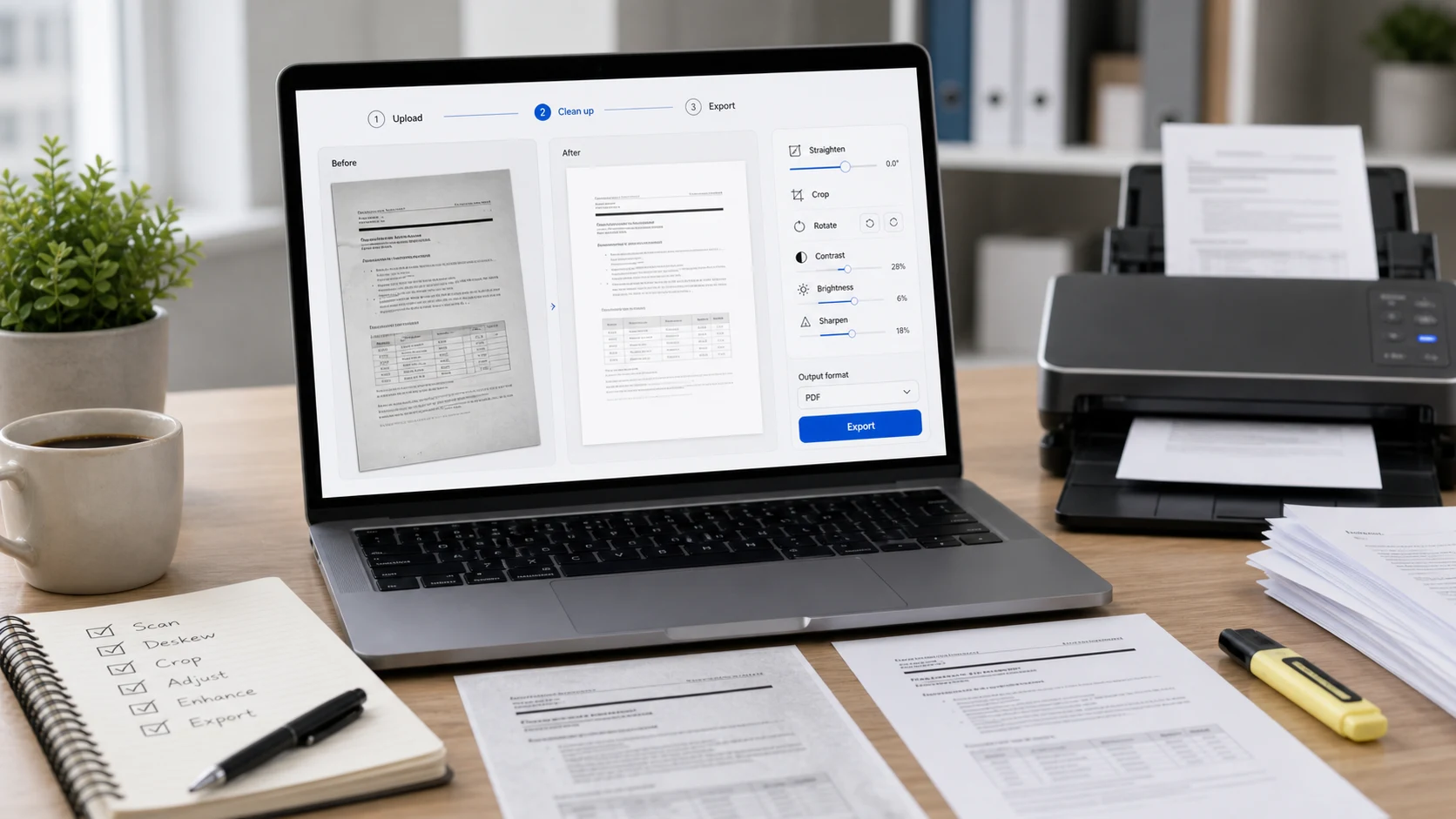
If you photographed several pages or saved screenshots that need to be uploaded as one document, use this flow before submitting the file.
This example is about document preparation. If a portal also has a file-size limit, compress the finished PDF or resize images before converting.
Common use cases
- Convert JPG to PDF for application forms, invoices, receipts, certificates, IDs, and photo records.
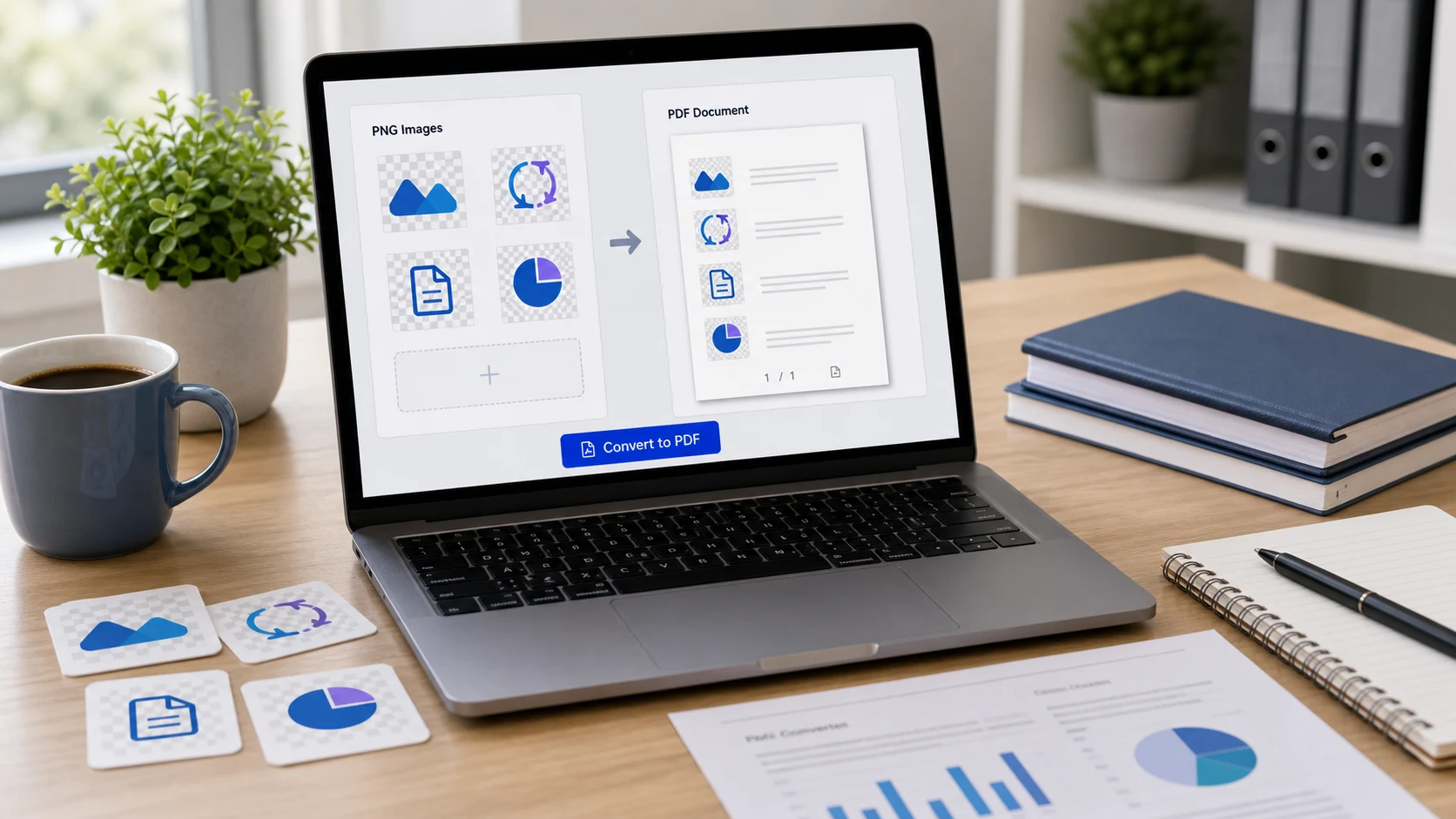
- Convert PNG to PDF when screenshots, graphics, or scanned forms need to be sent as a document.
- Combine multiple images into one PDF for school assignments, travel documents, office records, or client delivery.
- Make a PDF from photos when email or a website does not handle several separate image attachments well.
- Create separate PDFs from images when each photo or scan needs to be submitted as its own document.
Popular image to PDF tasks
- Use an image to PDF converter online when a website asks for PDF instead of JPG or PNG files.
- Convert multiple images to PDF and keep each image on a separate PDF page.
- Turn photos into PDF for receipts, notes, IDs, whiteboards, certificates, and scanned paperwork.
- Convert JPG images to PDF for printing, sharing, uploading, or keeping photo records together.
- Convert PNG images to PDF when screenshots or graphics need to be stored in a document format.
- Create a PDF from pictures before merging, compressing, organizing, or locking the final document.
Features
- Accepts JPG, JPEG, PNG, WebP, GIF, and BMP images.
- Creates one combined PDF or separate PDFs.
- Centers each image on a PDF page.
- Shows selected images in a scrollable results panel.
- Downloads a PDF or ZIP after conversion is complete.
How to use this converter
- Add images. Choose or drop JPG, PNG, WebP, GIF, or BMP files.
- Choose the mode. Select one combined PDF or separate PDF files.
- Start conversion. Keep the tab open while the PDF is created.
- Download the result. Save the PDF or ZIP when the button unlocks.
Benefits
- Makes images easier to submit where PDF is required.
- Combines related photos and scans into one organized document.
- Helps keep receipts, forms, and records together.
- Pairs well with PDF compression, merging, and locking tools.
JPG to PDF vs PNG to PDF
Use JPG to PDF when your images are photos, receipts, product pictures, scanned pages, or camera captures. JPG is common for photo-like files and usually works well for upload and sharing workflows. Use PNG to PDF when the image is a screenshot, graphic, text-heavy form, or interface capture where sharp edges matter. Both formats can become PDF pages, but the best source format depends on the image content. If the final PDF is too large, resize or compress the images before conversion, or compress the PDF after it is created.
How page fit works
The converter places each image into a PDF page and scales it to fit the page area while keeping the image proportions. That makes the result useful for everyday forms, records, quick printing, and PDF uploads. If you need exact print dimensions, strict margins, OCR text recognition, signatures, or complex document editing, use a dedicated PDF editor after creating the basic PDF. This tool focuses on the common task of turning image files into a clean PDF document quickly.
Common image to PDF questions
What does an image to PDF converter do?
It turns image files such as JPG, JPEG, PNG, WebP, GIF, or BMP into PDF pages so photos, scans, screenshots, receipts, and forms can be shared or uploaded as a document.
Can I convert multiple images into one PDF?
Yes. Choose the single PDF mode to place all selected images into one PDF document, with each image centered on its own page.
Can I convert JPG to PDF online?
Yes. Add JPG or JPEG images, keep the single PDF mode if you want one document, start conversion, and download the PDF result.
Can I convert PNG to PDF?
Yes. PNG files can be converted into PDF pages. This is useful for screenshots, forms, graphics, documents, or images that need to be submitted as a PDF.
Should I make one PDF or separate PDFs?
Choose one PDF when the images belong together, such as a receipt set, scanned pages, portfolio, or application document. Choose separate PDFs when each image needs its own document.
Does converting images to PDF reduce image quality?
The tool places images into PDF pages and encodes them for practical document use. Very large photos may be scaled to fit the PDF page, so keep original images if you need full-resolution editing later.
What image formats can I add?
The workspace accepts common browser-readable image formats such as JPG, JPEG, PNG, WebP, GIF, and BMP. SVG is not accepted in this tool.
Can I make a PDF from photos for an upload form?
Yes. This is a common use case for school portals, job forms, travel documents, client records, office systems, and websites that ask for a PDF instead of separate image files.
Does this image to PDF converter upload my files?
The tool is designed around browser-side processing where supported. Keep the tab open during conversion and review the PDF before using it for important uploads.
What should I do if the PDF is too large?
If the PDF is larger than the upload limit, resize or compress the images before converting, or use a PDF compressor after creating the document.