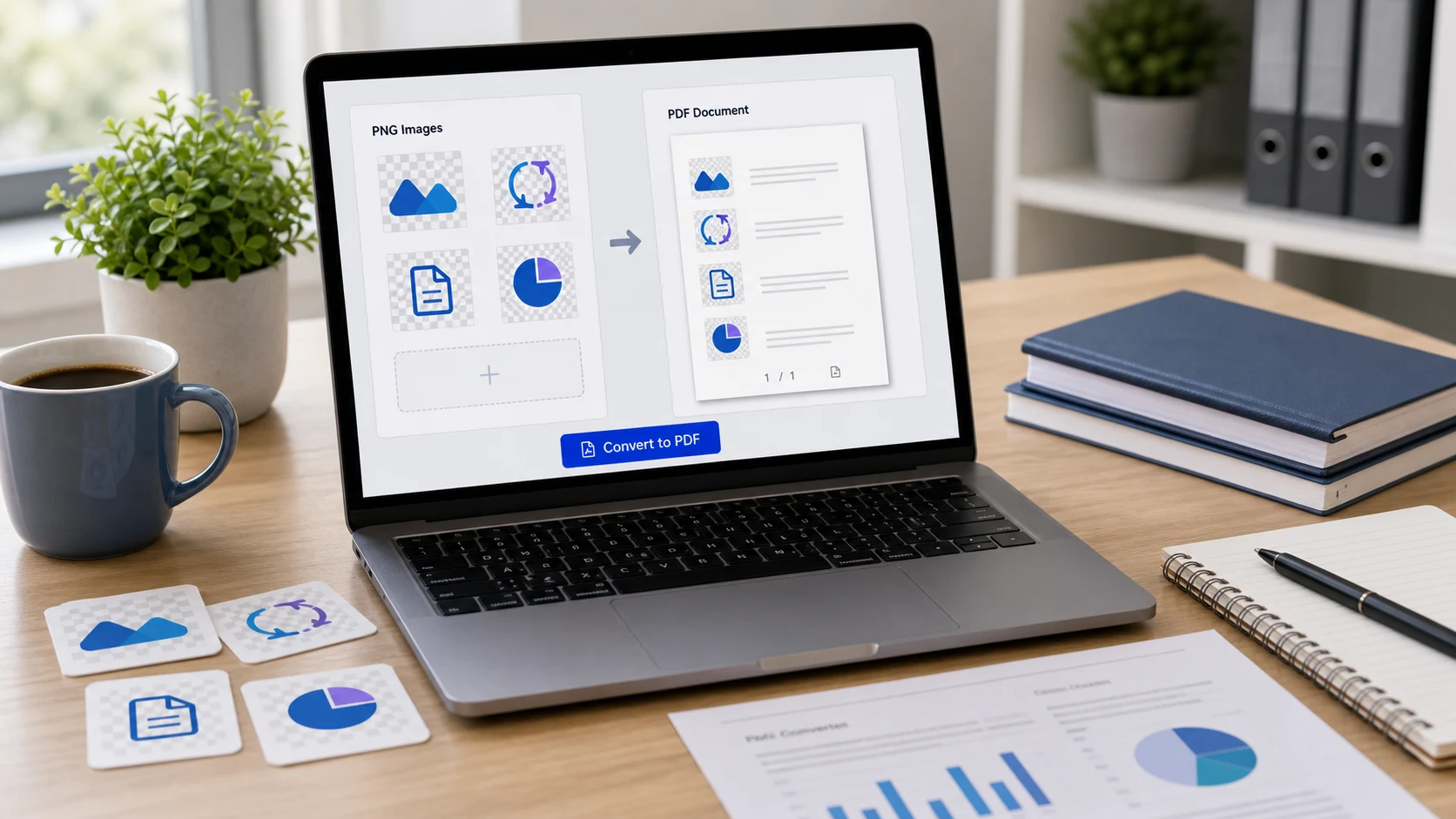
To convert PNG to PDF, print it to a PDF printer or export it from an image viewer. On Windows, right-click the PNG, choose Print and select Microsoft Print to PDF. On a Mac, open it in Preview, choose File > Export and set the format to PDF. To combine several PNGs, use a browser tool.
Below are the steps for each device, a short section on making a PDF file from anything else you have, and what happens to transparent backgrounds and file size along the way.
PNG is the format most screenshots, diagrams, charts and exported designs come in. It keeps sharp edges and small text crisp, which is why it's popular for anything with lettering. PDF is what forms, clients and printers tend to ask for. It keeps several pages in one file, opens the same way everywhere, and prints at a predictable paper size.
Typical cases: screenshots as evidence for a support ticket or a bank dispute, a form that a scanner app saved as PNG, design proofs for a client, or an online statement captured page by page. If you want to know more about the format itself, see what is a PNG file.
How to convert PNG to PDF in your browser
The ConvertorLab PNG to PDF tool accepts PNG along with JPG and HEIC. It works inside the browser tab, so the files never leave your computer or phone. That's useful when the screenshots show account numbers or private messages.
- Open the tool and add your PNG files.
- Drag them into the order you want.
- Choose a page size: A4, Letter, Legal, or fit each page to the image.
- Add margins if the content runs right to the edge.
- Set a maximum PDF size if you're uploading to a portal with a limit.
- Create the PDF and download it.
For screenshots, fit to image usually looks best because there's no white border around a wide or tall capture. For anything that will be printed, pick the paper size used where you live: A4 in most countries, Letter in the US and Canada.
How to convert PNG to PDF on Windows
Windows 10 and 11 include the Microsoft Print to PDF printer, which handles PNG the same way it handles photos.
- Put the PNG files in one folder. Add numbers to the start of the names if order matters.
- Select them in File Explorer.
- Right-click and choose Print. On Windows 11 you may need Show more options first.
- Set the printer to Microsoft Print to PDF.
- Choose the paper size and a layout. Full page photo gives one image per page.
- Click Print, then name and save the file.
The print layouts are designed for photos, so a very tall screenshot can come out tiny or cropped. Check the preview in the print window. If the image doesn't fit well, the browser tool's fit to image option avoids the problem.
How to convert PNG to PDF on a Mac
Preview lists PDF as an export format, so a single PNG takes a few seconds.
- Open the PNG in Preview.
- Choose File > Export.
- Open the Format pop-up menu and choose PDF.
- Click Save.
For several PNGs, select them in Finder in the order you want, Control-click, and choose Quick Actions > Create PDF. You get one multi-page PDF in the same folder. If you'd rather check the pages first, open them all in Preview, drag the sidebar thumbnails into order, then choose File > Print and Save as PDF from the PDF menu at the bottom left.
How to convert PNG to PDF on iPhone or Android
Phone screenshots are PNG files, so this comes up on mobile a lot.
- iPhone: save the screenshot to the Files app, press and hold it, tap Quick Actions, then Create PDF. Select several first if you want them in one document.
- Android: open the screenshot in your gallery app, choose Print from the menu, and set the printer to Save as PDF. Menu names vary between phone brands.
The browser tool runs on phones too and is easier when you have a long run of screenshots to order. Full steps for both phones, including document scanning, are in the guide on how to make a PDF in mobile.
How to make a PDF file from anything else
If your content isn't a PNG yet, you often don't need to make one first. Most apps can create a PDF file directly.
- Any app that prints: choose Print and pick Microsoft Print to PDF on Windows, or the PDF menu and Save as PDF on a Mac.
- Web pages: in Chrome, press Ctrl+P (Command-P on a Mac) and set the destination to Save as PDF. This keeps text selectable, which a screenshot can't do.
- Word documents: use File > Save As or File > Export and choose PDF.
- Google Docs: choose File > Download and pick the PDF option.
- Paper documents: scan them with your phone. The iPhone Files app and the Google Drive app on Android both save scans as PDF.
Use PNG to PDF when the image is all you have, such as a screenshot of a chat, a receipt in an app that won't print, or an exported chart.
What happens to transparency and quality
PNG supports transparent backgrounds. PDF pages have a background of their own, normally white, so transparent areas show white once converted. A logo with a transparent background will look like a logo on a white page. If you need the transparency for design work, keep the PNG or use an SVG.
Quality depends on the pixels you start with. A PDF doesn't add detail, so a small screenshot stretched onto an A4 page looks soft when printed. For print, capture or export at a higher resolution first.
Text in a PNG stays an image inside the PDF. You can read it, but you can't select or search it without OCR. That's normal for converted screenshots and scans.
Keeping the PNG to PDF file small enough to send
PNG files can be large, especially full-screen captures on high-resolution displays. A dozen of them may produce a PDF too big for email or a portal. A few ways to bring it down:
- Crop each screenshot to the part that matters before converting. Fewer pixels means a smaller file.
- Set a maximum size in the image to PDF tool.
- Compress the finished file with Compress PDF, which can aim for a target in KB. It turns pages into images, which is fine for screenshots that were images anyway.
- If the PNGs are photos, converting them to JPG first often shrinks them a lot. The PNG to JPG guide explains when that's a good idea.
Once the PDF is made, open it and check every page before you send it. Wrong order and missing pages are the usual reasons a submission comes back.
Free tools that run in your browser
Frequently asked questions
How do I convert a PNG to PDF for free?
On Windows, print it to Microsoft Print to PDF. On a Mac, open it in Preview and export as PDF. A browser tool works on any device without installing software.
How to make a PDF file on a computer?
Open the document or image, choose Print, and select Microsoft Print to PDF on Windows or Save as PDF on a Mac. Word and Google Docs can also save straight to PDF.
Does a transparent PNG stay transparent in a PDF?
Transparent areas show the page background, which is normally white. Keep the PNG if you need real transparency.
Can I combine many PNG screenshots into one PDF?
Yes. Select them all and print to PDF, use Create PDF in the Mac Finder, or add them to a PNG to PDF tool and drag them into order.
Will the text in my PNG be selectable in the PDF?
No. The PDF contains the image, so the text can be read but not selected or searched without OCR.