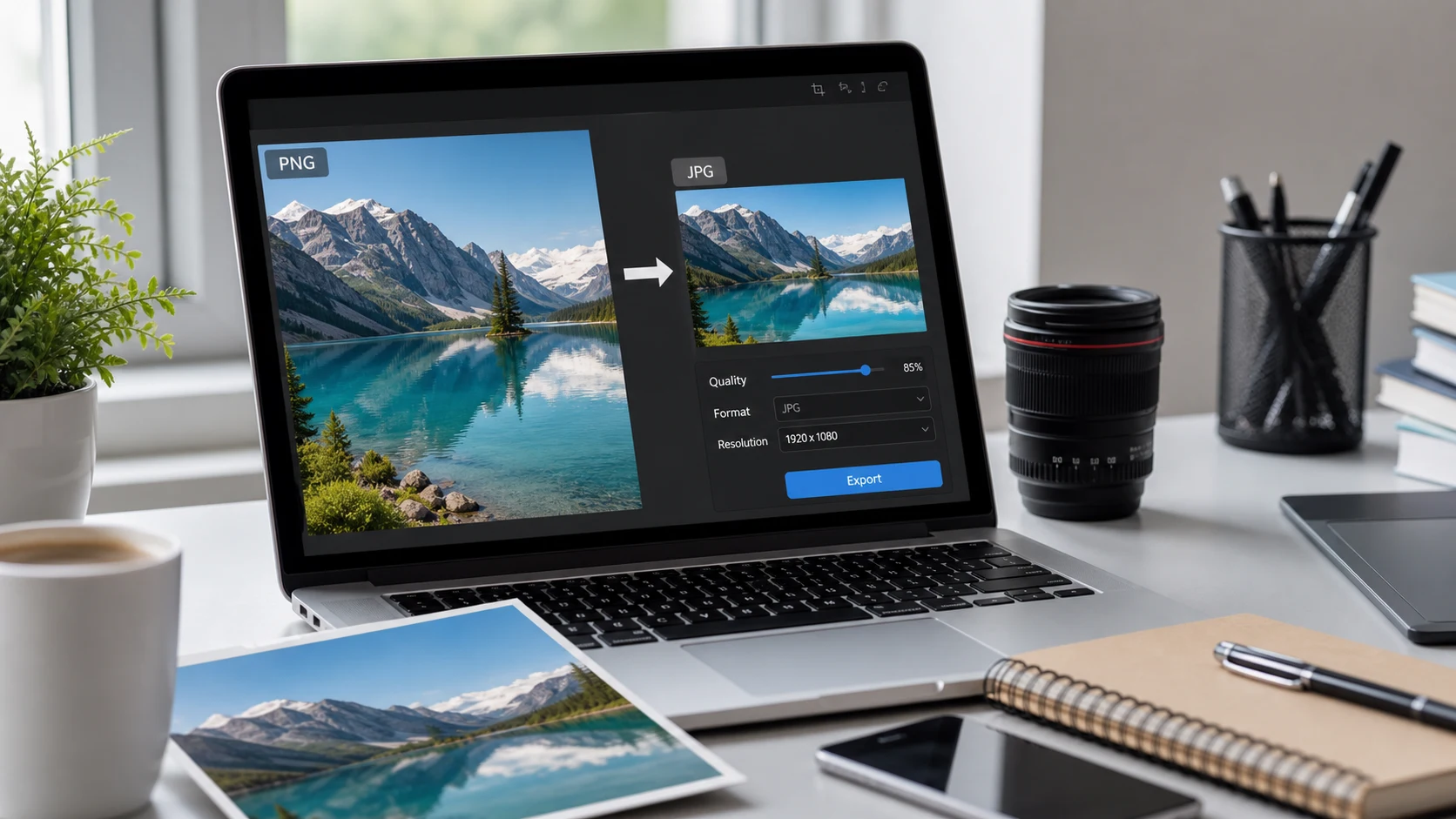
Here's how to save PNG as JPG: open the image in an app that can export it and save a copy in JPEG format. On Windows, use Paint's File > Save as > JPEG picture. On a Mac, use Preview's File > Export and pick JPEG. For batches or phones, a browser converter works. Transparent areas turn solid.
Should you save a PNG as a JPG?
PNG and JPG (also written JPEG, the same format) are built for different jobs. PNG compresses without losing any detail and supports transparency, which suits screenshots, logos and graphics with text. JPG drops a little detail you mostly can't see, which makes photos much smaller.
Saving PNG as JPG makes sense when:
- The PNG is a photo, and the file is far bigger than it needs to be.
- An upload form only accepts JPG or JPEG.
- You're emailing a lot of images and want them lighter.
It's a poor trade for screenshots of text, line art and logos. JPG compression leaves faint blotches around sharp edges, and small text can look fuzzy. If one of those files is too big, compress it as a PNG first with the PNG compressor. The difference between PNG and JPG is explained in more detail in our format guide.
A PNG photo can be several times larger than a JPG that looks the same. Lossless compression only saves space by spotting repeated patterns, and photos have grain and gradients where almost no two neighboring pixels match. Screenshots have big flat areas, so they compress well as PNG and rarely need converting.
How to convert PNG to JPG on Mac
Using Preview
- Open the PNG in Preview. Double-clicking usually does it.
- Choose File > Export.
- Click the Format pop-up menu and choose JPEG.
- Drag the Quality slider. Toward Best keeps detail. Moving left makes the file smaller.
- Name the file, pick a folder and click Save.
To convert several at once, open them together in one Preview window, select all the thumbnails in the sidebar, and then export. Apple's Preview guide describes this batch method.
Using Finder Quick Actions
On macOS Monterey or later there's a faster way for a group of files.
- Select the PNG files in Finder.
- Right-click (or Control-click) and choose Quick Actions > Convert Image.
- Pick JPEG as the format and choose a size: Small, Medium, Large or Actual Size.
- Tick Preserve Metadata if you want to keep details like the date.
- Click the Convert to JPEG button.
The JPGs appear next to the originals, and the PNGs stay untouched. Pick Actual Size if you don't want the dimensions reduced.
How to save PNG as JPG on Windows
Using Paint
- Right-click the PNG and choose Open with > Paint.
- Choose File > Save as.
- Pick JPEG picture.
- Name the file, choose a folder and click Save.
Paint may warn that transparency will be lost. That's expected, since JPG can't store transparent pixels. The same Save as menu also offers PNG, BMP, GIF and TIFF under Other formats, which helps when an old program wants something unusual.
Using the Photos app
- Open the PNG in Photos.
- Click the three-dot See more menu and choose Save as (or press Ctrl+S).
- Change the file type to .jpg.
- Click Save.
Both apps handle one image at a time. They're fine for a few files and tedious for twenty.
How to convert PNG to JPG online, in batches
A browser tool is the easiest choice for a folder of images, a phone, or a locked-down work computer. The PNG to JPG converter processes files inside your browser tab, so nothing is uploaded to a server.
- Open the converter and add your PNG files.
- Adjust the quality if you want. Higher keeps more detail, lower gives smaller files.
- Convert, then download the JPGs one by one or the whole batch as a ZIP.
This also covers phone screenshots, which iPhones and most Android phones save as PNG. Open the converter in Safari or Chrome, pick the screenshots from your photo library, and save the JPGs back to the phone. It's quicker than emailing them to yourself.
Check the dimensions after converting a batch. If a tool offers resizing as well, make sure it's switched off unless you want smaller images. A browser converter keeps the original pixel size by default, so a 1170 pixel wide phone screenshot stays 1170 pixels wide as a JPG, only lighter.
Need other formats too, such as WebP or HEIC? The general image converter handles several in one place.
What happens to a transparent background?
This part surprises people. Every JPG pixel has a color. When a PNG with a transparent background becomes a JPG, the empty areas get filled with a solid color. Most programs use white, though some produce black.
So a logo that looked clean on any background will now sit in a white (or black) box. Photos rarely have transparency, so for them it doesn't matter. For a logo going onto a website or a colored slide, keep the PNG.
Check the result before you replace your originals. If the background came out black and you wanted white, try another tool, or place the image on a white layer in an editor before saving.
PNG to JPEG: getting the size and quality right
JPG quality is a sliding scale. At a high setting, a photo looks the same as the PNG and is still much smaller. Push it too low and you'll see blocky patches in skies and smooth gradients.
Apps label the scale differently. Preview uses a slider from Least to Best, while many web tools use a number from 1 to 100. A rough guide that works for most photos:
- Around 90: hard to tell from the original. Use it for prints and photos you care about.
- Around 75 to 85: a good balance for email, websites and most upload forms.
- Below 60: small files, but blockiness starts to show in skies, skin and gradients.
Zoom in to 100% and compare before and after. If you can't see a difference, try a step lower. If you can, go back up.
A few more habits help:
- Convert from the original PNG each time. Saving a JPG again and again stacks up the losses.
- Keep the PNG master if you'll edit the image later.
- Renaming a file from .png to .jpg doesn't convert it. The data inside is still PNG, and strict upload forms may reject it. Always export a real copy.
- If a site needs the JPG under a set size, such as 100 KB, use the JPG compressor with a target size after converting. It lowers quality first and only shrinks dimensions if it has to.
Upload limits are usually checked in bytes, so aim a little under the stated number. Going the other way, from JPG to PNG, works differently and won't create transparency. The JPG to PNG guide explains what to expect.
Free tools that run in your browser
Frequently asked questions
How do I convert PNG to JPG on a Mac?
Open the PNG in Preview, choose File, Export, and pick JPEG from the Format menu. For several files, select them in Finder and use Quick Actions, Convert Image.
How to convert PNG to JPG without losing quality?
Use a high quality setting and convert from the original PNG once. Photos will look the same, while text and sharp edges may still soften a little.
Is PNG to JPEG the same as PNG to JPG?
Yes. JPG and JPEG are two names for the same format, so either extension works.
What happens to a transparent PNG when it becomes a JPG?
JPG has no transparency, so the empty areas are filled with a solid color, usually white. Keep the PNG for logos that need a clear background.
Can I just rename a .png file to .jpg?
No. Renaming leaves the data in PNG format, and some apps and upload forms will reject it. Export a real JPG copy instead.
How do I convert many PNG files to JPG at once?
Use Finder's Convert Image quick action on a Mac, or a browser converter that accepts a batch and returns a ZIP.