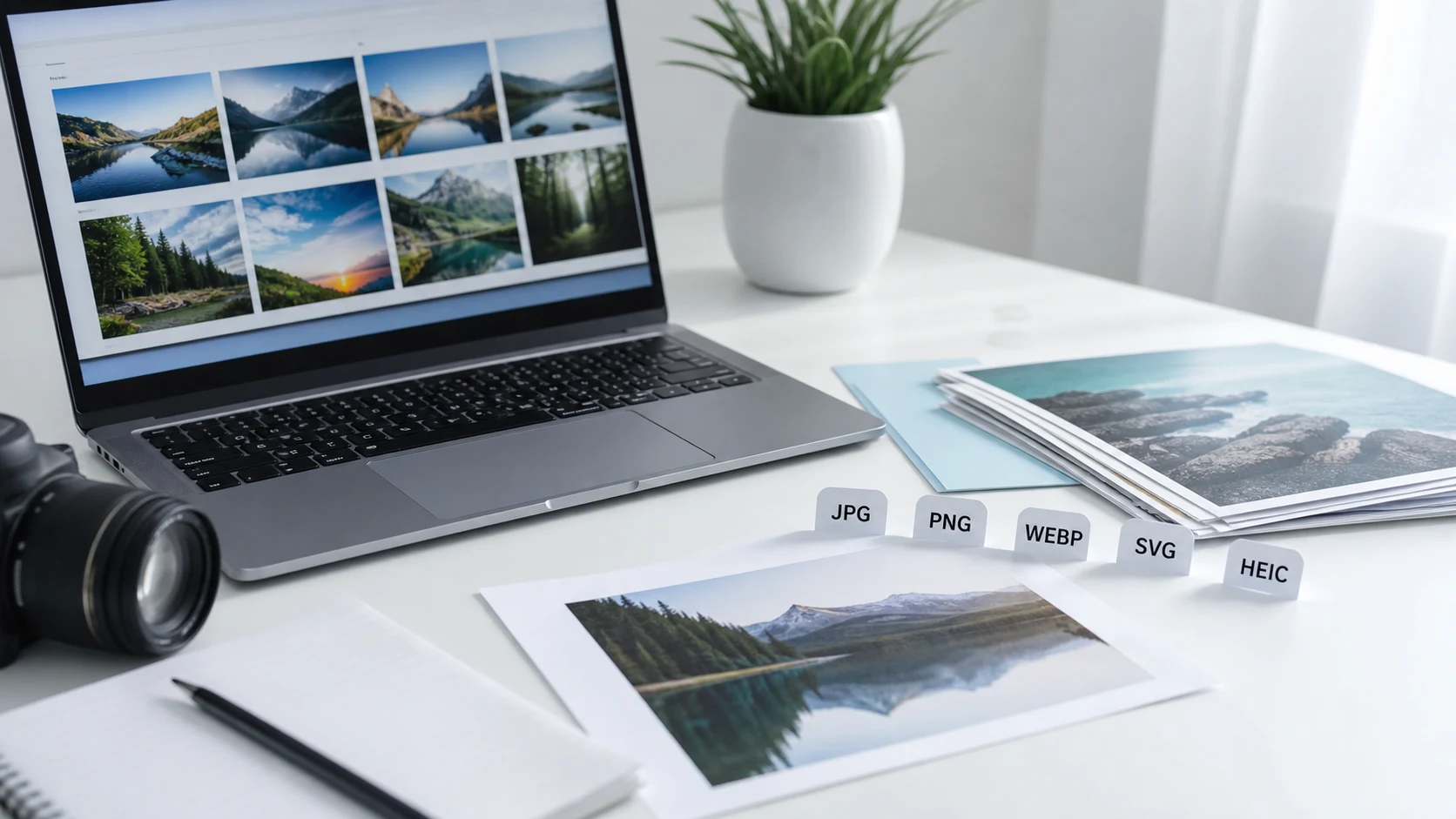
The main difference between PNG and JPG is compression. JPG uses lossy compression, so it drops fine detail to make photos small. PNG uses lossless compression, keeps every pixel exactly, and supports transparent backgrounds. Use JPG for photos and PNG for screenshots, logos, text and anything that needs a clear background.
That one rule covers most everyday choices. The sections below explain why it works, which format gives higher quality, which one to send to a printer, and how to switch between the two when a form only accepts one.
What is the difference between PNG and JPG?
Both are raster formats. The image is stored as a grid of pixels, and the file size depends on how cleverly that grid is packed.
JPG (also written JPEG, the same format) is lossy. It throws away detail the eye tends to miss, such as tiny color shifts across a sky or a cheek. A quality setting controls how much goes. Around 80 to 90, most people can't tell the result from the original. Push it lower and you start to see blocky squares and smudgy halos around edges. The name comes from the Joint Photographic Experts Group, and the short .jpg extension dates from old Windows and DOS systems that allowed only three letters. Our JPG vs JPEG guide covers that history.
PNG (Portable Network Graphics) is lossless. It packs data tightly using DEFLATE compression and discards nothing, so the file you open is pixel for pixel what was saved. PNG was created in the mid 1990s as a patent-free replacement for GIF and became a W3C Recommendation in 1996. More background is in what is a PNG file.
Two practical differences follow from this:
- Size. A phone photo saved as PNG is often several times larger than a good JPG of the same picture.
- Transparency. PNG has an alpha channel, so parts of the image can be fully or partly see-through. JPG has no transparency at all. Transparent areas get filled with a solid color, usually white or black, when you save as JPG.
PNG vs JPG: which one should you use?
Pick by what's in the picture and where it's going.
- Photos from a phone or camera: JPG. Smooth gradients and natural texture compress very well with lossy methods.
- Screenshots, charts, diagrams and anything with small text: PNG. JPG blurs sharp edges and leaves speckles around letters.
- Logos and icons placed on colored backgrounds: PNG with transparency, or SVG if you have the vector file.
- Images you'll edit again and again: keep a PNG (or the original file) as the master. Each time a JPG is re-saved, it loses a little more.
- Uploads to forms with a KB limit: JPG, because you can lower the quality until it fits.
A quick test: zoom in on the edges. Mostly hard lines and flat color means PNG. Mostly soft, continuous tone means JPG.
PNG or JPG for email and sharing?
For photos, send JPG. It's smaller, every device opens it, and it won't push an email over the attachment limit as quickly. For a screenshot of an error message or a document, PNG keeps the text readable. If a screenshot PNG is too large, compress it as PNG first with the PNG compressor before switching formats.
Is PNG or JPG higher quality?
PNG is higher quality in the technical sense, because nothing is lost. In practice, a JPG saved at a high quality setting looks the same as a PNG for most photos, at a fraction of the size. JPG quality only becomes a visible problem when the setting is low or when a file has been edited and re-saved many times.
Where PNG clearly wins is sharp detail. Text, thin lines, pixel art and user interface screenshots stay crisp. A JPG of the same screenshot shows faint ripples around each letter, which gets worse as you compress harder.
One thing PNG can't do: converting a JPG to PNG doesn't bring back detail. The JPG already discarded it. You get a bigger file that looks identical. Convert to PNG only when you need a lossless working copy, or when a form insists on PNG.
Is JPG or PNG better for printing?
For printing photos, a high-quality JPG is usually the practical choice. Photo labs and print services commonly accept JPG, and at a high quality setting the print looks the same as one made from a PNG. For printed graphics with text, logos or flat colors, PNG keeps edges cleaner.
Format matters less than pixel count. A print looks sharp when the image has enough pixels for its size. The usual standard for photo prints viewed up close is 300 DPI, so a 4 x 6 inch print needs about 1200 x 1800 pixels. Divide the pixel width by 300 to see how many inches it can cover sharply. The 300 DPI guide walks through the math and how to check an image.
Two printing tips:
- Export at the highest JPG quality your editor offers when the file is going to print. Saving space doesn't matter here.
- Check whether the print shop wants a color profile or a specific format. Some ask for PDF or TIFF for professional jobs, so read their file guidelines first.
How to convert between PNG and JPG
Built-in apps handle single files well.
- Windows: open the image in Paint, choose File, then Save as, and pick JPEG picture or PNG picture. The Photos app also has a Save as option in its three-dot menu with a file type list.
- Mac: open the image in Preview, choose File, then Export, and pick JPEG or PNG from the Format menu. For several files, select them in Finder, right-click, and choose Quick Actions, then Convert Image.
For a batch, a phone or a shared computer, a browser tool is quicker. The PNG to JPG converter runs in the browser, so files stay on your device. After any conversion, check three things:
- Areas that were transparent. In a JPG they become a solid background, so pick white or a color that suits where the image is going.
- File size. A photo should get much smaller as JPG. If a screenshot got larger or blurrier, PNG was the better format.
- The new file opens correctly in another app before you delete the original.
The PNG to JPG guide has step-by-step instructions for each device.
Where do WebP, HEIC and SVG fit in?
WebP is an image format from Google. It has a lossy mode like JPG and a lossless mode like PNG, and it supports transparency and animation. Google's own figures put lossless WebP about 26% smaller than PNG and lossy WebP 25 to 34% smaller than comparable JPGs. All current major browsers display it, but some older apps and upload forms still reject it. Use it on your own website, and send JPG or PNG when you don't control what opens the file.
HEIC is the format iPhones use by default. It often stores a photo in much less space than a JPG of similar quality, but many Windows PCs and upload portals won't accept it. You can switch an iPhone to JPG under Settings, Camera, Formats, Most Compatible.
SVG stores shapes as math, so it scales to any size without blurring. It suits logos and icons and can't hold a photo in any useful way. If a site rejects SVG, export it to PNG at the size you need.
For photos, the usual order from smallest to largest file is HEIC or lossy WebP, then JPG, then PNG. Still, a 4000 pixel wide photo is heavy in any format. Resizing to the width it will be shown at often saves more than switching formats.
Free tools that run in your browser
Frequently asked questions
Is PNG or JPG higher quality?
PNG is lossless, so it is technically higher quality. For photos, a JPG at a high quality setting looks the same and is much smaller.
Is JPG or PNG better for printing?
For photos, a high-quality JPG with enough pixels works well and is widely accepted by print services. For graphics with text or flat colors, PNG keeps edges cleaner.
PNG or JPG for a logo?
PNG, because it keeps sharp edges and supports a transparent background. If you have the original vector file, SVG is better still for websites.
Does converting JPG to PNG improve quality?
No. The detail removed by JPG compression is gone. The PNG will be larger and look the same.
Why does my transparent PNG get a white background as JPG?
JPG has no transparency, so clear areas are filled with a solid color when you save. Keep a PNG if the background must stay clear.
Is JPEG the same as JPG?
Yes. They are the same format. The three-letter .jpg extension comes from older Windows and DOS systems that limited extensions to three characters.