What is a HEIC file?
HEIC (High Efficiency Image Container) is the photo format iPhones and iPads use by default. It stores a photo at roughly half the size of a JPG with similar quality, which saves space on the phone. The catch is support: many Windows PCs, Android apps, older software and most upload forms won't open a .heic file. HEIF is the same format family with a different extension.
Converting to JPG fixes that. JPG opens everywhere, from Windows Photos to government portals, and it's what most websites expect when they ask for a photo.
How to convert HEIC to JPG
- Add your HEIC photos. Drag them in or tap Choose files. You can select a whole folder of iPhone photos at once.
- Pick the output. JPG for sharing and uploads, PNG for editing without extra compression, or PDF to put each photo on an A4 page.
- Press Start Conversion. Two photos convert at a time, and a thumbnail appears when each one is done.
- Download photos one by one, or press Download All to get a ZIP.
Convert HEIC to JPG on Windows 10 and 11
Windows can only show HEIC photos after you install Microsoft's HEIF Image Extensions (and often the HEVC Video Extensions) from the Microsoft Store. Even then, many programs and websites still won't accept the files.
The quicker route is this page. Open it in Chrome or Edge, drag the photos in from File Explorer, convert, and the JPGs land in your Downloads folder. Nothing to install, and it handles hundreds of photos in one go.
On a Mac or iPhone
On a Mac you can open a single HEIC photo in Preview and use File, then Export, and choose JPEG. For a batch, this converter is faster: drop all the files in and download one ZIP.
On an iPhone, you can stop new photos from being saved as HEIC: go to Settings, then Camera, then Formats, and choose Most Compatible. Photos you've already taken stay HEIC, so open this page in Safari, tap Choose files, pick them from Photos or Files, and convert them here.
HEIC to JPG, PNG or PDF: which should you pick?
Need the JPG under a size limit like 50KB or 100KB? Run the converted photos through Compress JPG next.
Your photos are not uploaded
The conversion runs in your browser, so your photos never reach our server. Location data and other camera metadata stored in the HEIC file are not copied into the new JPG, which is handy before posting photos publicly. It's free, with no sign-up and no watermark.
Guides
 What is a HEIC file, and how do you open one?HEIC is the photo format iPhones use by default.Read guide
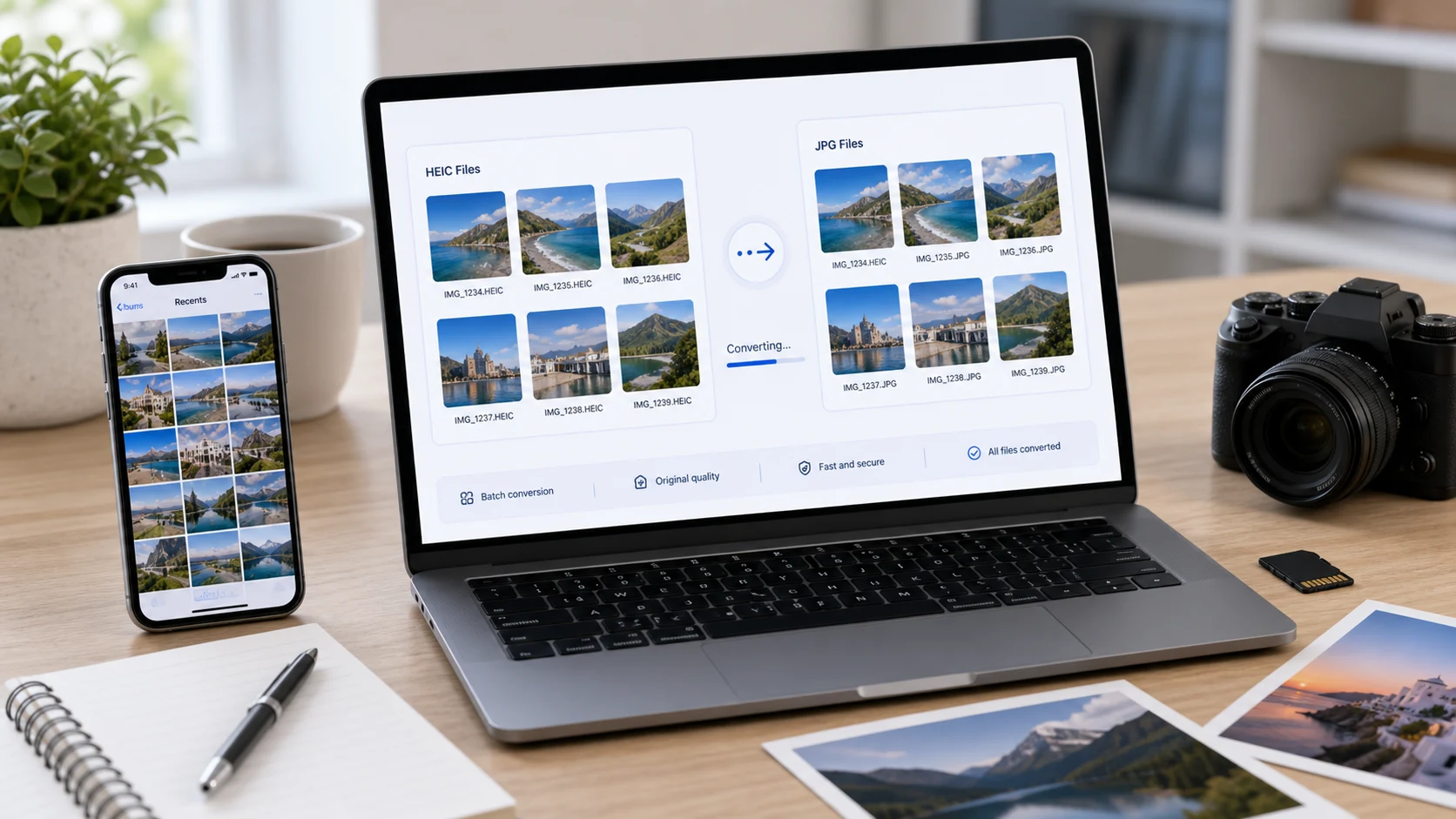 HEIC to JPG guideWhy iPhones use HEIC and the easiest ways to convert.Read guide
 JPG vs PNG vs WebPWhich image format to use and when.Read guide
 Image upload checklistFix rejected photo uploads.Read guide
HEIC conversion questions
How do I convert HEIC to JPG for free?
Add your HEIC photos to this page, keep the output on JPG and press Start Conversion. Download each JPG or all of them as a ZIP. There's no cost, sign-up or watermark.
Can I convert many HEIC files to JPG at once?
Yes. You can add up to 200 photos or 1GB per batch and download everything as one ZIP file.
Does converting HEIC to JPG lose quality?
JPG uses lossy compression, but at the 92% quality this tool uses the difference is very hard to see. Choose PNG if you need a lossless copy.
How do I convert HEIC to PDF?
Choose PDF as the output format. Each photo is placed on its own A4 page in its own PDF file. To combine them into one document, use Merge PDF afterwards.
How do I open a HEIC file on Windows?
Install the HEIF Image Extensions from the Microsoft Store, or convert the photo to JPG here so it opens in any app without extra software.
Are my photos uploaded to a server?
No. The HEIC files are decoded and converted inside your browser on your own device.
Why did one of my HEIC photos fail?
A few HEIC variants, such as some edited or depth-effect photos, use features the browser decoder can't read. Exporting that photo from the Photos app as JPG usually works.