Good for
- Turning simple PNG logos, icons, silhouettes, stickers, and line art into SVG-style vector paths.
- Testing image to SVG settings before opening the output in a vector editor for cleanup.
- Creating an SVG file from PNG, JPG, or WebP artwork when a design workflow needs scalable markup.
Privacy note: this PNG to SVG converter is designed for browser-side tracing where supported. Keep your original image and review the SVG output before using it in print, branding, production design, or upload workflows.
What is a PNG to SVG converter?
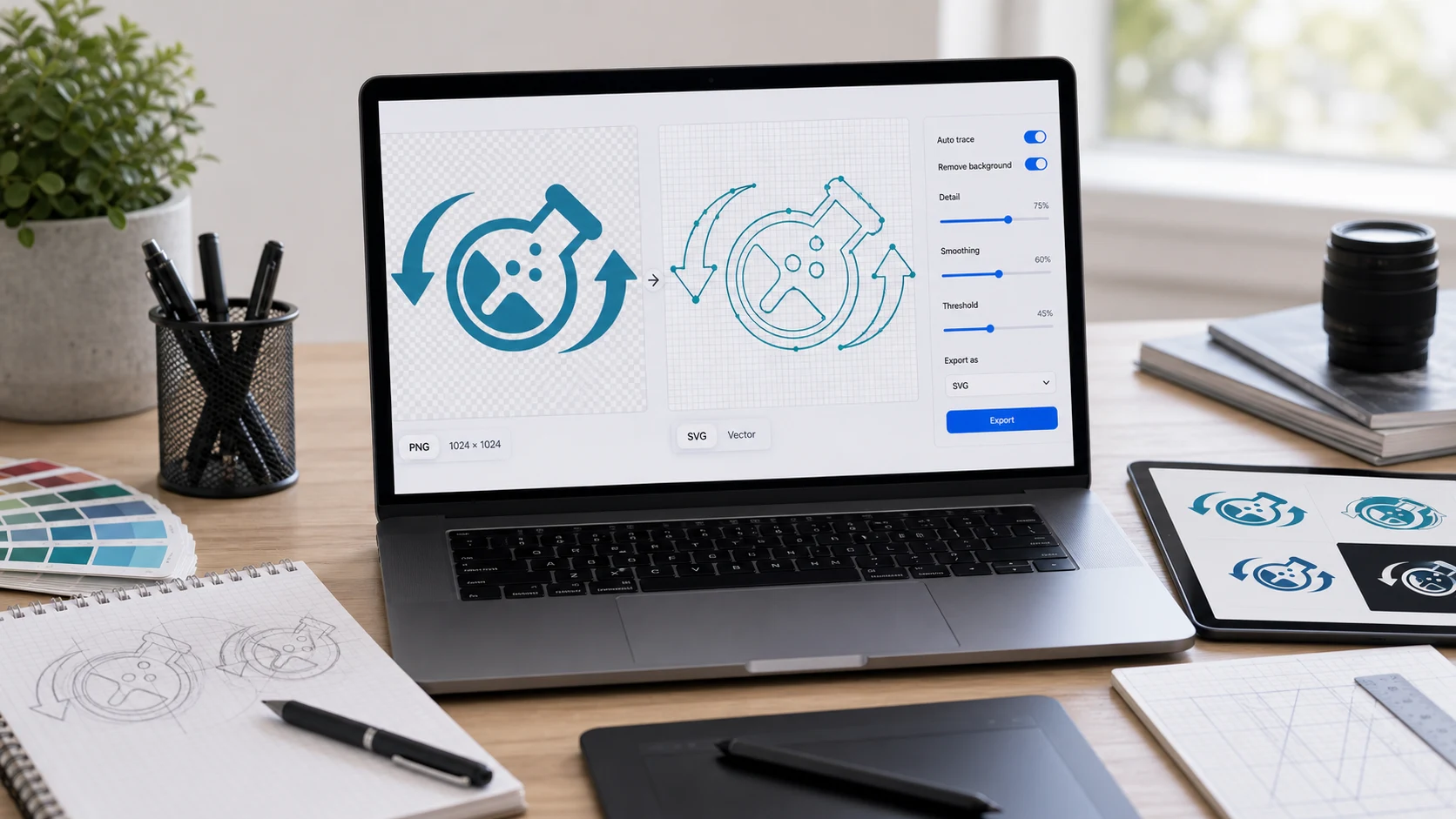
A PNG to SVG converter traces the pixels in a raster image and creates SVG-style vector paths. PNG, JPG, and WebP files are pixel-based, while SVG is an XML-based vector format that can describe shapes, fills, and paths. This tool works as a free PNG to SVG converter, online vector converter, bitmap to SVG converter, and image vectorizer for simple graphics, logos, icons, line art, and flat illustrations. It is important to understand the difference between tracing and original vector artwork: converting a PNG file to SVG does not magically recover the designer's original layers. Instead, it builds a new SVG approximation from colors and edges, so clean source images usually produce better results than detailed photos or noisy screenshots.
Example PNG to SVG workflow
If you have a simple logo PNG and need a scalable SVG draft for a design tool, website mockup, or icon workflow, start with a clean image and tune the trace before downloading.
This example is about vector tracing. If the goal is only a web-ready image, converting PNG to WebP or compressing PNG may be a better workflow.
Common use cases
- Convert PNG to SVG online when you have a flat logo, icon, badge, sticker, or silhouette that should scale more cleanly.
- Use an image to SVG converter for simple line art, diagrams, clipart, and high-contrast artwork.
- Vectorize PNG files before editing paths, fills, or colors in a dedicated SVG or vector design app.
- Convert picture to SVG for a design draft when you need a scalable preview instead of a fixed pixel image.
- Use JPG to SVG or WebP to SVG tracing for simple artwork when PNG is not the source format.
- Turn PNG image to SVG before testing how the artwork behaves in websites, icons, decals, or design handoffs.
Popular PNG to SVG tasks
- Use a PNG to SVG converter online free when you need a quick browser trace without installing desktop software.
- Use PNG to SVG free online when you need a quick SVG draft without a watermark added to the file.
- Convert PNG file to SVG for a logo draft, icon set, simple illustration, or scalable web graphic.
- Use PNG to vector or raster to vector tracing when the source image has clean edges and a limited color palette.
- Convert logo to SVG when the only available asset is a PNG and you need an editable starting point.
- Try a transparent PNG to SVG workflow for cutout graphics, but review the traced edges carefully after export.
- Use a photo to SVG preset only for experiments; detailed photos often create large SVG files with many paths.
Features
- Accepts PNG, JPG, JPEG, and WebP source images.
- Includes presets for logos, photos, high detail, and line art.
- Adjusts detail level, color count, and edge smoothing.
- Shows original and vector preview side by side.
- Downloads SVG output or copies generated SVG code.
How to use this converter
- Add an image. Choose a PNG, JPG, or WebP file from your device.
- Pick a preset. Start with logos, photos, high detail, or line art depending on the source.
- Tune the trace. Adjust detail, colors, and smoothing until the preview looks useful.
- Export SVG. Download the SVG file or copy the generated code for further editing.
Benefits
- Helps turn simple raster artwork into a scalable SVG starting point.
- Lets you compare the source image and traced SVG before downloading.
- Gives clear controls for balancing detail, file size, and color complexity.
- Keeps the tool focused on the actual vectorization task near the top of the page.
How to get better PNG to SVG results
Start with a clean, high-contrast image that has clear shapes and as little noise as possible. A simple black icon on a transparent or white background will usually trace better than a compressed photo, a soft shadow, or a low-resolution screenshot. If the SVG output has too many tiny shapes, lower the detail level or color count. If important edges disappear, increase detail or try a different preset. For professional logos, treat the result as a starting point and refine the paths in a vector editor before publishing, printing, engraving, or sending to a client.
What PNG to SVG conversion can and cannot do
SVG is a powerful format for scalable graphics, but tracing a PNG is not the same as having the original design file. A PNG to SVG tool can create vector paths that resemble the visible image, yet it cannot restore hidden layers, exact fonts, original Bezier curves, or editable design decisions that were flattened into pixels. This is why image vectorizer tools work best for icons, simple logos, silhouettes, and line art. For complex photos, gradients, textures, and screenshots, a raster format such as PNG, JPG, or WebP may remain the better final output.
Format and tracing notes
SVG is a text-based web standard for scalable vector graphics, and browser-side tracing libraries can turn bitmap pixels into SVG paths. This page uses a JavaScript tracing workflow for practical raster to vector conversion, so the output depends heavily on the source image and chosen settings. For deeper format context, see MDN's SVG guide. For the tracing engine used by this page, see the ImageTracerJS project.
Common PNG to SVG questions
What does a PNG to SVG converter do?
It traces a raster image such as PNG, JPG, or WebP and creates SVG-style vector paths. The result is useful for simple graphics, icons, logo drafts, line art, and artwork that has clear shapes.
Can I convert PNG to SVG online?
Yes. Choose a PNG image, select a preset or adjust detail, colors, and smoothing, run the trace, then download the generated SVG file.
Does PNG to SVG create a true editable vector?
It creates traced vector paths from the pixels in the image. Simple artwork can work well, but photos and complex images may produce large or rough SVG output that still needs manual cleanup.
What images work best for PNG to SVG conversion?
Flat logos, icons, silhouettes, line art, diagrams, and simple illustrations usually trace better than detailed photos, gradients, shadows, or low-resolution screenshots.
Can I convert JPG to SVG with this tool?
Yes. The workspace accepts PNG, JPG, and WebP images, so you can use it as an image to SVG converter for common raster formats.
How do the detail, colors, and smoothing settings work?
Higher detail keeps more edges, more colors preserves a broader palette, and smoothing softens noisy edges. The best settings depend on whether the image is a logo, line art, photo, or detailed illustration.
Why is the SVG file large after conversion?
Detailed raster images can create many traced paths and colors. Lower the detail or color count, start with a simpler image, or clean the SVG in a vector editor if the output is too large.
Is PNG to SVG good for logos?
It can help with simple logo drafts and flat icon artwork, especially when the image has clean edges and few colors. For professional logos, review and refine the SVG in a vector editor.
Can SVG output be edited later?
Yes. The downloaded SVG can usually be opened in vector editors, browsers, and design tools, but the paths are generated from tracing and may need cleanup.
Does this PNG to SVG converter upload my image?
The tool is designed to trace the selected image in your browser where supported. Keep the original image and review the SVG before using it for important design, print, or upload work.