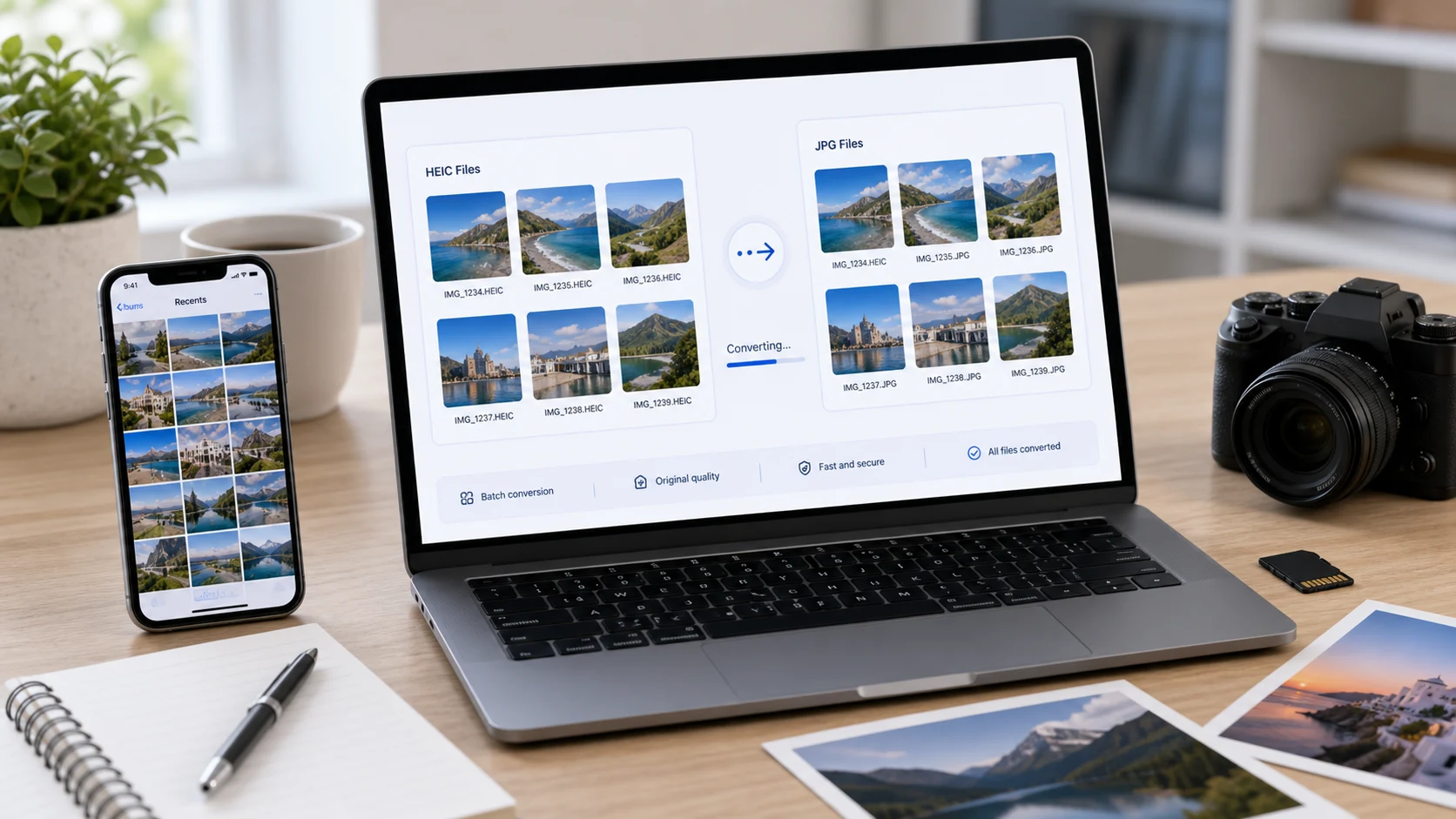
How to convert HEIC to JPG on Windows: open the photo in the Photos app, click the three-dot menu, choose Save as, pick .jpg and save. If Photos can't open it, install HEIF Image Extensions and HEVC Video Extensions from the Microsoft Store, or use a browser converter with nothing to install. On a Mac, use Preview.
What is a HEIC file, and why won't Windows open it?
HEIC is Apple's name for photos stored in the HEIF format with HEVC (H.265) compression. iPhones have used it by default since iOS 11 in 2017, under a camera setting Apple calls High Efficiency. A HEIC photo is often much smaller than a JPG of similar quality, which is why Apple chose it.
The catch is compatibility. Windows needs extra codecs to read HEIC, and plenty of upload forms, office printers and older apps still expect JPG. When they meet a .heic file they reject it or show a blank thumbnail. That's why most people just want a plain JPG copy they can send anywhere. Our guide to what a HEIC file is goes deeper into the format.
How to convert HEIC to JPG on Windows 11 and 10
The Photos app can open HEIC once the right extensions are installed, and it can save a copy in another format.
- Right-click the HEIC file and choose Open with > Photos.
- If a message says an extension is needed, follow the link to the Microsoft Store. HEIF Image Extensions is free. Microsoft's Store page says HEVC Video Extensions must also be installed to view .heic images, and that one is a paid app.
- With the photo open, click the three-dot See more menu at the top.
- Choose Save as, or press Ctrl+S.
- Change the file type to .jpg, pick a folder and click Save.
This works well for one or two pictures. It gets slow with a folder of forty holiday shots, because you repeat the steps for every file.
Using Paint instead
Once the extensions are installed, Paint can open HEIC photos too. Right-click the file, choose Open with > Paint, then File > Save as > JPEG picture. It's handy if you want to crop or resize the photo before saving, since Paint's resize option sits on the toolbar. Like Photos, it handles one picture at a time.
Convert HEIC to JPG on Windows without installing anything
If you'd rather not buy a codec, or you're on a work PC that blocks Store apps, use a browser converter. The HEIC converter decodes photos inside your browser tab, so nothing is uploaded. It also suits batches.
- Open the converter in Edge, Chrome or Firefox.
- Drag in one HEIC file or a whole folder's worth.
- Choose JPG as the output (PNG and PDF are also available).
- Convert and download the files, or the whole batch as one ZIP.
The original HEIC files stay on your PC unchanged, so you can delete them yourself once the JPGs look right.
Don't be surprised if each JPG is noticeably bigger than the HEIC it came from. That's the efficiency gap between the two formats, and it's normal. If the files need to be small for email or a portal, compress them after converting instead of lowering quality during conversion.
How to convert HEIC to JPG on a Mac
Macs open HEIC natively, so there's nothing to install.
Preview
- Open the HEIC photo in Preview.
- Choose File > Export.
- Click the Format pop-up menu and choose JPEG.
- Move the quality slider if you want a smaller file, then click Save.
To convert several at once, open them together in one Preview window, select them all in the sidebar, then export.
Finder Quick Actions
On macOS Monterey or later, select one or more HEIC files in Finder, right-click, and choose Quick Actions > Convert Image. Pick JPEG and a size (Small, Medium, Large or Actual Size), then click Convert to JPEG. The JPGs land in the same folder and the originals stay untouched. Tick Preserve Metadata to keep the date and location.
How to stop your iPhone saving photos as HEIC
If you keep hitting this problem, change it at the source. Apple's support page gives these steps:
- Open Settings and tap Camera.
- Tap Formats.
- Tap Most Compatible.
New photos are saved as JPG from then on. Photos you already took stay HEIC, so you still need to convert those. JPG files are bigger, so your phone fills up a little faster. You can switch back to High Efficiency any time.
A second setting matters for cable imports to a PC. Go to Settings > Apps > Photos (on older iOS versions, Settings > Photos) and scroll to the transfer section. Automatic converts photos to a compatible format when you copy them over USB. Keep Originals sends the HEIC files as they are. If your Windows PC keeps receiving HEIC files, check that this is set to Automatic.
Sharing a photo by email or through many apps often converts it to JPG too, but this varies by app. Don't count on it for an official upload. To convert on the iPhone itself, open the HEIC converter in Safari and pick photos from your library.
HEIC vs JPG: which should you keep?
For storage on Apple devices, HEIC is the better format. It keeps the same visible quality in a smaller file and can hold extras like depth data for Portrait mode. Your iPhone, iPad and Mac handle it without fuss.
JPG wins whenever the photo leaves the Apple world. Every browser, operating system and nearly every upload form reads it. If a government portal, a job application or a print shop asks for an image, give them a JPG.
A sensible routine: keep the HEIC originals in your photo library and create JPG copies only when you need to send something. Converting is a lossy step, so convert once from the original instead of making copies of copies.
If you back up to a Windows PC, think about which version you want there. HEIC copies save space but need the codecs to view. JPG copies open anywhere but take more room. Many people keep HEIC in the backup and convert only the photos they share.
Common problems after converting
- The JPG is too large for an upload limit. Run it through the JPG compressor with a target size in KB. If you're unsure how the limit compares to your file, the KB vs MB guide explains the units.
- The photo appears sideways on another device. Rotate it in an editor and save again so the rotation is baked into the pixels.
- You need several photos in one document. Convert straight to PDF in the HEIC tool instead.
- Location data is still attached. Converters handle metadata differently. If privacy matters, check the file's properties before sending it.
- A form still rejects the JPG. The issue is usually file size or pixel dimensions, not the format.
Free tools that run in your browser
Frequently asked questions
How do I convert HEIC to JPG for free?
Use a free browser-based HEIC converter, or Preview and Finder's Convert Image on a Mac. On Windows, the Photos app works once the needed extensions are installed.
Can Windows open HEIC files without extra software?
Usually not. Photos needs HEIF Image Extensions and HEVC Video Extensions from the Microsoft Store. A browser converter avoids installing anything.
Can I convert HEIC to JPG in bulk?
Yes. Use Finder's Convert Image quick action on a Mac, or a browser HEIC converter that accepts many files and returns a ZIP.
Does converting HEIC to JPG lose quality?
JPG is lossy, so there's a small loss, but at a high quality setting you won't see it. Convert once from the original.
How do I stop my iPhone taking HEIC photos?
Go to Settings, Camera, Formats and choose Most Compatible. New photos will be saved as JPG, though older ones stay HEIC.