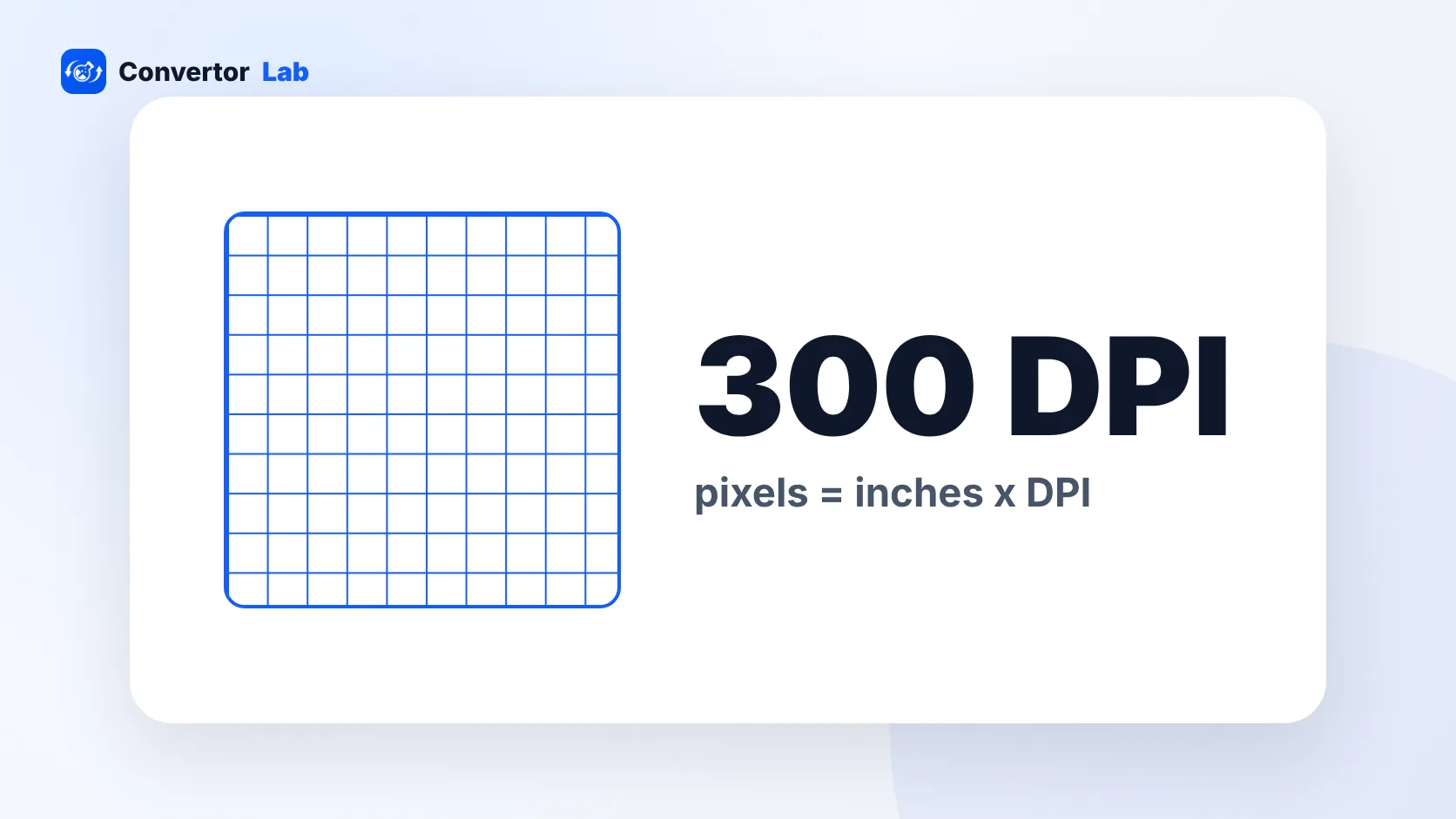
300 DPI means 300 dots of ink (or 300 image pixels) for every inch of the printed page. It's the usual standard for sharp photo prints and documents viewed up close. To print an image at 300 DPI, it needs enough pixels: multiply the print size in inches by 300. A 4 x 6 inch print needs 1200 x 1800 pixels.
What does 300 DPI mean?
DPI stands for dots per inch. Strictly, it describes printers: how many ink dots they lay down per inch. PPI, pixels per inch, describes images: how many of the image's pixels get packed into each printed inch. Most people, apps and print shops use the two terms interchangeably, and this article does too.
At 300 DPI, each inch of paper holds 300 pixels across and 300 down. At normal reading distance, the eye can't pick out individual pixels at that density, so photos look smooth and small text stays crisp. That's why print labs, publishers and photo kiosks ask for it.
The DPI number is also stored inside many image files as a tag. That tag is only a print instruction. It doesn't add or remove any pixels.
Is 300 DPI good for printing?
For anything held in the hand, yes. Photo prints, flyers, business cards, brochures and book pages are usually prepared at 300 DPI.
Larger prints viewed from a distance can use less. Posters and banners often work at 150 DPI or lower, because nobody reads them from 30 centimetres away. Going far above 300 DPI rarely makes a visible difference on a normal photo print, and it makes files much bigger.
A rough guide to DPI for printing:
- Photos, cards and documents: 300 DPI.
- Posters seen from a few steps back: around 150 DPI.
- Large banners and signs seen from across a room: lower still. Ask the print shop what they want.
- Anything only shown on a screen: DPI doesn't matter. Only the pixel dimensions count.
How many pixels is 300 DPI?
300 DPI isn't a pixel size on its own. It becomes one when you pair it with a print size. The formula is simple: pixels = inches x DPI. Going the other way, inches = pixels / DPI.
Common print sizes at 300 DPI:
- 2 x 2 inches: 600 x 600 pixels
- 3.5 x 5 inches: 1050 x 1500 pixels
- 4 x 6 inches: 1200 x 1800 pixels
- 5 x 7 inches: 1500 x 2100 pixels
- 8 x 10 inches: 2400 x 3000 pixels
- 8.5 x 11 inches (US Letter): 2550 x 3300 pixels
- 11 x 14 inches: 3300 x 4200 pixels
For centimetres, convert to inches first by dividing by 2.54. A 3.5 x 4.5 cm photo is about 1.38 x 1.77 inches, which comes to 413 x 531 pixels at 300 DPI.
Shape matters as well as size. A 4 x 6 print has a 2:3 ratio, the same as most camera photos, so it fits without cropping. An 8 x 10 is 4:5, so a camera photo needs trimming at the ends. Cropping to the right ratio before you send a file means you choose what gets cut, instead of the lab. The Crop Image tool has preset ratios for this.
Does changing DPI change image quality?
Changing only the DPI number doesn't change the image at all. The pixels stay exactly the same. What changes is the size the image prints at.
Take a photo that is 3000 x 2000 pixels:
- At 300 DPI it prints at 10 x 6.67 inches.
- At 150 DPI it prints at 20 x 13.33 inches.
Same file, same detail, different print size. Setting a small 800 x 600 pixel image to 300 DPI doesn't make it print-ready. It just tells the printer to make it 2.67 x 2 inches.
Real quality only changes when the pixel count changes. Shrinking an image (downsampling) throws pixels away, which is usually fine. Enlarging one (upsampling) makes up new pixels by guessing, so a small photo blown up to poster size looks soft. If an image doesn't have enough pixels for the print size you want at 300 DPI, either print it smaller or accept a lower DPI.
How to check the DPI of an image
On Windows:
- Right-click the image file and choose Properties.
- Open the Details tab.
- Look under Image for Horizontal resolution and Vertical resolution. Dimensions shows the pixel size.
On a Mac:
- Open the image in Preview.
- Choose Tools > Show Inspector.
- The General tab lists the image's DPI and its pixel size.
Always look at the pixel dimensions alongside the DPI. A file tagged 72 DPI with 3600 x 2400 pixels is perfectly good for a 12 x 8 inch print at 300 DPI. The tag just needs changing, or the print shop will ignore it and size the print themselves.
How to change an image to 300 DPI
On a Mac, Preview can do it. Choose Tools > Adjust Size and type 300 in the Resolution field. With Resample image turned off, Preview keeps every pixel and changes only the print size. With it turned on, Preview keeps the print size and adds or removes pixels to match.
If you need a photo at an exact physical size, such as 3.5 x 4.5 cm for an application form, resize by physical units instead. The Resize Image tool accepts cm, mm or inches with a DPI value and works out the pixels for you. It runs in your browser, so the photo isn't uploaded anywhere.
When the print goes out as a PDF, build it from images that already have enough pixels. The JPG to PDF converter lets you choose A4 or Letter pages and set margins. For a full list of print sizes in inches, centimetres and pixels, see the guide to standard photo sizes.
Free tools that run in your browser
Frequently asked questions
What is 300 DPI in pixels?
It depends on the print size. Multiply inches by 300: a 4 x 6 inch print needs 1200 x 1800 pixels and an 8 x 10 needs 2400 x 3000.
Is 300 DPI high resolution?
Yes, for printing. It's the usual standard for photo prints and documents viewed up close. On screens the DPI value is ignored and only pixel dimensions matter.
Is 72 DPI bad for printing?
Not necessarily. If the image has enough pixels, a 72 DPI tag can simply be changed to 300 without losing anything. A small image is the real problem, whatever its DPI tag says.
What DPI is best for posters?
Large posters viewed from a distance often use 150 DPI or less. Check with the print shop for their preferred value.