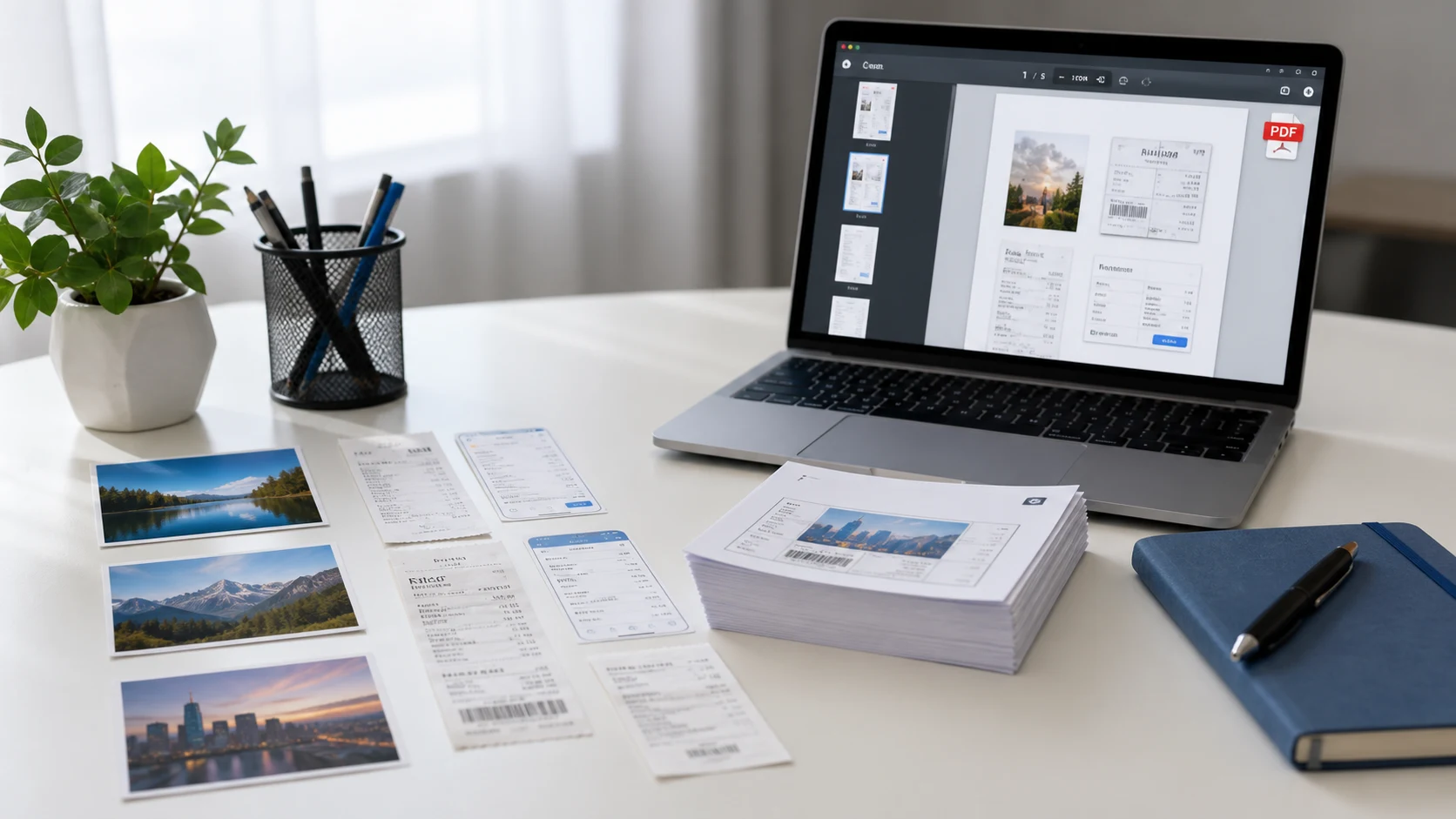
To make PDF in mobile, use the tools already on your phone. On an iPhone, save the picture to the Files app, press and hold it, then tap Quick Actions and Create PDF. On Android, open the photo, tap Print and choose Save as PDF. Both methods are free and need no extra app.
Below are the full steps for each phone, how to scan paper documents straight into a PDF, and how to get the file under the size limit an upload form sets.
How to convert a picture to PDF on iPhone with the Files app
The Files app gives you a clean PDF where each page matches the photo, with no print margins. The photo has to be in Files first.
- In Photos, select the picture (or several), tap the Share button, and choose Save to Files. Pick a folder such as On My iPhone or iCloud Drive.
- Open the Files app and go to that folder.
- Press and hold the image, tap Quick Actions, then tap Create PDF.
The new PDF appears next to the original. To put several pictures into one PDF:
- In the folder, tap the More button (three dots) and tap Select.
- Tap each image you want, in the order you want the pages.
- Tap the More button at the bottom and choose Create PDF.
Rename the file straight away. Press and hold it, tap Rename, and give it a name like "Aman-marksheet.pdf". A file called "IMG_4021.pdf" is easy to lose and looks careless on an application.
If you make PDFs often, the Shortcuts app can cut the taps. A shortcut built from the Select Photos, Make PDF and Share actions asks you to pick pictures, builds the PDF, and opens the share sheet. You set it up once and run it from the Home Screen.
How to save a picture as a PDF from the iPhone Photos app
This route skips the Files app. It uses the print preview, which iOS can turn into a PDF.
- Open Photos and select one or more pictures.
- Tap the Share button, scroll down and tap Print.
- On the print options screen, pinch outward on the page preview with two fingers. The preview opens full screen as a PDF.
- Tap the Share button on that screen and choose Save to Files, Mail or another app.
Pages made this way follow a paper size, so a photo may sit in the middle of a white page. That's fine if the PDF will be printed. For a document photo that should fill the page, the Files method looks better.
Recent versions of iOS (iOS 26 and later) also include a Preview app, the iPhone version of the Mac app. It can scan documents, add, delete, rotate and move PDF pages, and export or compress files, so it's worth opening if you need to tidy the PDF after making it.
How to scan a document into a PDF on your phone
When the original is paper, such as a certificate, a form or an ID card, scanning beats taking a normal photo. The scanner finds the page edges, flattens the angle and saves a proper PDF.
On iPhone
- Open the Files app and tap the More button (three dots) at the top.
- Tap Scan Documents and hold the page in view of the camera.
- Let it capture automatically, or tap the shutter button. Drag the corners to fit the page and tap Keep Scan.
- Scan the next page if there is one, then tap Save and choose a folder.
The Notes app has the same scanner. Open a note, tap the attachment button, then Scan Documents. Files is quicker if you want a PDF file you can attach to a form.
On Android
The Google Drive app has a scanner built in.
- Open Google Drive and tap the camera button at the bottom right.
- Point the camera at the page. A blue outline shows where it will crop.
- Take the photo. Use Crop & Rotate, Filter or Clean to tidy it, and Add to scan more pages.
- Tap Done, name the file, pick PDF as the format, and tap Save.
Files by Google and many phone makers' own apps include a document scanner too. Any of them is fine, as long as the result is a PDF.
How to convert photo to PDF in mobile on Android
For photos that are already in your gallery, Android's print system has a virtual printer that saves PDFs. Most gallery apps can reach it.
- Open the photo in Google Photos or your phone's gallery app.
- Tap the three-dot menu and look for Print. On some phones it sits under Share.
- At the top of the print screen, tap the printer dropdown and choose Save as PDF.
- Set the paper size and orientation if you need to.
- Tap the PDF button, choose a folder such as Downloads, and tap Save.
Phone makers change Android's menus, so a Samsung, Xiaomi, Vivo or OnePlus gallery may use slightly different names. If you can't find Print at all, the Google Drive scanner above or a browser tool will get you there.
How to convert image to PDF on any phone in a browser
The built-in options get awkward when you have several pictures to order, a page size to match, or a file size limit to hit. A browser tool handles all three in one screen. The ConvertorLab image to PDF tool runs in Chrome or Safari and processes the photos on the phone itself, so nothing is uploaded.
- Open the tool and tap to add photos from your gallery.
- Drag them into the right order.
- Choose A4, Letter, Legal or fit to image, and add margins if you want them.
- Set a maximum PDF size if the form has a limit.
- Create the PDF and save it to your phone.
It accepts JPG, PNG and iPhone HEIC photos, so you don't have to convert HEIC first. If you're not sure what HEIC is or why your iPhone uses it, see what is a HEIC file.
How to make the PDF small enough to upload
Phone cameras take large photos. A PDF of four or five pages can easily run to several megabytes, while exam, bank and job portals often ask for a few hundred KB. You have two ways to bring it down.
- Set the maximum size before you create the PDF in the browser tool. It lowers image quality only as much as needed.
- Shrink a finished PDF with Compress PDF to 200 KB or another target size. This rebuilds the pages as images, which is fine for photos and scans.
Read the limit carefully. "Max 1 MB" and "max 1024 KB" are close but not always the same thing, and staying a little under avoids edge cases. The guide to how many KB are in a MB explains the difference.
Tips for a clean PDF from phone photos
- Photograph documents flat, in daylight, with the phone held straight above the page. Shadows and angles are hard to fix later.
- Crop out the table and your fingers before converting.
- Check the page order. Multi-page forms often come back because page two was first.
- Zoom in on small print before you send. If it's blurry in the photo, it will be blurry in the PDF.
- Give the file a clear name, such as your name plus the document type.
Send a PDF when the receiver asks for one, when the document has more than one page, or when it will be printed. A single JPG is fine for a quick chat message. For the same job on a laptop, the JPG to PDF guide covers Windows and Mac.
Free tools that run in your browser
Frequently asked questions
How do I convert a picture to PDF on iPhone for free?
Save the photo to the Files app, press and hold it, tap Quick Actions and then Create PDF. You don't need to download an app.
How do I convert photo to PDF in mobile on Android?
Open the photo in your gallery or Google Photos, choose Print from the menu, and set the printer to Save as PDF. Menu names vary a little by phone brand.
How do I save a picture as a PDF with several pages?
On iPhone, select all the pictures in Files and tap Create PDF. On any phone, add them to a browser image to PDF tool and drag them into order.
Can I scan a document to PDF with my phone?
Yes. Use Scan Documents in the iPhone Files or Notes app, or the camera button in the Google Drive app on Android. Both save a PDF.
Why is the PDF from my phone too big to upload?
Phone photos are high resolution, so each page adds a lot. Set a maximum size when you create the PDF, or compress the finished file to the KB limit.