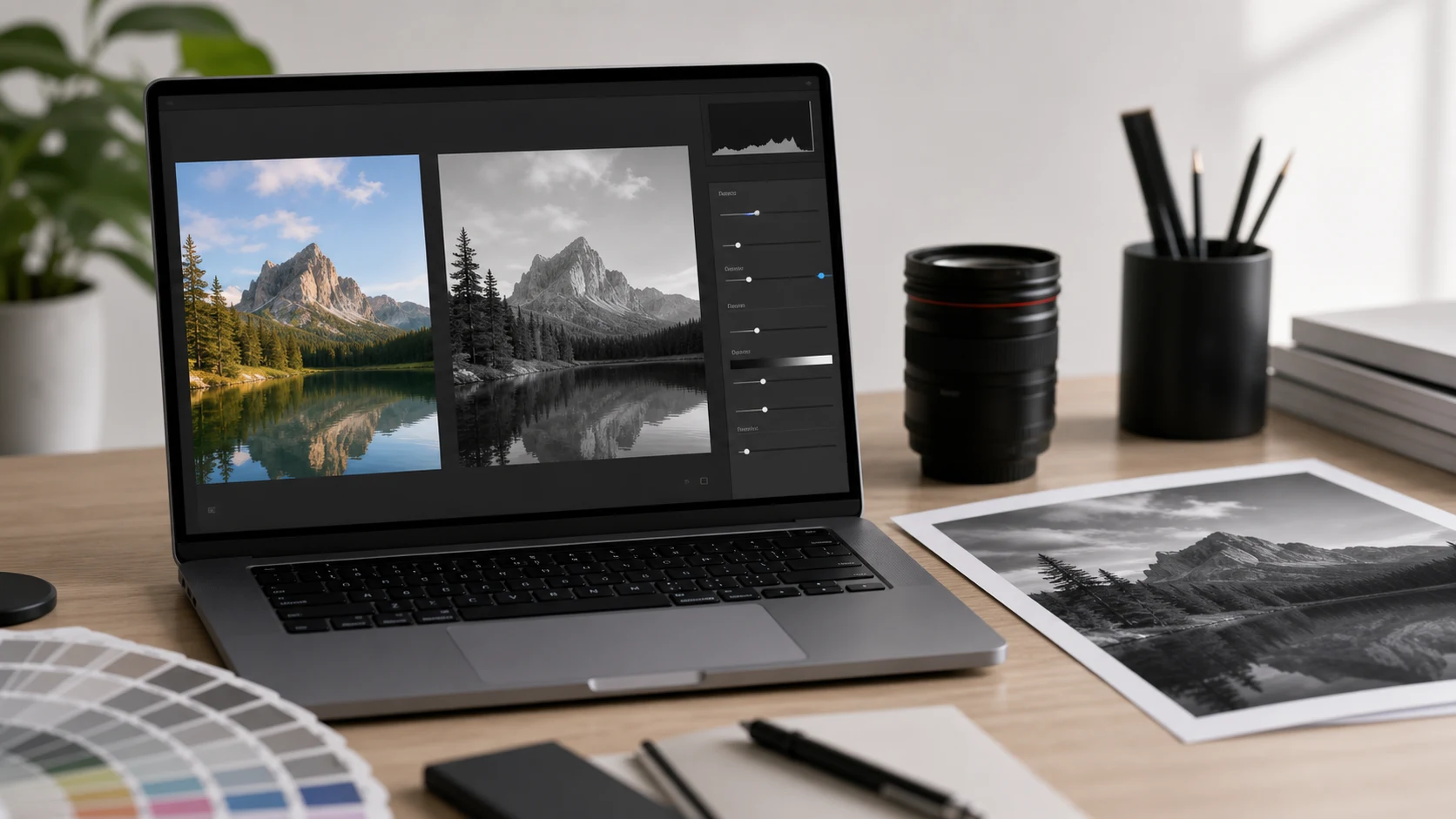
To make a picture black and white, apply a black and white filter in your photo editor, or drag the saturation slider all the way down. On iPhone, tap Edit, then Filters, then Mono, Silvertone or Noir. On Windows 11, use Edit image, then Filter in Photos. On a Mac, use Preview's Adjust Color panel.
The steps for each device are below, along with a way to convert a whole batch at once and a few tips that keep black and white photos from looking flat and grey.
How to make a picture black and white on iPhone
- Open the Photos app and tap the picture.
- Tap Edit, then tap Filters.
- Swipe through the filters and pick Mono, Silvertone or Noir. Mono is a plain conversion, Silvertone is softer, and Noir has the strongest contrast.
- Tap Done.
The colour isn't gone for good. Open the photo, tap Edit, then Revert to get the original back. For finer control, the Adjust tab lets you drag Saturation all the way down and then tweak Contrast and Brilliance yourself.
A useful trick after applying a filter: open Adjust and nudge Black Point up a little. It deepens the darkest tones, which gives a converted photo more weight without making the highlights harsh.
You can also shoot in black and white. The Camera app offers the same filters while you frame the shot, which helps you see light and shadow before you press the shutter.
How to make a photo black and white on Android
In Google Photos:
- Open the picture and tap Edit.
- Tap Filters and scroll to the black and white options. Filter names change between app versions, so go by the thumbnails.
- Tap Adjust if you want to change brightness or contrast after converting.
- Tap Save as copy to keep the colour original, or Save to replace it.
Samsung Gallery and other built-in gallery apps have similar filters on their edit screen. Look for one with B&W or Mono in its name. If your gallery app has no black and white filter, find the Saturation slider in its adjust tools and drag it to zero. The result matches a plain mono filter.
How to make a picture black and white on Windows 11
The Photos app that comes with Windows 11 includes a set of black and white filters:
- Open the picture in Photos.
- Click Edit image at the top.
- Open the Filter panel.
- Pick one of the filters labelled B&W. There are cool, warm and high contrast versions as well as a plain one.
- Use the intensity slider to soften the effect, then click Save as copy.
The Adjustment panel in the same editor has brightness, exposure, highlights and contrast sliders if the result needs more punch. Microsoft's Photos editing help page covers the other tools.
How to make a picture black and white on a Mac
In Preview:
- Open the picture and choose Tools > Adjust Color.
- Drag the Saturation slider all the way to the left.
- Adjust Contrast, Exposure, Highlights and Shadows to taste. The Sepia slider adds a warm, old-photo tint if you want one.
- Close the panel and choose File > Export to save a black and white copy.
The Photos app on a Mac gives more control. Open the photo, click Edit, click Adjust, then turn on Black & White. Click Options to reach four sliders: Intensity, Neutrals (lightens or darkens the greys), Tone (higher or lower contrast) and Grain (film grain). Edits in Photos can be reverted to colour at any time.
How to convert many pictures to black and white at once
Phone and desktop editors work one picture at a time. For a set of product shots, event photos or scanned pages, ConvertorLab's black and white image tool converts them in one go, in your browser, without uploading the files.
- Open the tool and add your pictures.
- Choose grayscale for a classic black and white look, or sepia for a warm tone.
- Raise the contrast if the result looks flat. Add a vignette if you want darker edges.
- Check a couple of previews, then download.
Use the same settings for every picture in a set. Mixed contrast stands out when the photos sit next to each other on a page. If the pictures come from different cameras or lighting, convert one, compare it with the others, and adjust the contrast for the odd ones out before downloading the batch.
Grayscale also helps with documents. A scanned form or signature looks cleaner without colour casts, and the file is usually a little smaller. If you need it much smaller, run it through the Image Compressor afterwards.
Black and white filter tips that avoid a flat, grey photo
A straight conversion often looks dull, because colours that were very different end up as the same shade of grey. A red jacket on green grass can turn into one muddy tone. Some ways to fix that:
- Add contrast after converting. Strong black and white photos usually have true blacks and clean whites somewhere in the frame.
- Pick pictures with strong light and shadow. Side light, window light and low sun convert well.
- Look for texture. Wood, stone, wrinkles and fabric carry a picture when colour isn't there to do it.
- Try more than one black and white filter. On iPhone, Noir suits dramatic scenes and Silvertone suits portraits.
- Crop before you convert. Removing a distracting bright patch at the edge helps more in black and white than in colour. The crop guide has the steps for each device.
- Keep the colour original. You can't add colour back to a saved grayscale file.
Grayscale vs black and white: is there a difference?
In everyday use, people mean the same thing. A grayscale picture has every shade from black to white, which is what all the filters above produce. A strict black and white picture (sometimes called 1-bit or line art) has only pure black and pure white, with nothing in between.
If you only need a black and white printout, you may not need to edit the file at all. Most print dialogs, on phones and computers, have a grayscale or black and white option in their colour settings. That saves colour ink and leaves the original untouched.
Grayscale is right for photos. Pure black and white suits signatures, line drawings and text scans where a grey paper tone gets in the way. To get close to it, convert to grayscale and push the contrast high until the background turns white. If you're preparing a signature for an exam or PAN form, the signature size guide covers the KB limits, and some forms ask for a colour scan, so check before converting.
Free tools that run in your browser
Frequently asked questions
How do I make a photo black and white on iPhone?
Open it in Photos, tap Edit, then Filters, and choose Mono, Silvertone or Noir. Tap Done. Tap Edit and Revert later to bring the colour back.
Where is the black and white filter in Windows 11 Photos?
Open the picture, click Edit image, then open the Filter panel and choose one of the B&W filters. Click Save as copy to keep the original.
How do I make a photo black and white on a Mac?
In Preview, choose Tools > Adjust Color and drag Saturation to the left. In Photos, click Edit, then Adjust, and turn on Black & White.
Can I turn a black and white photo back to colour?
Only if you still have the original or the edit is reversible, as it is in iPhone Photos and Mac Photos. A saved grayscale file has no colour left to restore.
Does making a picture black and white reduce the file size?
Usually a little, since there is less colour information. For a big reduction, compress or resize the image as well.
What is the difference between grayscale and black and white?
Grayscale keeps every shade of grey between black and white. Strict black and white uses only pure black and pure white, which suits signatures and line art.