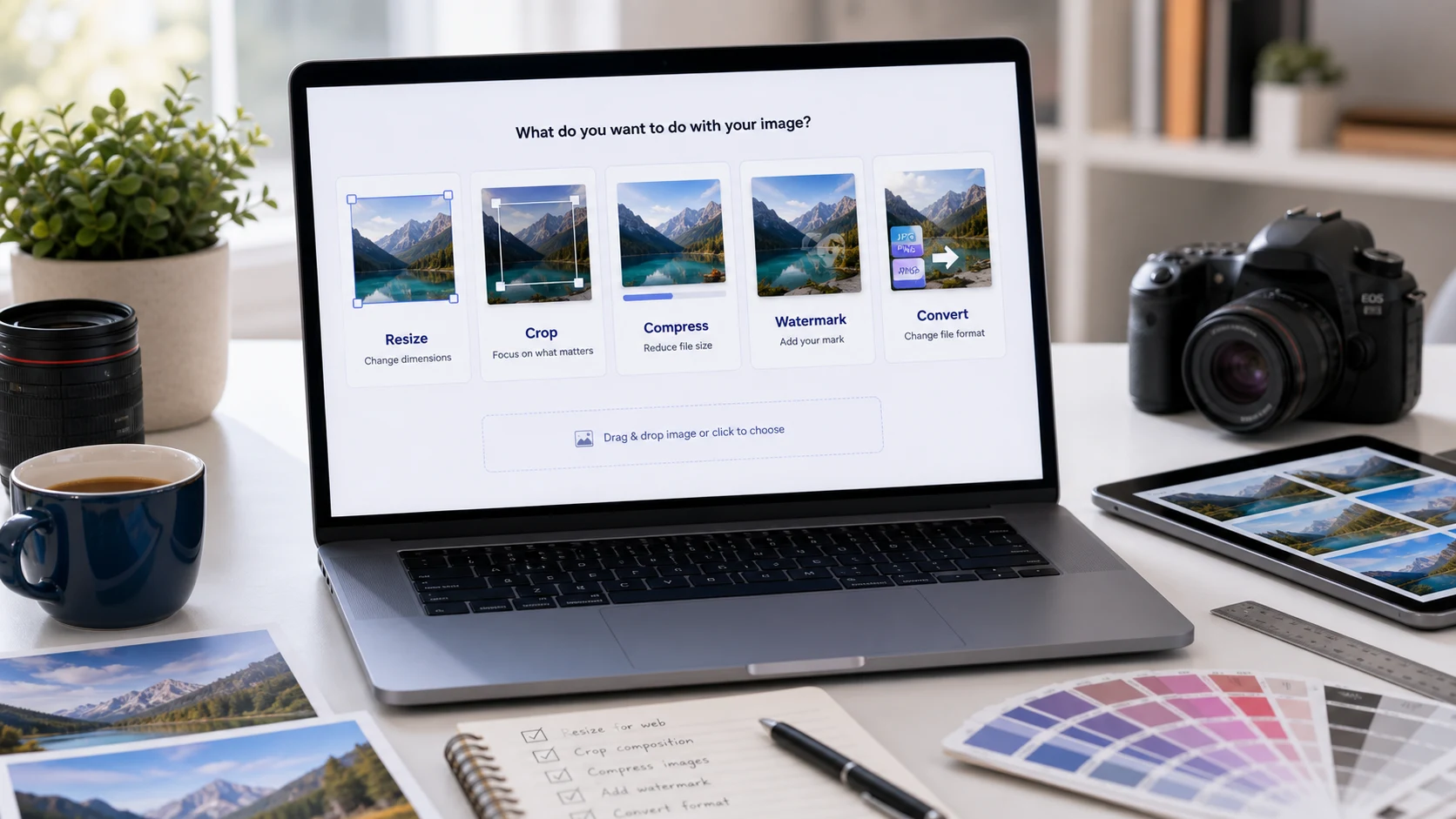
To make a picture smaller, first decide whether you need a smaller file size (KB or MB) or smaller dimensions (pixels). Resizing the picture to fewer pixels shrinks both, and it's the quickest fix for big phone photos. If the dimensions must stay the same, compress the file instead by lowering its JPG quality. Windows Photos, Paint and Mac Preview can all resize a picture, and a browser tool can hit an exact KB target.
Most "picture too big" problems come from phone photos, which hold far more pixels than an email, website or upload form needs.
Smaller file size or smaller dimensions: which do you need?
"Smaller" can mean three different things, and each has its own fix.
- A smaller file size. An email bounces, or a form says "maximum 200 KB". You need fewer bytes.
- Smaller dimensions. A site wants 1080 x 1080 pixels, or the picture looks huge when you open it. You need fewer pixels.
- A smaller area of the picture. You want to cut away the edges or change the shape. That's cropping.
Resizing usually solves the first two at once. Cutting a 4000 x 3000 photo down to 1600 x 1200 removes most of its pixels, and the file shrinks with them. Compression is the tool for when the dimensions are fixed and only the KB number has to come down.
How to make a picture smaller on Windows
Windows 11 has two built-in options. The Photos app is the quicker one.
- Right-click the picture and choose Open with, then Photos.
- Click the three dots at the top of the window and choose Resize image.
- Choose pixels and type a new width or height. Keep the aspect ratio locked so the picture doesn't stretch.
- Lower the quality setting a little if you also want a smaller file.
- Click Save and pick a name and folder, so the original stays untouched.
Paint works too. Open the picture in Paint and click Resize and Skew in the Image group (or press Ctrl+W). Choose Pixels and enter a new Horizontal or Vertical value with Maintain aspect ratio ticked. Then use File, Save as, and give it a new name.
How to make a picture smaller on a Mac
Preview, the app that opens pictures by default on a Mac, can resize and reduce file size.
- Open the picture in Preview.
- Choose Tools, then Adjust Size.
- Make sure Scale proportionally and Resample image are both ticked.
- Enter a smaller width or height, or pick a size from the Fit into menu. The new file size appears at the bottom of the window before you confirm.
- Click OK, then use File, Export to save a copy under a new name.
To shrink several pictures at once, open them together in one Preview window, select them all in the sidebar, and choose Tools, Adjust Size. Exporting as JPEG also gives you a quality slider if the file still needs to be smaller.
How to make a picture smaller on iPhone or Android
Phones don't have an obvious resize button in the gallery, but you have a few options.
- Use a browser tool. Open Resize Image or the Image Compressor in Safari or Chrome, pick the photo, and download the smaller copy. The Image Compressor accepts iPhone HEIC photos directly, and processing happens on your phone.
- Save future photos as JPG. iPhones save HEIC by default. If sites keep rejecting your photos, go to Settings, Camera, Formats and choose Most Compatible. HEIC files are usually smaller, so pick this setting only for compatibility.
- Use Shortcuts on iPhone. The Shortcuts app has a Resize Image action you can build into a shortcut that runs from the share sheet. It's handy if you shrink photos often.
Avoid the trick of taking a screenshot of a photo to make it smaller. It lowers quality, adds the status bar and still produces a fairly large PNG.
How to make a picture smaller in KB for an upload form
Exam, job and government forms often set a strict KB range, like 20 KB to 200 KB. Here's a reliable order.
- Crop first if the form wants a certain shape, such as a square or passport layout. Crop Image has ready-made ratios.
- Resize to the pixel size the form asks for. If it gives none, something around 600 to 1200 pixels on the long side is usually plenty for an ID or profile photo.
- Compress to the KB target. Enter a number a little below the limit, for example 190 KB for a 200 KB maximum, because forms check the exact byte count.
- Open the final file and check that faces and text still look clear.
For common limits there are preset pages such as resize image to 100 KB. The upload photo guide works through a full example.
Crop, resize, compress: what order keeps quality?
When a job needs more than one step, the order matters.
- Crop while you still have every pixel.
- Resize once, straight to the final dimensions. One big step looks sharper than several small ones.
- Compress last, so the quality setting is tuned to the final pixels.
- Convert the format at the end if the destination needs JPG or PNG.
Always start from the original file. A photo sent through a chat app has already been shrunk and compressed, and each extra round makes it softer.
Watch for a few common mistakes. Unlocking the aspect ratio stretches faces. Compressing the same JPG over and over adds blotches. Renaming a .heic file to .jpg doesn't convert it. For PNG screenshots, converting to JPG often cuts the size more than resizing does, as long as you don't need transparency.
Free tools that run in your browser
Frequently asked questions
How do I make a picture smaller without losing quality?
Resize it to the size it will be shown at and keep the JPG quality fairly high. A smaller picture viewed at its new size looks just as sharp. Quality drops only when you compress hard or enlarge it again.
How do I make a picture smaller in KB?
Resize it to fewer pixels first, then compress it to a target just under the limit. A browser compressor with a KB setting does the second step for you.
Does cropping make a picture smaller?
Cropping removes pixels, so the file usually gets smaller. It changes what is in the frame, so use resizing when you want to keep the whole picture.
How do I make a picture smaller on iPhone?
Open a browser image resizer or compressor in Safari and pick the photo, or build a shortcut with the Resize Image action in the Shortcuts app.