To delete pages from a PDF for free, open it in a page organizer, select the pages you don't want, delete them and save a new copy. On a Mac, Preview does this: show thumbnails, select pages, press Delete. On Windows or a phone, use a free browser tool or print only the pages you want to keep.
Below are the steps for each device, how to extract pages into a separate file, and a quick guide to when you need merge, split or organize.
How to delete pages from a PDF free in your browser
This route works on Windows, Mac, Chromebook, iPhone and Android with the same steps. ConvertorLab Organize PDF shows every page as a thumbnail and runs inside the browser tab, so the file isn't uploaded. It's free, with no sign-up and no watermark.
- Open Organize PDF and add your file.
- Wait for the page thumbnails to load.
- Click the delete button on each page you want to remove.
- Rotate or drag any other pages while you're there.
- Save and download the new PDF.
- Open it and check the page count.
The organizer copies the remaining pages as they are, so text stays selectable and images keep their quality. Your original file isn't changed, which gives you an easy way back if you delete the wrong page.
Pages people most often remove:
- Blank pages a scanner added between double-sided sheets.
- Duplicate pages from scanning the same sheet twice.
- Terms and conditions or advert pages a portal doesn't need.
- Pages with details you'd rather not share, such as other accounts on a bank statement.
Deleting a page removes it completely. If you only want to hide part of a page, deleting won't help, and you'll need a redaction tool instead.
How to delete pages from a PDF on Mac
Preview has page deletion built in. Apple's guide to adding, deleting or moving PDF pages describes it.
- Open the PDF in Preview. If you want to keep the full version, choose File > Duplicate first, because Preview saves edits automatically.
- Choose View > Thumbnails, or View > Contact Sheet for a bigger grid.
- Select the page to delete. Command-click to select several.
- Press the Delete key, or choose Edit > Delete.
- Close the window or press Command-S to save.
Deleting a page also removes any notes or highlights you added to it, so move those first if you need them.
How to delete pages from a PDF on Windows
Windows doesn't include a PDF page editor. Edge opens PDFs and lets you annotate them, but it has no delete page button. You have three free options.
- Use the browser organizer above in Edge or Chrome. This is the most direct way.
- Print only the pages you want to keep to a new PDF. In Chrome, open the PDF, press Ctrl+P, set the destination to Save as PDF, choose custom pages and type the ones to keep, such as
1-3, 5, 7-10. Edge has the same page option in its print dialog, with Microsoft Print to PDF as the printer. - Adobe Acrobat Pro can delete pages too, but it's paid. The free Acrobat Reader can't.
The print method makes a fresh copy of the pages, and interactive extras such as fillable form fields or bookmarks may not come through. For a form you still need to fill in, the organizer is the safer choice.
How to delete pages from a PDF on iPhone or Android
On an iPhone, the Files app can remove pages without any extra app.
- Open the PDF in the Files app.
- Swipe right from the left edge of the page to show the thumbnail sidebar.
- Tap the menu button on the page you want gone and choose Delete. The same menu has Rotate Left, Rotate Right and Insert Blank Page.
- Close the document. Files saves the change automatically.
A deleted page can't be recovered from that file, so copy the PDF first if you might need it. On iOS 26 and later, the Preview app can also add, delete, rotate and move PDF pages.
Android has no built-in page editor. Open the browser organizer in Chrome, pick the PDF from your Downloads folder, delete the pages and save. Android's print screen with Save as PDF also offers a page range, which works like the Windows print method.
How to extract pages from a PDF
Sometimes the job is the reverse: keep a few pages and send them as their own file. That's extracting, and it's often quicker than deleting everything else.
- Split PDF takes page ranges, every page, every N pages, or odd and even pages. Type a range like
4-6and download just those pages as a new PDF. Several ranges come back as a ZIP. - In Preview on a Mac, show thumbnails, select the pages and drag them to the desktop. Preview creates a new PDF from them.
- Print to PDF with a page range, as in the Windows steps above. This works in any browser.
For the single page case, such as sending only the signature page of a contract, the guide on how to save one page of a PDF has more detail.
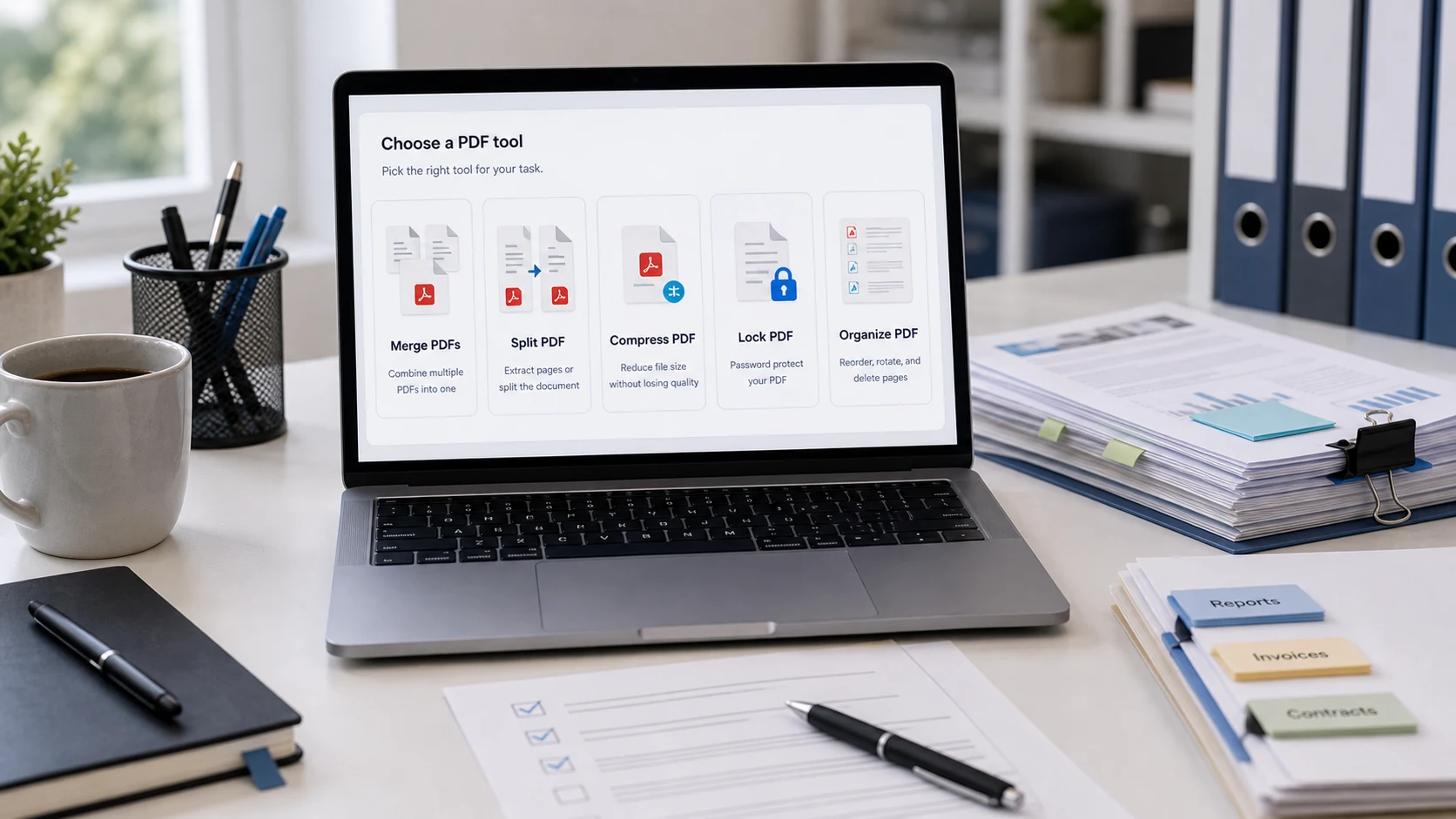
Merge vs split vs organize: which tool do you need?
Count the files going in and coming out.
- Merge: several files in, one file out. Use it to join a cover letter, CV and certificates. See the guide to merging PDF files.
- Split: one file in, one or more files out. Use it to pull out page ranges or break a long scan into separate documents.
- Organize: one file in, one file out. Use it to delete, rotate, reorder or insert pages. The guide to reordering PDF pages covers the rest of what it can do.
If a job needs two of them, such as joining two files and then dropping a few pages, merge first and organize the result.
What order should you do PDF jobs in?
- Unlock. Remove any password first (you need to know it), because most PDF tools can't read an encrypted file.
- Delete, split, merge and organize. Get the right pages, in the right order, facing the right way.
- Compress. Shrink the finished file for an email or upload limit.
- Lock. Add a password last, if the recipient needs one.
Compressing before you delete pages is a common mistake. Compress PDF rebuilds pages as images, which suits a final upload copy but makes text unselectable. Do the page work on the original, then compress once at the end. Deleting pages you don't need also makes the file smaller on its own, which may be enough to get under the limit.
Free tools that run in your browser
Frequently asked questions
How do I delete pages from a PDF for free?
Open the PDF in a free page organizer, delete the pages you don't want and save a new copy. On a Mac, Preview does it: select the thumbnail and press Delete.
How to delete pages from PDF on Windows without Acrobat?
Use a browser organizer in Edge or Chrome, or print the PDF to Save as PDF with only the pages you want to keep in the custom pages box.
How do I extract pages from a PDF?
Use Split PDF with a page range, drag thumbnails to the desktop in Mac Preview, or print to PDF with a page range.
Can I delete a page from a PDF on my iPhone?
Yes. Open the PDF in the Files app, swipe from the left edge to show thumbnails, tap the menu on the page and choose Delete.
Does deleting pages reduce PDF quality?
No. The remaining pages are copied as they are. The file gets smaller because it has fewer pages.