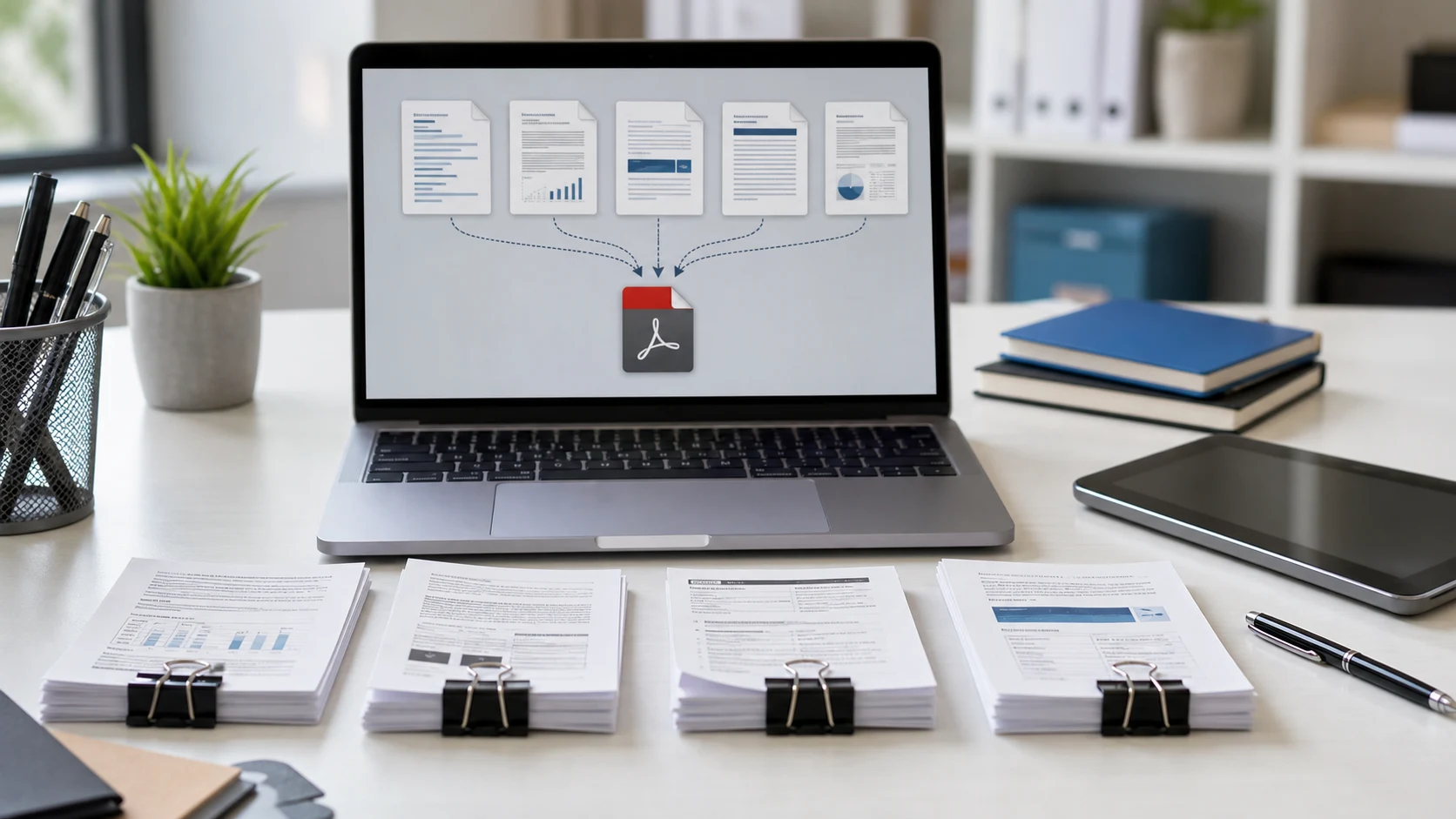
To merge PDF files, open a merge tool, add your PDFs, drag them into the order you want, and save the result as one new file. On a Mac you can do it free in Preview or straight from Finder. Windows has no merge button in File Explorer or Edge, so most people use a browser-based tool instead.
The steps below cover each route, including iPhone and Android, plus the checks that stop a combined file from going out with pages in the wrong order.
How to merge PDF files in your browser
This works the same on Windows, Mac, Linux, Chromebook and phones, with nothing to install. The ConvertorLab Merge PDF tool runs in the browser tab and doesn't upload your files.
- Open the Merge PDF tool.
- Drop in your PDFs, or click to pick them from a folder.
- Drag the file cards until they sit in the order you want the pages to appear.
- Click merge and download the combined PDF.
- Open the new file and scroll through every page before you send it.
The merger copies pages as they are, so text stays selectable and image quality doesn't drop. Because processing happens on your own device, bank statements, ID scans and contracts never reach a server.
Merging joins whole files. If you only want pages 2 to 5 from one of them, cut those out first with Split PDF, then merge the piece you kept.
How to combine PDFs on Mac with Preview
Preview ships with every Mac and handles merging well once you know where the thumbnails live. Apple documents the method in its guide to combining PDFs in Preview.
- Make a copy of the PDF that will receive the other pages. In Preview, choose File > Duplicate. Preview saves edits automatically, so this protects your original.
- Open the copy and choose View > Thumbnails to show the page sidebar.
- Open the second PDF and show its thumbnails too.
- Drag thumbnails from the second file's sidebar into the first file's sidebar. Command-click to grab several pages at once.
- Drag thumbnails up or down to fix the order, then close the window to keep the changes.
To add a whole PDF in one go, drag its icon from Finder onto the sidebar of the open document. It lands where you drop it. This is the method to use when you need to merge PDF files on Mac and also slot single pages into specific places.
How to combine PDF files into one from Finder
Finder has a faster option when you just want several files stacked into one PDF. Apple calls it Create PDF.
- Open the folder that holds your files.
- Select the files in the order you want them to appear. The PDF follows your selection order.
- Control-click the selection and choose Quick Actions > Create PDF.
The new PDF is named after the first file you selected. It also works with images, so you can turn a few JPG scans and a PDF into one document. If the order comes out wrong, rename the files with numbers first (01, 02, 03), then select them top to bottom.
How to merge PDF files on Windows 10 and 11
Windows can open and print PDFs, but File Explorer and the Edge PDF viewer can't join them. You have three realistic choices.
- A browser tool. Open Merge PDF in Edge or Chrome and follow the browser steps above. It's the quickest route for a one-off job.
- Adobe Acrobat. The paid version has a Combine Files tool. The free Acrobat Reader doesn't merge.
- Power Automate for desktop. Microsoft's automation app includes a Merge PDF files action. It's overkill for two files, but handy if you combine the same kind of documents every week.
Avoid opening PDFs in Word and pasting them together. Word converts each PDF into an editable document and the layout often shifts, so the result won't match the originals.
How to merge PDFs on iPhone and Android
On an iPhone, the Files app can combine PDFs with the same tool it uses for images.
- Put the PDFs in one folder in Files.
- Tap the More button (three dots), then Select, and tap the files in order.
- Tap the More button at the bottom and choose Create PDF.
Files combines the PDFs in file name order, whichever order you tap them in. Rename them 01, 02, 03 first to control the sequence. The originals stay in the folder untouched, so delete them afterwards if you only want the combined copy.
Android has no built-in merge option. Download the PDFs, open the browser tool in Chrome, pick the files from Downloads and drag them into order. The merged file saves back to Downloads, where you can attach it to an email or upload it to a form. On a small screen, turn the phone sideways so the file cards are easier to drag.
How to get the page order right
Most merge mistakes are order mistakes. A cover letter ends up on page 6, or a signature page lands before the contract it signs. A few habits prevent that:
- Rename the source files with a number prefix before you start, like 01-cover.pdf, 02-form.pdf, 03-receipts.pdf. Every tool sorts these correctly.
- Decide whether each file should go in whole. Remove blank scanner pages and duplicates first.
- Check for sideways pages. Fix them with Organize PDF, which can rotate, delete and reorder single pages after merging. The guide to reordering PDF pages has the steps.
- Scroll the finished file from start to finish. Thumbnails alone can hide a missing page.
If you need to drop pages from the merged file, the guide on how to delete pages from a PDF covers that, along with when to merge, split or organize.
What to check before you send a merged PDF
A merged file can be much bigger than any one of its parts. Ten scanned pages at full resolution add up fast. If an email or upload portal rejects it, compress the merged file as the last step, after the order is final. Compress PDF can aim for a target size in KB. Compressing before merging means you might have to redo it.
Passwords cause the other common failure. If one of the source PDFs is locked, many tools refuse to read it. Remove the password first (you'll need to know it), merge, then add protection back to the final file if the recipient expects it.
Finally, give the file a name that says what it is. "Smith-visa-application-2026.pdf" tells the person receiving it far more than "merged (3).pdf", and it's easier for you to find later.
Free tools that run in your browser
Frequently asked questions
Can I merge PDF files for free?
Yes. Mac users can use Preview or the Create PDF quick action in Finder. On any device, a browser tool such as ConvertorLab Merge PDF combines files for free without a watermark.
How do I combine PDFs on Mac without Preview?
Select the files in Finder in the order you want, Control-click, and choose Quick Actions, then Create PDF. The PDF follows your selection order.
How do I combine PDF files into one on iPhone?
In the Files app, tap Select, choose the PDFs, then tap the More button and Create PDF. Files joins them in file name order, so number the names first.
Does merging PDFs reduce quality?
Not with a tool that copies pages as they are. Merge PDF and Mac Preview keep the original text and images.
Why won't a PDF merge with the others?
The usual cause is a password. Remove it with the password you were given, then merge the file with the rest.