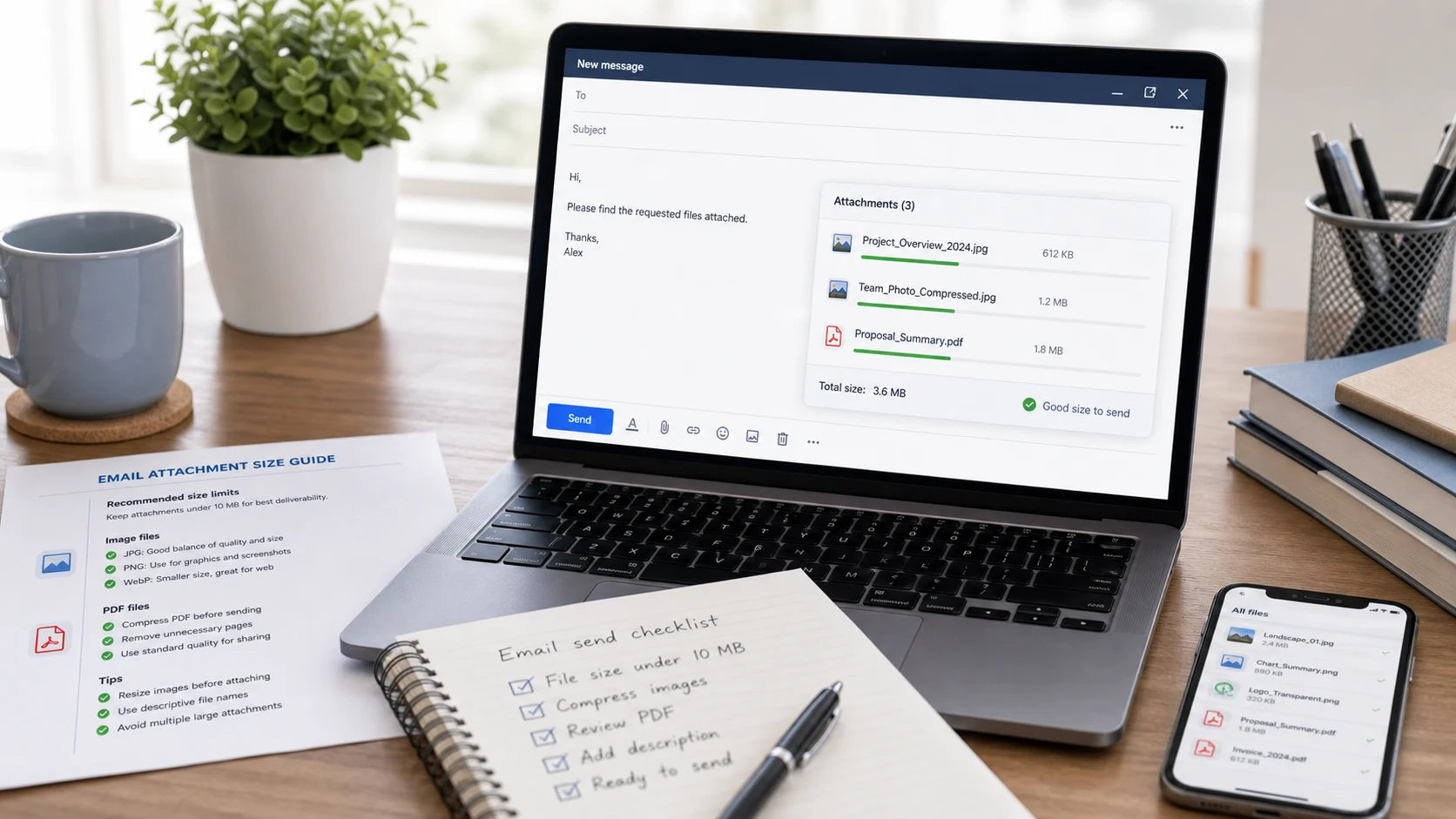
The Gmail attachment size limit is 25 MB per email for personal accounts. If your attachments add up to more, Gmail removes them and inserts a Google Drive link instead. Outlook.com and Yahoo Mail also cap attachments at 25 MB, while iCloud Mail allows 20 MB per message. To send more, share a cloud link or compress the files.
Below are the current limits for each provider, checked against their own help pages in October 2026, plus the reasons a file under the limit can still fail and the practical ways around it.
What is the Gmail attachment size limit?
For a personal Gmail account, the limit is 25 MB, and it applies to the total of all attachments in one message. Two 13 MB files add up to 26 MB and won't go as attachments. Google states this on its Gmail attachment help page.
When you go over, Gmail doesn't simply refuse. It removes the attachment and adds it to the email as a Google Drive link. The file then sits in your Drive, and the recipient needs permission to open it.
Work and school accounts are different. On Google Workspace, the administrator sets both the sending and the receiving limits, so your company's cap may be lower or higher than 25 MB. If you're not sure, ask your IT team or test with a large file.
Email attachment size limits for Outlook, Yahoo and iCloud
Each provider sets its own email attachment size limit, and the numbers differ more than people expect.
Outlook max attachment size
- Outlook.com (web): 25 MB for attached files, or up to 2 GB when you attach a file from OneDrive, which is shared as a link. Source: Sending limits in Outlook.com.
- Classic Outlook desktop app: 20 MB for internet email accounts such as Outlook.com or Gmail, and a default of 10 MB for Exchange business accounts. That figure covers the message and its attachments together, and an admin can change the Exchange limit. Source: Microsoft Support.
Yahoo Mail attachment size limit
All attached files in one Yahoo message must add up to no more than 25 MB, for both incoming and outgoing mail. Source: Yahoo Help.
iCloud Mail
Messages can be up to 20 MB incoming or outgoing. With Mail Drop turned on, you can send attachments up to 5 GB, delivered as a download link. Source: iCloud Mail limits.
The limit that matters is the lowest one along the way. If you send 22 MB from Gmail to someone whose company server accepts only 10 MB, the message bounces, even though Gmail sent it without complaint.
Why is my file too big when it's under the max email attachment size?
A few reasons come up again and again:
- The limit covers the whole message, so several files count together.
- Email encodes attachments as text for sending, which makes them roughly a third larger in transit. A file just under the limit on your disk can come out over it.
- The recipient's server has a lower limit, so the message is rejected on their end and you get a bounce notice.
- Your account is managed by a school or employer that set a smaller cap.
- Your computer and the mail service count megabytes differently. The guide on how many MB are in a GB explains why 1,000 and 1,024 both get used.
Leave yourself a margin. Because of that encoding overhead, a file needs to be under roughly 18 MB on your disk to fit a 25 MB cap. If you don't know what the recipient's server accepts, aim for about 10 MB, since classic Outlook's default for Exchange accounts is 10 MB. Anything bigger is a candidate for shrinking or a link.
How to send large files through Gmail with Google Drive
Gmail can attach a Drive file as a link, and the recipient downloads it from Drive. Google's steps for sending Drive attachments on a computer:
- Open Gmail and click Compose.
- At the bottom of the message, click Insert files using Drive.
- Select the files. Upload them to Drive first if they aren't there yet.
- Choose Drive link, then click Insert.
- When you send, Gmail checks whether recipients can open the file. If they can't, it asks you to change the sharing settings.
Pick the narrowest sharing option that works. Sharing with the specific recipients is safer than "Anyone with the link", especially for anything personal.
Outlook.com does the same with OneDrive, and iCloud Mail does it with Mail Drop. According to Apple's Mail Drop page, each Mail Drop attachment stays available for 30 days, and you can have up to 1 TB of Mail Drop attachments at a time. After 30 days the link stops working, so tell the recipient to download it soon.
How to compress a PDF or photos to fit an email limit
Scanned PDFs are the usual offenders. A few pages scanned at high resolution in color can easily pass 20 MB.
- Open the PDF compressor and add the file. It runs in your browser, so the document isn't uploaded.
- Choose a target size. For email, 5 MB or less keeps you clear of every limit above, and it's kinder to people reading on a phone.
- Download the result and read the smallest text on each page.
The compressor turns pages into images, so text in the output can't be selected and form fields aren't kept. That suits scans, receipts and signed letters. For a fillable form, send the original through a Drive or OneDrive link instead. The guide on how to compress PDF files lists other ways to shrink a PDF, like deleting pages you don't need.
Photos are the other big one. A modern phone photo can be several megabytes, so a handful fills a 25 MB message fast.
- If the photos are HEIC from an iPhone, convert them to JPG first so every recipient can open them.
- Run them through the Image Compressor, which also accepts HEIC. A few hundred KB per photo still looks good on screen.
- Attach the compressed copies and keep the originals.
For more than a dozen photos, a shared album or Drive folder is usually easier for the recipient than a string of emails.
Should you zip files before emailing them?
Zipping bundles many files into one attachment, which is tidy. It does little for size when the files are photos or PDFs, because those are already compressed. Zip helps more with Word documents, spreadsheets and plain text.
Some mail systems block or quarantine ZIP files, especially password protected ones, because they can't scan what's inside. If your email doesn't arrive, a cloud link is the more reliable choice. For a fuller checklist on sending work files to clients, see the guide to sending large files.
Free tools that run in your browser
Frequently asked questions
What is the Gmail attachment size limit?
Personal Gmail accounts can attach up to 25 MB per email. Anything bigger is automatically added as a Google Drive link. Work and school accounts follow limits set by their administrator.
What is the Outlook max attachment size?
Outlook.com allows 25 MB for attached files and up to 2 GB for files shared from OneDrive. The classic Outlook desktop app uses 20 MB for internet accounts and a default of 10 MB for Exchange accounts.
What is the Yahoo Mail attachment size limit?
Yahoo Mail allows up to 25 MB of attachments in total per message, for both sent and received mail.
What is the max email attachment size I can safely send?
Most major providers accept 20 to 25 MB, but the recipient's server may accept less. Keeping attachments under about 10 MB, or sending a cloud link, avoids most bounces.
How can I email a file larger than 25 MB?
Upload it to Google Drive, OneDrive or iCloud and send a link, or use Mail Drop on Apple devices. If it's a scanned PDF or photos, compressing them often brings them under the limit.
Why did my email bounce even though Gmail sent it?
The recipient's mail server may have a smaller size limit than Gmail. Attachments also grow during sending because of encoding, so leave a margin below the limit.