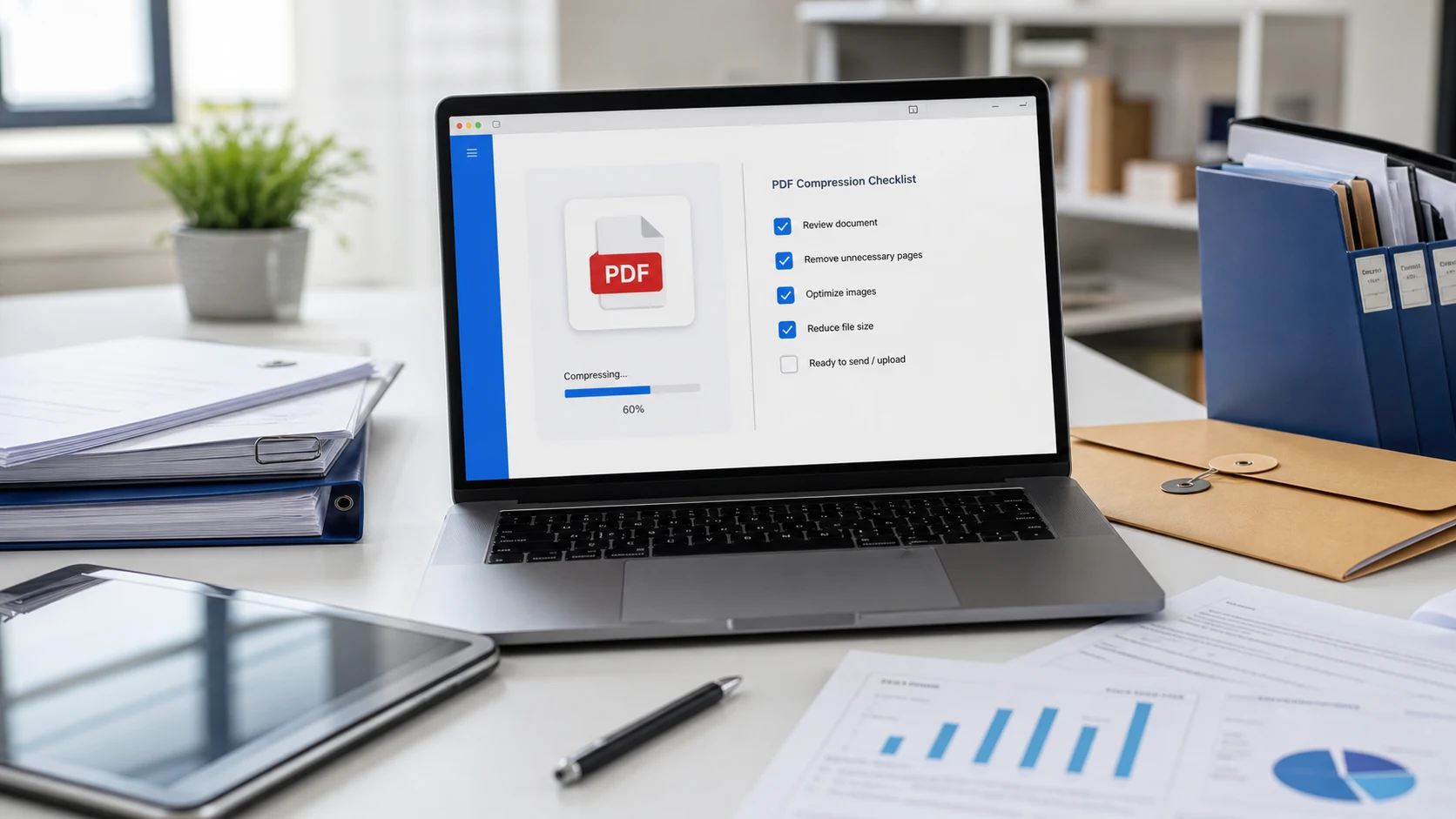
To compress PDF files, run them through a PDF compressor and pick a target size or lower image quality. On a Mac, Preview does it with File > Export and the Reduce File Size filter. On an iPhone, the Files app has an Optimize File Size quick action. For an exact limit like 200 KB, use a target size compressor.
Below are six ways to reduce PDF file size, starting with the quickest, and what each one costs you in quality. If you only want the short version, pick by situation:
- A portal or form gives a hard limit: method 1, a target size compressor.
- You're on a Mac or iPhone and just want it smaller: methods 2 and 3.
- You still have the Word file or the scanner app: method 4, export it smaller.
- The file is a stack of scans: methods 5 and 6, then compress.
Why is my PDF so large?
Text barely adds weight to a PDF. Images do. A ten page report typed in Word might be a few hundred kilobytes, while the same pages scanned on a phone can run to several megabytes. The usual culprits:
- Scanned pages saved at high resolution, or in full color when black and white would do.
- Photos pasted into a document straight from a camera, at their original size.
- Embedded fonts, especially several different fonts in one file.
- Extra pages nobody needs, like blank scanner pages or duplicate copies.
Knowing which applies tells you which method will help most. A text only PDF won't shrink much whatever you do, because there's little to remove. A file of phone scans usually shrinks a lot.
To check the starting size, right-click the file and choose Properties on Windows, or select it and press Command-I on a Mac. Remember that sites don't always count megabytes the same way. The guide on how many KB are in a MB explains why a 1 MB limit can reject a file your computer calls 1 MB.
1. How to compress PDF files in your browser to a target size
This is the most predictable option when a form or portal gives you a hard limit, and it works the same on Windows, Mac, Chromebook, Android or iPhone.
- Open Compress PDF.
- Add your file. It's processed on your device and isn't uploaded.
- Choose a target size (presets run from 50 KB to 2 MB, or type your own), or switch to manual and set quality, DPI and grayscale yourself.
- Download the result and open it to check that the pages are still readable.
Know the trade-off before you use it. The tool rebuilds each page as an image, so text in the output can't be selected or searched, and fillable form fields and digital signatures aren't kept. For an upload portal that only needs a readable copy, that's fine. For a contract you still need to sign, use a different method. If the tool can't make your file smaller, it keeps the original instead of handing you a bigger one.
Windows has no built-in PDF compressor, so this browser route is the simplest free option on a PC. It runs in Edge or Chrome with nothing to install.
2. Reduce PDF size on Mac with Preview
Open the PDF in Preview, choose File > Export, pick Reduce File Size from the Quartz Filter menu, and save under a new name. Apple describes the steps in its guide to reducing the size of a PDF.
The filter is aggressive on images and can make scans blurry, though text stays selectable. The same Export dialog also offers gentler options, such as optimizing images for screen and saving images as JPEG. Try those first and fall back to the filter if the file is still too big. The full Mac walkthrough, with fixes for blurry results, is in the guide on how to compress a PDF on Mac, iPhone and Android.
3. Compress a PDF on iPhone with the Files app
In the Files app, touch and hold the PDF, tap Quick Actions, then tap Optimize File Size. The smaller version can replace the original in the same folder, so duplicate the file first if you want to keep the full quality copy.
You can't pick a target size this way. If a site needs the file under a specific number, open a target size compressor in Safari instead and pick the PDF from Files. The device guide linked above covers both routes step by step.
4. Export a smaller PDF from Word or your scanner app
Often the best way to reduce the size of a PDF is to create a smaller file in the first place.
- In Word for Windows, choose File > Save As, pick PDF, and select Minimum size (publishing online) instead of Standard. Images get downsampled during export.
- In a scanner app, scan documents in grayscale or black and white unless color matters. Color scans of text pages waste a lot of space.
- Lower the scan resolution. Around 300 DPI is plenty for documents. Going higher rarely helps an upload portal and makes files much bigger.
If you still have the source document, re-exporting usually beats compressing an existing PDF, because text stays as real text. It stays sharp at any zoom and can still be searched and copied.
5. Remove pages you don't need
Cutting pages is the only way to shrink a file with zero quality loss. Scanned packets often carry blank backs of pages, cover sheets, or a whole appendix the recipient never asked for.
- Open the file in Split PDF.
- Keep only the page ranges you need.
- Download the shorter file, then compress it if it's still too large.
Ask whether the recipient needs everything. An application portal often only wants the page with your name, date and signature, and a one page PDF is easy to fit under even tight limits.
6. Switch to grayscale for scanned documents
A color scan of a printed form stores three color channels for what is basically black ink on white paper. Converting it to grayscale cuts that data down, and the page looks the same to whoever reads it. Most compressors, including the manual mode in Compress PDF, have a grayscale switch. Skip it for documents where color carries meaning, like charts, stamps or ID photos.
A good order to try things in: delete unwanted pages, re-export from the source if you can, then compress with the lightest setting that gets you under the limit. Check the result at full zoom before you send it, since small text is the first thing to blur. If you're shrinking the file to fit an email, the email attachment size limits for Gmail, Outlook and Yahoo tell you what to aim for.
Free tools that run in your browser
Frequently asked questions
How do I reduce the size of a PDF for free?
Use a free compressor that lets you choose a target size, such as ConvertorLab Compress PDF, which runs in your browser. On a Mac, Preview's Reduce File Size filter is also free.
Why is my PDF so large?
Usually because it contains scanned pages or photos at high resolution, often in full color. Text adds very little, so image heavy PDFs are the ones that grow to several megabytes.
Will compressing a PDF make it blurry?
It can. Compression mostly lowers image quality, so scans and photos lose detail first. Check small text at full zoom before you send the file.
How do I compress a PDF on Windows without software?
Windows has no built-in PDF compressor. A browser-based tool works in Edge or Chrome and doesn't need an install.
Can I reduce PDF file size without losing text quality?
Re-exporting from the original document with a smaller image setting keeps text sharp. Removing unneeded pages also shrinks the file with no quality loss.
Why didn't my PDF get any smaller?
PDFs that are mostly text are already small, so there's little to remove. Big savings come from files full of scans or photos.