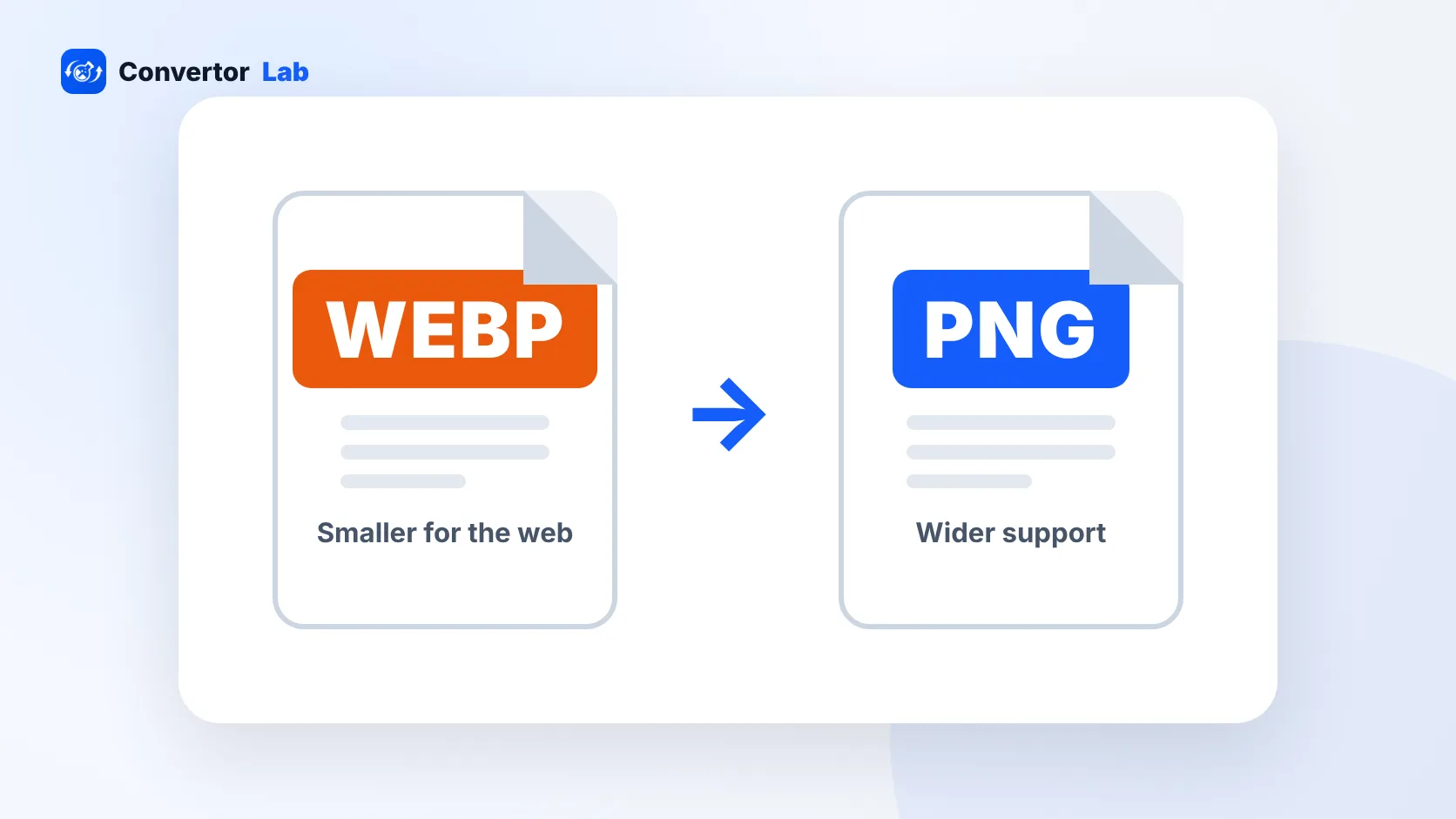
A WebP file is an image in a format Google announced in 2010 to make web pictures smaller. It can be lossy like JPG or lossless like PNG, and it supports transparency and animation. Every current major browser shows WebP, which is why so many websites now serve their images this way. The catch is that some older apps, editors and upload forms still don't accept it, so you may need to convert a WebP file to JPG or PNG.
This guide explains what's inside a WebP file, how it compares with PNG and JPG, how to open one on your computer, and when converting makes sense.
What is a WebP file used for?
WebP exists mainly to speed up websites. Smaller image files mean pages load faster and use less mobile data, so site owners and image services convert their pictures to WebP before sending them to your browser.
That explains a common surprise. You right-click a photo on a shopping site or Google Images, choose Save image as, and get a .webp file even though the original was a JPG. The site sent you the WebP version because your browser supports it.
One format covers jobs that used to need three:
- Lossy WebP for photos, the job JPG usually does.
- Lossless WebP for graphics, screenshots and logos, the job PNG usually does.
- Animated WebP for short loops, the job GIF usually does.
Transparency works in both lossy and lossless WebP, which JPG can't offer at all.
WebP vs PNG: which is better?
For a website, WebP usually wins on file size. Google's own figures on its WebP developer page say lossless WebP images are 26% smaller than PNGs. Lossy WebP with transparency can be far smaller again, which helps with product photos cut out on a clear background.
PNG still has its place:
- It opens in practically every app, including old versions of Office, design tools and printing software.
- Most upload forms accept it without question.
- It's a safe archive format for screenshots and graphics you'll edit again later.
So use WebP for images you publish on your own site, and PNG for files you send to other people or keep as editable masters. If you run a website, the guide to WebP for websites goes deeper on picking a format per image.
WebP vs JPG for photos
For photos the comparison is with JPG, not PNG. Google reports that lossy WebP files are 25 to 34% smaller than comparable JPGs at equal measured quality. In practice, you can often cut a photo's size noticeably with no difference you'd spot on screen.
JPG's advantage is the same as PNG's: it works everywhere. Cameras, phones, printers, email clients and every online form handle it. If a photo is leaving your control, JPG is the safer choice.
How to open a WebP file on Windows or Mac
The quickest viewer is the browser you already have. Drag the WebP file into a Chrome, Edge, Firefox or Safari window and it will display. Safari has supported WebP since version 14.
On Windows, Paint can open a WebP image and save a copy in another format:
- Right-click the WebP file and choose Open with, then Paint.
- Choose File > Save as.
- Pick JPEG picture or PNG picture.
- Name the file and click Save.
On a Mac, Preview does the same job:
- Open the WebP file in Preview.
- Choose File > Export.
- Set Format to JPEG or PNG.
- Click Save.
Avoid the trick of opening the image in a browser and taking a screenshot. It captures the image at screen size, drops transparency and can blur fine detail.
How to convert WebP to JPG or PNG online
When you have a batch of files, or you're on a computer where Paint or Preview isn't handy, a browser converter is faster. The WebP to PNG/JPG converter converts files in your browser, so nothing is uploaded.
- Open the converter and drop in one or more WebP files.
- Choose PNG to keep transparency, or JPG for photos and smaller files.
- Convert and download the results.
A quick rule for the output format: if the image has a see-through background, pick PNG, because JPG fills transparent areas with a solid color. If it's a photo going to a form or an email, pick JPG. The step-by-step guide to saving WebP as JPG or PNG covers animated files and other edge cases.
How to make a WebP file from PNG or JPG
Going the other way is useful if you run a blog or an online store. Convert your PNG and JPG images with the image to WebP converter, then upload the WebP versions to your site.
Check a few things first:
- Your website platform or theme accepts WebP uploads. Most current ones do, but older plugins sometimes don't.
- Keep the original PNG or JPG. It's easier to re-export from the source than to convert a WebP back again.
- Look at logos and text-heavy graphics after converting. If edges look soft at a lossy setting, use lossless instead.
Is a WebP file safe to open?
Yes, a WebP file is an ordinary image, like a JPG or PNG. Keep your browser and operating system updated, as you would for any download. Be wary of anything that claims to be an image but ends in a different extension, such as .exe. On Windows, turn on file name extensions in File Explorer's View menu so you can see the real ending.
If you just want the picture in a format your other apps understand, converting is the simplest route. It also gives you a copy that works on older devices.
Free tools that run in your browser
Frequently asked questions
Why do images save as WebP when I download them?
The website serves WebP to browsers that support it because the files are smaller. Your browser saves the version it received, not the site's original JPG or PNG.
Is WebP better than PNG?
For publishing on a website, usually yes, since lossless WebP files are smaller than PNGs. For sharing, editing or uploading to forms, PNG is more widely accepted.
Can I rename a .webp file to .jpg?
No. Renaming doesn't change the data, so many apps will still reject it or show an error. Convert it with Paint, Preview or a WebP converter instead.
Does WebP support transparency?
Yes. Both lossy and lossless WebP support a transparent background. Convert to PNG, not JPG, if you need to keep it.