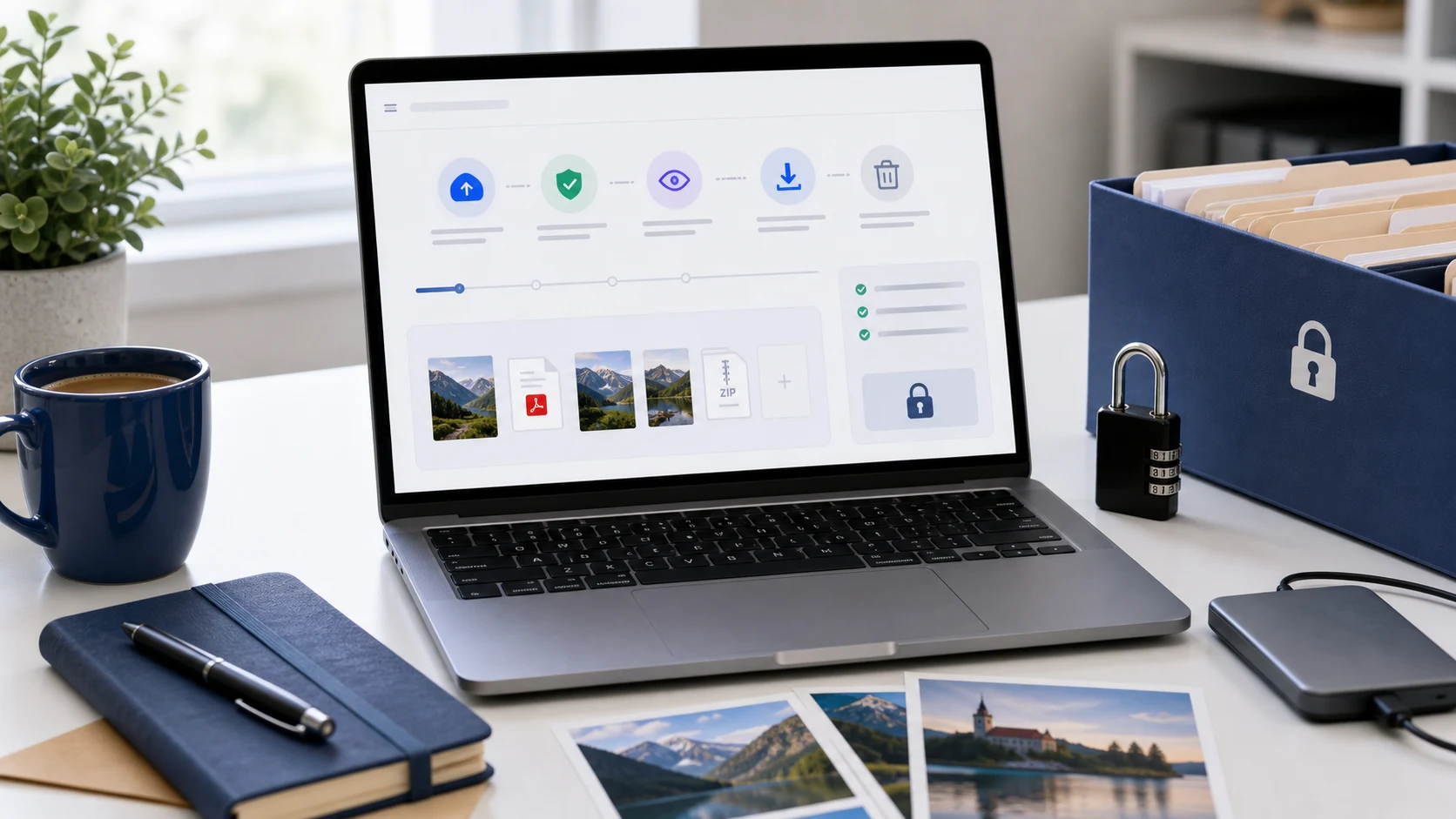
To send a secure email, use your provider's protection feature: confidential mode in Gmail, or Encrypt in Outlook with a Microsoft 365 subscription. For sensitive documents, also lock the PDF with a password and send that password by text or phone. Send only the pages needed, and watermark ID copies with the recipient's name.
How secure is a normal email?
Regular email is protected in transit between most big providers, but the message itself sits readable in both inboxes. Anyone who gets into either account, or receives a forwarded copy, can open the attachment. That's the gap the steps below close.
Think of it in layers. The email feature controls who can open the message and for how long. A password on the PDF protects the file wherever it ends up. Sending less, and marking what you send, limits the damage if something leaks anyway.
Use at least one layer for passport and ID scans, bank statements, tax forms, salary slips, contracts and medical letters. For a lunch menu or a public flyer, plain email is fine. The extra steps only take a few minutes, so it's worth doing them whenever a file would be a problem in the wrong hands.
How to send a secure email in Gmail (confidential mode)
Gmail's confidential mode lets you set an expiration date, revoke access later, and require an SMS passcode. It also turns off the options for recipients to forward, copy, print or download the message and its attachments.
- On a computer, open Gmail and click Compose.
- At the bottom of the compose window, click the confidential mode icon.
- Set an expiration date.
- Choose whether the recipient needs an SMS passcode. If you pick it, you'll enter their phone number.
- Confirm the settings, then write your message and send.
Google is clear about the limits. Recipients can still take screenshots or photos of the message, and malicious software on their device may still copy it. Confidential mode stops casual forwarding. It isn't a substitute for a password on the file itself.
How to send an encrypted email in Outlook
In Outlook.com and the Outlook apps, encryption is included with a Microsoft 365 Personal or Family subscription. Business accounts may have it through their organisation.
- Create a new message.
- Open the Options tab.
- Select Encrypt.
- Choose Encrypt to keep the message encrypted, or Do Not Forward to also stop it being copied or forwarded.
Recipients using Outlook.com or Microsoft 365 read the message as normal. People on other email services get a message with instructions, then sign in with their own account or a one-time passcode to read it. Microsoft's page on encrypted messages in Outlook.com has the details.
No subscription? Use the password-protected PDF method below. It works with any email service, including Yahoo, iCloud and work mail.
How to send documents securely with a password-protected PDF
A password protects the file itself. It still works if the email is forwarded, saved on a shared computer or sitting in a hacked inbox.
- Combine the pages into one PDF. A merge tool puts several scans in order.
- Open Lock PDF and add the file.
- Set a long password that isn't obvious. A short phrase of unrelated words works well.
- Download the locked copy. It uses AES-256 encryption and is created in your browser, so the document isn't uploaded.
- Email the PDF, then send the password another way, such as a text message or a call.
Never put the password in the same email. If that email is forwarded, the password travels with it. Agree on one approach with people you send to often, so they aren't hunting for a new password every time.
One catch: many upload portals can't open encrypted PDFs and will reject them. If the document goes into a government, bank or job portal, skip the password and rely on the next steps.
How to send sensitive documents via email: what to prepare first
Most leaks come from sending too much, not from weak encryption. A few minutes of prep makes any copy far less useful to the wrong person.
Send only what's needed
Check exactly what was asked for. A landlord who wants proof of income may accept one payslip instead of a year of statements. For a bank statement, ask whether the first page will do. Use Split PDF to pull out just those pages.
If a request arrives by an unexpected email or text, confirm it by phone using a number you already have. Fake document requests are a common scam.
Be careful with redaction. Drawing a black box over text in some PDF apps only hides it, and the text underneath can still be copied. Try selecting the text in the result to check.
Watermark ID copies
A copy of your passport marked "For Oakview Lettings rental application only, October 2026" is hard to reuse elsewhere, and it shows where a leak came from.
- Scan or photograph the document clearly.
- Open the Add Watermark tool and type the recipient, purpose and date.
- Use the tiled option so the text covers the whole page, including the photo and ID number, while staying readable.
- Make a fresh copy for each recipient.
Remove hidden metadata
Files carry information you can't see. Photos can include GPS location. Office files and PDFs can hold the author's name, comments and edit history.
- iPhone photos: in the Share sheet, tap Options and turn off Location. Apple's personal safety guide explains this.
- Windows files: right-click, choose Properties, open the Details tab and click Remove Properties and Personal Information.
- Word, Excel and PowerPoint: File > Info > Check for Issues > Inspect Document finds comments, hidden text and personal details.
How to securely share files that are too big for email
For large files, a cloud link is often safer than an attachment, because you control access after sending. In Google Drive, OneDrive or iCloud:
- Share with the recipient's email address, not "anyone with the link".
- Give view access only.
- Remove access once the recipient has downloaded the file.
- Lock the PDF before uploading, so the file stays protected if the link spreads.
Keep file sizes sensible too. A scanned PDF can be compressed with the PDF compressor, which runs in your browser. It rebuilds pages as images, so do this before adding the password and don't use it on forms that need filling in.
Prepare files with tools that run on your device, not an unknown upload site. Our comparison of CloudConvert, iLovePDF and Smallpdf explains how to check where a converter sends your file. And if someone sends you a document you didn't expect, read whether a PDF can have a virus before opening it.
Afterwards, delete working copies from your Downloads folder and any shared folders, and keep one original in a safe place.
Free tools that run in your browser
Frequently asked questions
How do I send a secure email in Gmail?
Click Compose, then the confidential mode icon at the bottom of the window. Set an expiration date and, if you want, an SMS passcode, then send.
Is Gmail confidential mode encrypted?
It blocks forwarding, copying, printing and downloading and can expire, but Google notes recipients can still take screenshots. For a sensitive file, also add a password to the PDF.
How do I send sensitive documents via email without a paid plan?
Lock the PDF with a password, email it, and send the password by text or phone. This works with any email service.
How do I encrypt an email in Outlook?
With a Microsoft 365 Personal or Family subscription, create a message, open the Options tab and select Encrypt. Choose Encrypt or Do Not Forward.
What is the safest way to send documents securely?
Send only the pages needed, watermark ID copies, lock the PDF with a password and share the password separately. Use your email's confidential or encryption feature on top.
How do I securely share files that are too large for email?
Upload the locked PDF to Google Drive, OneDrive or iCloud and share it with the recipient's email address only, with view access. Remove access once they've downloaded it.